หน้าแรก
» คอมพิวเตอร์
»
How to Fix “Windows 12 Start Menu Not Opening” in a Floating Taskbar Layout
How to Fix “Windows 12 Start Menu Not Opening” in a Floating Taskbar Layout
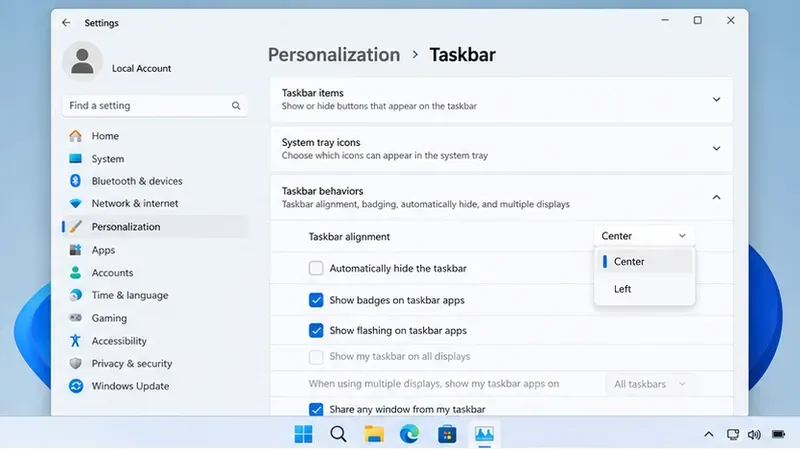
Important verification note (September 14, 2026): Microsoft’s current Windows release-health documentation lists supported Windows 11 releases, including version 26H1; it does not list an official Windows 12 client release. Microsoft also documents the built-in Windows taskbar as bottom-positioned with center or left icon alignment, not as a native floating taskbar. See Microsoft Windows release health and Microsoft’s taskbar customization guide. If your desktop is labeled “Windows 12” or uses a floating taskbar, it may be a concept build, third-party customization, theme, shell replacement, or other configuration that Microsoft has not documented as a standard Windows interface.
That distinction matters because a Start button that suddenly stops opening is often a Windows shell problem rather than a problem with the visual layout itself. The Windows shell is the part of Windows that provides the desktop, taskbar, Start menu, and File Explorer experience. The safest troubleshooting path is to restore the supported shell first, repair Windows components if needed, and only then add the floating-taskbar customization back.
What to know before you change anything
Start with the least disruptive fixes. Save open work, make sure you know your Windows sign-in password, and note any taskbar or Start-menu customization utility you installed. If the computer is managed by an employer or school, do not remove management software or change recovery settings without your administrator’s approval.
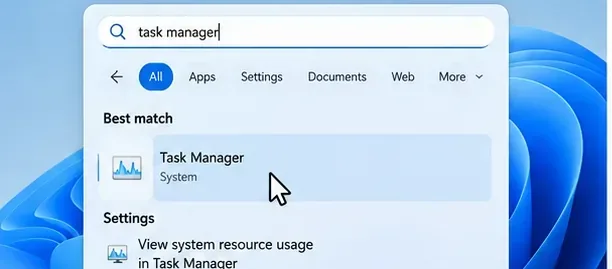
Before troubleshooting, test both ways to open Start: click the Start button and press the Windows logo key on the keyboard. If one method works and the other does not, the problem may be input-related rather than a complete Start-menu failure. If neither works but Ctrl + Shift + Esc opens Task Manager, you can complete most of the steps below without the Start menu.
Symptom
What it suggests
Best first move
Start button and Windows key both fail
Shell process, system component, update, or customization conflict
Restart Windows Explorer
Problem began after enabling a floating taskbar
Customization layer may be interfering with the shell
Return temporarily to the stock taskbar
Start fails after an update or crash
Pending update or damaged system component is possible
Update Windows, then run DISM and SFC if needed
Start still fails after component repair
Windows installation may need a repair reinstall or recovery
Use Windows recovery options
Step 1: Restart Windows Explorer
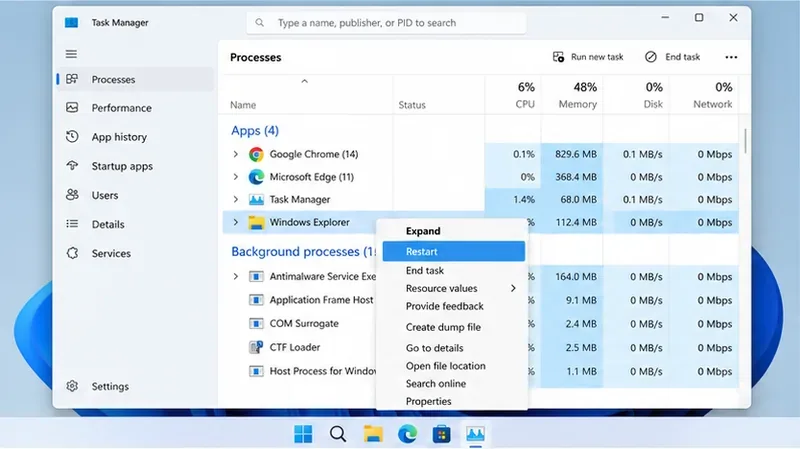
Windows Explorer ไม่ได้เป็นเพียงแค่หน้าต่างสำหรับเรียกดูไฟล์เท่านั้น แต่explorer.exeกระบวนการนี้ยังเป็นที่ตั้งของส่วนสำคัญของเดสก์ท็อปอีกด้วย การรีสตาร์ทนั้นรวดเร็วและไม่ลบไฟล์ของคุณ
ไมโครซอฟต์แนะนำให้รีสตาร์ท Windows Explorer ในกรณีแก้ไขปัญหาที่เกี่ยวข้องกับเชลล์ รวมถึงเมื่อองค์ประกอบบนเดสก์ท็อปไม่ตอบสนอง หากไม่พบ Windows Explorer ในรายการ ให้ใช้ตัวเลือก "เรียกใช้งานงานใหม่" ใน Task Manager โดยป้อนคำสั่งexplorer.exeแล้วกด Enter
โปรดรีสตาร์ท Windows Explorer ก่อน เนื่องจากจะรีเฟรชส่วนติดต่อผู้ใช้บนเดสก์ท็อปโดยไม่ต้องติดตั้ง Windows ใหม่
ขั้นตอนที่ 3: ติดตั้งการอัปเดต Windows และรีสตาร์ทเครื่อง
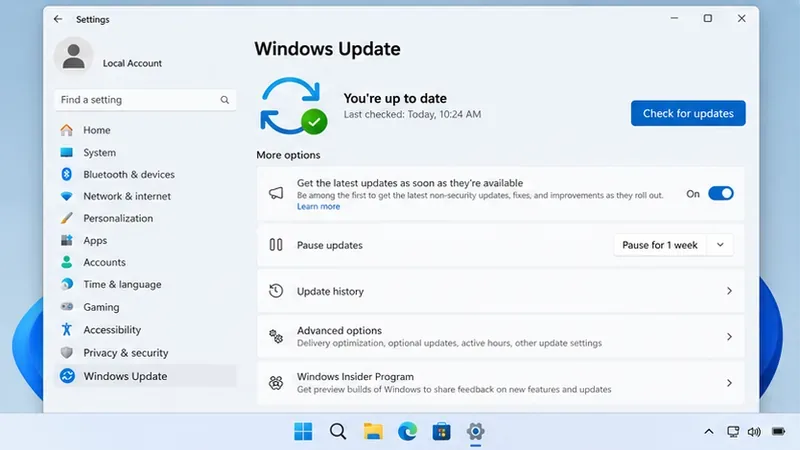
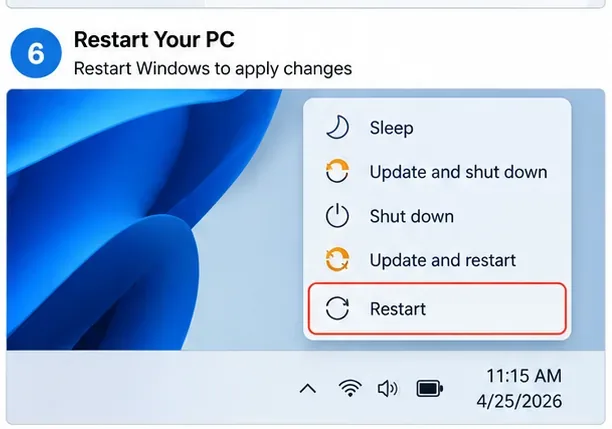
เปิดการตั้งค่า > การอัปเดต Windowsแล้วเลือกตรวจสอบการอัปเดตติดตั้งการอัปเดตคุณภาพและความปลอดภัยที่เกี่ยวข้อง รวมถึงการรีสตาร์ทใดๆ ที่ Windows ร้องขอ หน้าสถานะการเผยแพร่ของ Microsoft ก็เป็นอีกสถานที่ที่เหมาะสมในการตรวจสอบว่าการอัปเดตปัจจุบันมีปัญหาที่ส่งผลกระทบต่อเวอร์ชัน Windows ของคุณหรือไม่
ณ วันที่ทำการวิจัยเพื่อจัดทำคู่มือนี้ หน้าเว็บปัญหาที่พบของ Microsoft สำหรับ Windows 11 เวอร์ชัน 26H1 ไม่ได้ระบุปัญหาเกี่ยวกับเมนู Start หรือแถบงานในตารางปัญหาปัจจุบัน นั่นไม่ได้หมายความว่าปัญหา Start ทุกอย่างเป็นปัญหาเฉพาะที่ แต่หมายความว่าคุณควรหลีกเลี่ยงการสันนิษฐานว่ามีปัญหาเกี่ยวกับเมนู Start ที่ได้รับการยืนยันจาก Microsoft แล้วในวงกว้าง โดยไม่ตรวจสอบหน้าสถานะเวอร์ชันปัจจุบันด้วยตนเองก่อน
ตรวจสอบการอัปเดต Windows ก่อนทำการซ่อมแซมที่ซับซ้อนกว่านี้ เพื่อป้องกันไม่ให้เกิดปัญหาที่ได้รับการแก้ไขแล้วด้วยการอัปเดตล่าสุด
ขั้นตอนที่ 4: ซ่อมแซมที่เก็บส่วนประกอบของ Windows ด้วย DISM
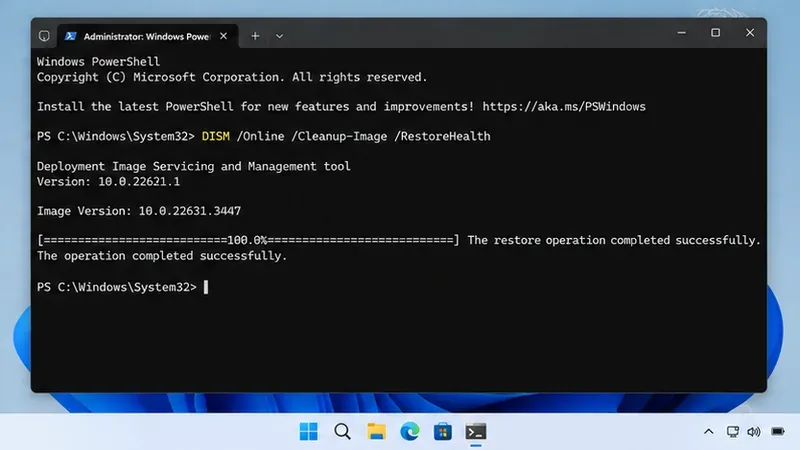
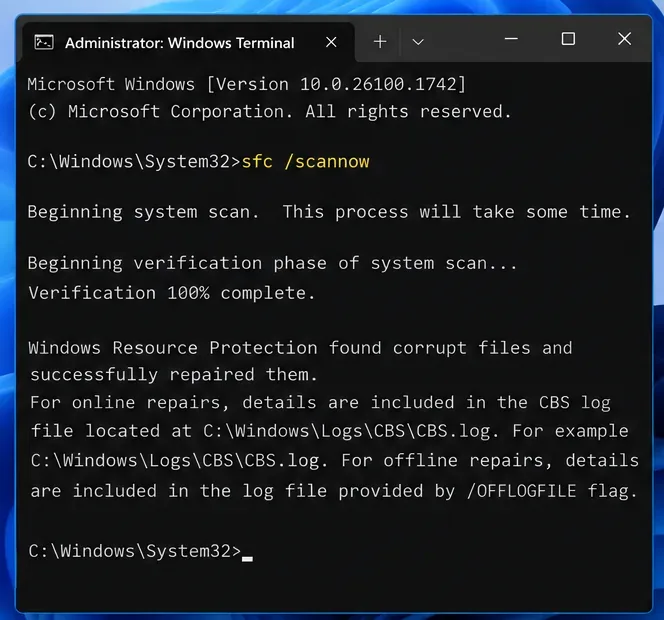
หากยังคงไม่สามารถเปิดเมนู Start ได้ ให้ซ่อมแซมส่วนประกอบระบบ Windows DISMย่อมาจาก Deployment Image Servicing and Management Microsoft แนะนำให้เรียกใช้ DISM ก่อน System File Checker เนื่องจาก DISM สามารถซ่อมแซมอิมเมจ Windows ที่ SFC ใช้เป็นแหล่งข้อมูลได้
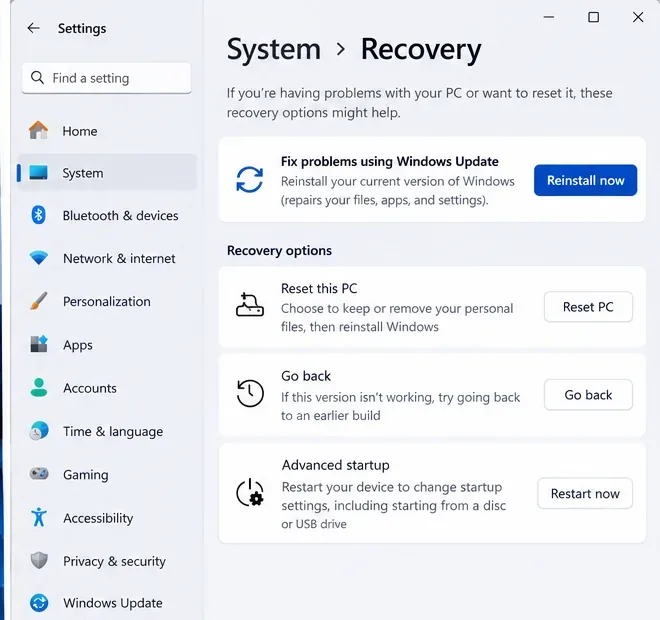
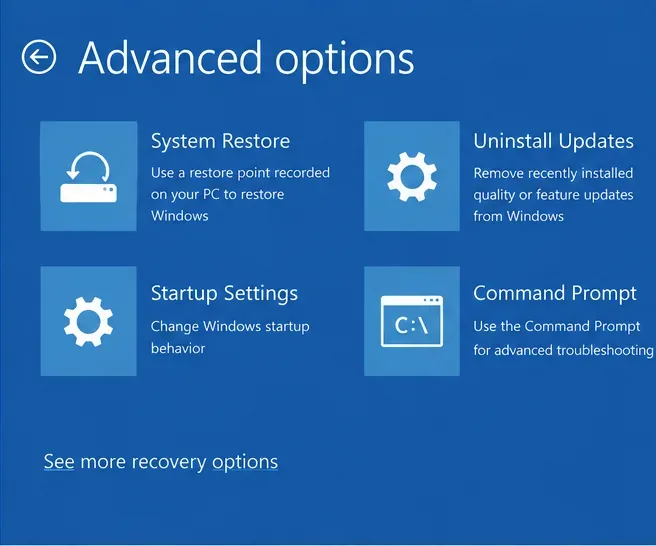
ใน Windows RE การถอนการติดตั้งการอัปเดตสามารถลบการอัปเดต Windows ล่าสุดได้ ในขณะที่การกู้คืนระบบสามารถกู้คืนไฟล์ระบบและการตั้งค่ากลับไปยังจุดกู้คืนโดยไม่เปลี่ยนแปลงไฟล์ส่วนตัวของคุณ การกู้คืนระบบอาจลบแอป ไดรเวอร์ หรือการตั้งค่าที่ติดตั้งหลังจากจุดกู้คืนที่เลือก ดังนั้นโปรดตรวจสอบโปรแกรมที่ได้รับผลกระทบก่อนยืนยัน หากเปิดใช้งาน BitLocker การดำเนินการกู้คืนบางอย่างอาจต้องใช้รหัสการกู้คืน
สมมติว่าแถบงานแบบลอยตัวเป็นคุณสมบัติของ Microsoftโปรดตรวจสอบเวอร์ชัน Windows ที่แท้จริงใน การตั้งค่า > ระบบ > เกี่ยวกับ ก่อนที่จะปฏิบัติตามคำแนะนำเฉพาะเวอร์ชัน
การเรียกใช้สคริปต์ PowerShell ที่ไม่ได้รับการตรวจสอบ ซึ่งทำการลงทะเบียนใหม่หรือแทนที่แพ็กเกจเชลล์คำสั่งแพ็กเกจที่พบในอินเทอร์เน็ตอาจล้าสมัยหรือไม่เหมาะสมกับเวอร์ชัน Windows ของคุณ
การรีเซ็ตพีซีเร็วเกินไปนั้นไม่ดีการรีสตาร์ท Explorer การลบเลเยอร์การปรับแต่ง การอัปเดต Windows การใช้ DISM, SFC และการติดตั้งใหม่แบบซ่อมแซม เป็นจุดเริ่มต้นที่สร้างความเสียหายต่อระบบน้อยกว่า
การข้ามขั้นตอนการสำรองข้อมูลก่อนการกู้คืนอาจทำให้แอปพลิเคชัน การตั้งค่า หรือไฟล์บางส่วนถูกลบไป Microsoft แนะนำให้สำรองข้อมูลสำคัญก่อนทำการรีเซ็ตหรือติดตั้งระบบใหม่