Home
» Computers
»
How to Fix “Windows 12 System Requirements Not Met” TPM 2.0 Error — What’s Actually Verified
How to Fix “Windows 12 System Requirements Not Met” TPM 2.0 Error — What’s Actually Verified
Short answer: if a PC shows a “Windows 12 system requirements not met” message that blames TPM 2.0, verify the source of that message before changing firmware settings. As of September 13, 2026, Microsoft’s public Windows release-health pages identify supported client releases as Windows 11, including versions 26H1, 25H2, and 24H2. Microsoft also documents PC Health Check as a Windows 11 eligibility tool. I could not verify an official Microsoft Windows 12 system-requirements page or an official Microsoft PC Health Check result for Windows 12. See the current Microsoft Windows release health page and Microsoft PC Health Check documentation.
That does not mean you should ignore TPM. TPM 2.0 is a verified Windows 11 requirement, and the same TPM warning can appear in legitimate Windows 11 compatibility checks. The safest approach is to separate the unverified “Windows 12” label from the technical question: does your PC actually have TPM 2.0 enabled and ready?
What is verified, what depends on your PC, and what is not verified?
Claim
Status
What to do
Windows 11 requires TPM 2.0.
Verified by Microsoft.
Use Windows tools to check the TPM specification version before changing anything.
A PC can support TPM 2.0 even when Windows says no compatible TPM is found.
Verified, but device-dependent.
Check UEFI/BIOS for firmware TPM settings such as Intel PTT, AMD fTPM, or Security Device Support.
TPM 2.0 always requires a separate physical TPM module.
False as a general rule.
Look for firmware TPM first; Microsoft explicitly lists Intel PTT and AMD fTPM among possible firmware labels.
Microsoft has published official “Windows 12” TPM requirements.
Not verified in Microsoft’s current public documentation as of September 13, 2026.
Treat a Windows 12-branded checker or setup screen as unverified unless you can trace it to an official Microsoft source.
Microsoft’s current Windows 11 system requirements list TPM 2.0 separately from UEFI and Secure Boot capability. That distinction matters: fixing TPM does not automatically fix every other compatibility requirement.
Before you change UEFI or TPM settings, protect access to encrypted data
A common mistake is to jump directly into firmware settings, clear the TPM, or update TPM firmware. That can create a BitLocker recovery prompt. Microsoft documents that changing, disabling, or clearing the TPM, as well as some UEFI/BIOS changes, can cause BitLocker to require its recovery key. Review Microsoft’s BitLocker FAQ before making firmware changes.
Action: make sure you know whether BitLocker or Device Encryption is enabled and that you can access the recovery key. On a work-managed PC, contact your IT administrator before changing TPM, Secure Boot, or boot-mode settings. Do not use “Clear TPM” as a routine first fix.
Step 1: Check TPM with tpm.msc
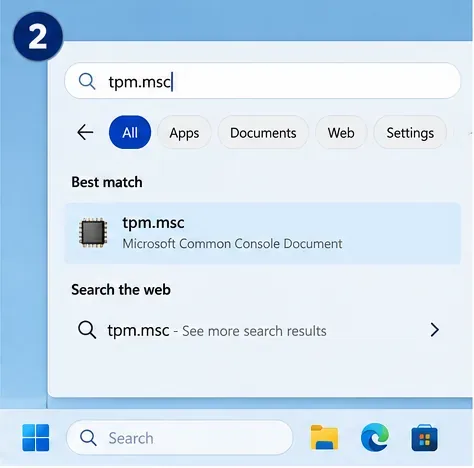
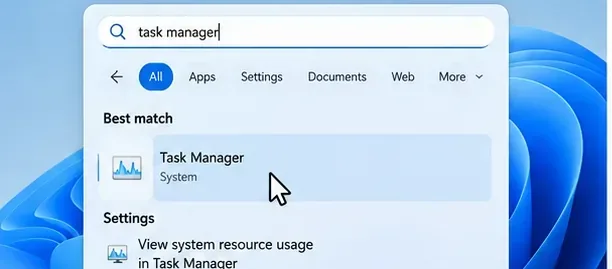
Press Windows + R, type tpm.msc, and press Enter. Microsoft specifically recommends this console as one of the ways to determine whether TPM is present and whether the specification version is 2.0.
Open the built-in TPM management console by searching for tpm.msc. This check does not depend on any Windows 12-branded utility.
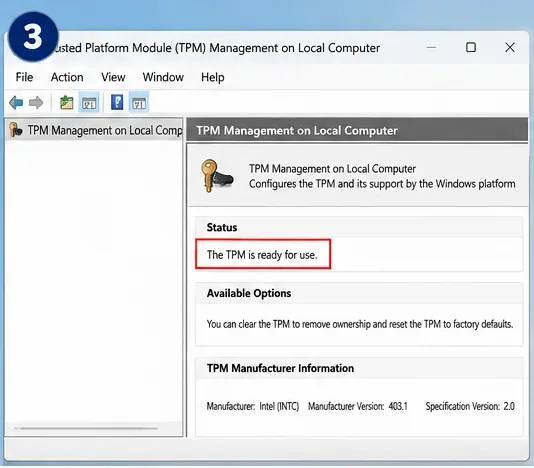
Look for two items in the TPM Management window: the status should say that the TPM is ready for use, and Specification Version should be 2.0. Microsoft’s Enable TPM 2.0 support page documents the same test.
Action: if TPM is ready and the specification version is 2.0, stop trying to “enable TPM” again. Your TPM 2.0 requirement is already satisfied, so the remaining problem is likely a stale compatibility result, a different system requirement, or an unverified checker.
Step 2: Interpret the TPM result before touching UEFI
A healthy TPM check shows “The TPM is ready for use” and Specification Version 2.0 in the TPM Management console.
What you see
Likely meaning
Next action
“The TPM is ready for use” and Specification Version 2.0
TPM 2.0 is working.
Skip firmware changes and go to Step 4.
“Compatible TPM cannot be found”
The TPM may be disabled in firmware, or the hardware may not provide a compatible TPM.
Check the manufacturer’s UEFI/BIOS instructions.
Specification Version 1.2
The TPM does not meet the verified Windows 11 TPM 2.0 requirement.
Check the exact PC or motherboard model for a manufacturer-supported TPM 2.0 firmware path. Do not assume a generic conversion is possible.
No Security processor section in Windows Security
Microsoft says the system may lack TPM hardware or TPM may be disabled in UEFI.
Check firmware support before buying hardware or changing unrelated settings.
One subtle point: firmware TPM is still TPM. Microsoft lists labels including Intel PTT, Intel Platform Trust Technology, AMD fTPM, AMD PSP fTPM, Security Device, and Security Device Support. A discrete add-in TPM module is not automatically required.
Action: write down the exact message from tpm.msc. That result determines whether you should enter UEFI at all.
Step 3: Enable TPM in UEFI only if it is disabled
If Windows cannot find a compatible TPM but your PC or motherboard documentation says TPM 2.0 is supported, enter the system firmware settings. You can use your manufacturer’s boot key or Windows Recovery Environment and its UEFI Firmware Settings option where available. Menu names vary by manufacturer and model, so there is no single universal click path inside UEFI.
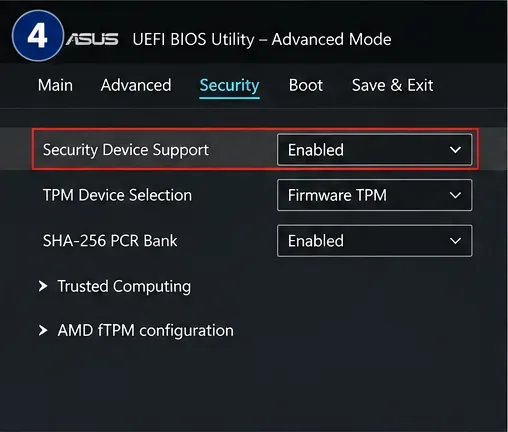
Example UEFI TPM controls. ASUS documentation uses Security Device Support and Trusted Computing on supported systems; other manufacturers may use Intel PTT, AMD fTPM, or different menu locations.
The firmware example above is consistent with ASUS documentation for supported systems: ASUS describes an Advanced > Trusted Computing path with Security Device Support set to Enable on relevant models. See the official ASUS TPM support instructions. Your PC may look different, so use the support page for your exact model rather than copying another vendor’s menu blindly.
Action: enable the supported firmware TPM option, save changes, and restart. Do not select options that clear, erase, reset, or initialize the TPM unless a verified troubleshooting instruction specifically requires that action and your recovery material is safely backed up.
Step 4: Verify TPM in Windows Security and rerun the official check
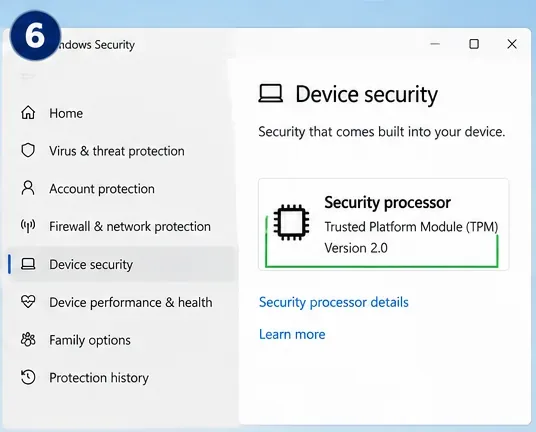
After restarting, open Windows Security > Device security > Security processor details. Microsoft says this page shows the security processor manufacturer, status, and version information. If the Security processor section is missing, Microsoft advises checking whether TPM is disabled in UEFI or whether the device supports it.
Use Windows Security to confirm that the security processor is visible after restarting and that TPM 2.0 is available.
Next, use the official PC Health Check app if you are assessing Windows 11 eligibility. Microsoft notes that after hardware or firmware changes, Windows Update eligibility information can take up to 24 hours to refresh. PC Health Check is the faster way to perform a fresh compatibility assessment.
Action: if TPM 2.0 is now visible but a compatibility warning remains, record the other failed requirement instead of changing TPM again.
If TPM 2.0 is enabled but “system requirements not met” still appears
The compatibility result may be stale
This is verified behavior for Windows 11 eligibility reporting after hardware changes. Microsoft says Windows Update can take up to 24 hours to refresh eligibility. A mismatch between PC Health Check and Windows Update therefore does not automatically mean TPM is broken.
Action: rerun PC Health Check, restart the PC, install current Windows updates, and give Windows Update time to refresh.
Secure Boot is a separate requirement
TPM 2.0 and Secure Boot are related to platform security, but they are not the same requirement. Microsoft lists both in the Windows 11 minimum requirements. A machine can have TPM 2.0 enabled and still fail because it is booting in Legacy BIOS mode, lacks Secure Boot capability, or has another requirement problem.
Action: open msinfo32 and check BIOS Mode and Secure Boot State. Do not change Legacy/UEFI boot mode blindly, because an incorrectly converted system disk can leave Windows unable to boot.
Legacy BIOS and an MBR system disk require a different fix
If Secure Boot is the remaining blocker, the system may need to boot in UEFI mode. Microsoft provides MBR2GPT for eligible Windows system disks that need conversion from MBR to GPT without deleting data, but the tool has prerequisites and the firmware must be switched to UEFI after conversion. This is a Secure Boot/boot-mode issue, not a direct TPM fix.
Action: validate the disk with Microsoft’s documented MBR2GPT procedure and back up important data before making partition or boot-mode changes.
The CPU or another requirement may be the real blocker
Windows 11 eligibility also checks the processor, memory, storage, graphics capability, firmware, and display requirements. A successful TPM 2.0 check does not override an unsupported CPU or another failed requirement.
Action: use PC Health Check’s detailed eligibility result and address the exact failed item instead of searching for another TPM workaround.
Common TPM 2.0 misconceptions to avoid
“I need to buy a physical TPM chip.”
Often false. Modern systems can expose TPM 2.0 through processor- or firmware-based implementations such as Intel PTT or AMD fTPM. Microsoft explicitly lists these labels in its TPM enablement guidance.
Action: check the manufacturer’s firmware documentation before buying a TPM module.
“Clearing the TPM is the normal way to fix a missing TPM.”
No. Clearing TPM is a reset operation, not the standard enablement step. Microsoft warns users to back up data before clearing the TPM, and BitLocker can enter recovery after TPM changes.
Action: enable a disabled TPM first. Only clear it when a specific, trusted troubleshooting path calls for it.
“If TPM 2.0 passes, Secure Boot must also pass.”
No. They are separate checks. TPM can be healthy while Secure Boot is unavailable or disabled.
Action: check each requirement individually; do not use TPM status as a proxy for the entire system.
“Any checker that says Windows 12 is an official Microsoft compatibility checker.”
That is not something you should assume. As of September 13, 2026, Microsoft’s public release-health and support documentation used for this article identifies current Windows client releases as Windows 11 and documents PC Health Check for Windows 11 eligibility. I could not verify a Microsoft-published Windows 12 system-requirements page.
Action: verify the app publisher, download location, digital signature, and Microsoft source page before trusting a Windows 12-branded compatibility result.
Should you bypass the TPM requirement?
For Windows 11, Microsoft says installing on hardware that does not meet the minimum requirements is not recommended, the device is not supported, and updates are not guaranteed. See Microsoft’s guidance for unsupported Windows 11 hardware. For an unverified “Windows 12” requirement, third-party bypass instructions are even harder to validate because there is no official Microsoft Windows 12 requirement baseline to compare them against in the current public documentation.
Action: fix a disabled TPM through supported firmware settings when possible. If the hardware genuinely lacks TPM 2.0 or fails another verified requirement, make the upgrade decision from official Microsoft and manufacturer guidance rather than registry hacks or modified installers.
Quick decision checklist
If the message literally says “Windows 12,” verify its source before trusting it.
Run tpm.msc. If it shows ready and Specification Version 2.0, TPM is already working.
If no compatible TPM is found, check your exact PC or motherboard documentation for PTT, fTPM, or Security Device Support.
Back up your BitLocker recovery information before firmware, TPM, or boot-mode changes.
After enabling TPM, verify it in Windows Security and rerun official PC Health Check for Windows 11 eligibility.
If the warning remains, check Secure Boot, CPU support, and the other listed requirements rather than repeatedly changing TPM.