Home
» Computers
»
How to Disable AI Telemetry and Data Collection in Windows 12 Without Breaking Windows
How to Disable AI Telemetry and Data Collection in Windows 12 Without Breaking Windows
If you searched for a single “turn off AI telemetry” switch in Windows, the most important thing to know is that there is no single category called AI telemetry. Windows diagnostic data, Recall snapshots, Microsoft Copilot activity, online speech recognition, typing personalization, advertising identifiers, and local activity history are separate systems with separate controls.
There is also a naming problem. At the time this guide was prepared on September 13, 2026, Microsoft’s supported-client documentation lists Windows 11 versions 26H1, 25H2, 24H2, and 23H2. I could not verify an official Microsoft privacy-settings reference for a released product called Windows 12. For that reason, this guide does not invent a Windows 12 interface. It uses controls Microsoft currently documents for Windows 11 and explains what to recheck if Microsoft later ships a version named Windows 12. See Microsoft’s supported Windows client versions.
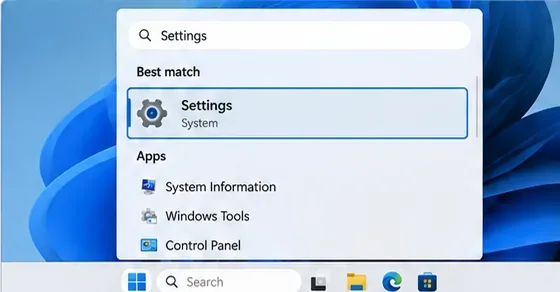
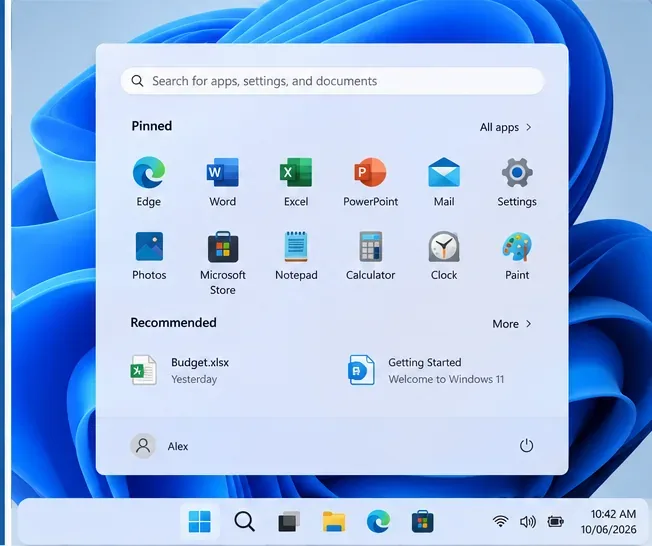
Start with the Settings app. The verified privacy controls in this guide are based on current Windows 11 settings, not an assumed Windows 12 layout.
What “telemetry” means before you change anything
Telemetry is diagnostic information sent from a device to a service so the service can understand reliability, security, performance, updates, and feature usage. Microsoft separates Windows diagnostic data into required and optional levels. Required diagnostic data is the baseline Windows uses to keep the operating system secure, up to date, and functioning as expected; optional diagnostic data adds more information that can help with product improvement and troubleshooting.
AI-related features add other kinds of data, but they should not all be treated as telemetry. Recall, for example, can save snapshots of what you have seen on a Copilot+ PC, but Microsoft says those snapshots and their associated data are stored locally and are not shared with Microsoft or third parties. Copilot chat history is account activity associated with the Copilot service. Online speech recognition sends voice data to Microsoft’s cloud service to perform recognition. These are different data flows and need different controls.
Before you begin
Install current Windows updates first so the labels in Settings are as close as possible to Microsoft’s current documentation.
If the PC belongs to a company or school, expect some switches to be grayed out or marked as managed by your organization. Do not try to bypass those controls without authorization.
Write down any privacy features you rely on, such as online dictation, Recall, or personalized recommendations, because turning them off can remove functionality.
Avoid third-party “debloat” scripts, hosts-file blocklists, or instructions that disable Windows services at random. Those methods can interfere with Windows Update, Microsoft Store licensing, security reporting, troubleshooting, or future upgrades.
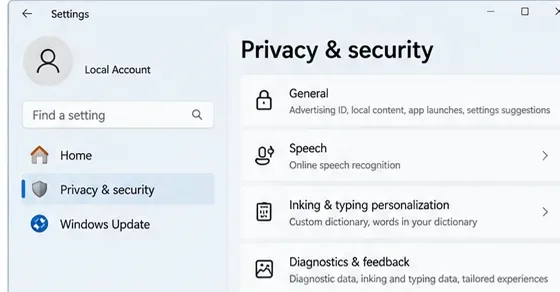
The Privacy & security section is the main place to review Windows diagnostic, speech, typing, and personalization controls.
Step 1: Reduce Windows diagnostic data to the supported minimum
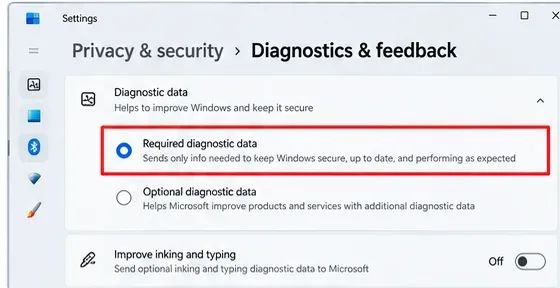
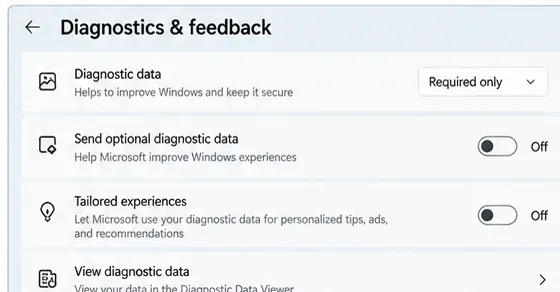
Open Settings > Privacy & security > Diagnostics & feedback. Under Diagnostic data, choose the setting that sends required diagnostic data only, and make sure optional diagnostic data is off.
On an ordinary personal PC, this is the most important telemetry change because it reduces the Windows diagnostic stream without trying to break the operating system’s supported data pipeline. Microsoft’s organization documentation says the stronger Diagnostic data off level is available only on Windows Enterprise, Education, and Server editions. On Home and Pro, the practical supported minimum is therefore required diagnostic data.
Select required diagnostic data rather than optional diagnostic data when you want the lowest supported diagnostic level on a typical personal PC.
Turn off the extra diagnostic-based personalization controls
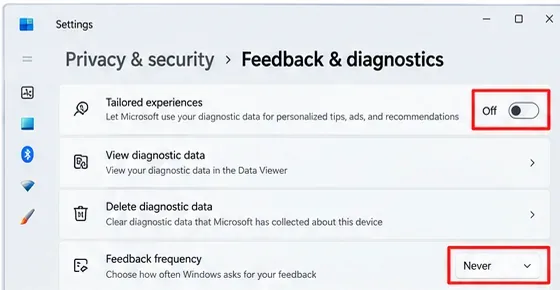
On the same page, turn off Improve inking & typing if you do not want Microsoft to receive samples used to improve typing and handwriting services. Also turn off Tailored experiences if that label appears on your build. Tailored experiences use diagnostic data for personalized tips, recommendations, and offers.
You can also set Feedback frequency to Never if your build offers that choice. This does not eliminate Windows diagnostic data; it simply reduces prompts asking you to provide feedback.
Turn off diagnostic-based tailored experiences and reduce feedback prompts separately; these controls do not replace the main diagnostic-data setting.
Delete existing device diagnostic data if you want a clean starting point
Expand Delete diagnostic data and choose Delete. Microsoft notes that this deletes diagnostic data for the device but does not stop new required diagnostic data from being sent, and it does not necessarily remove data associated with your Microsoft account. Treat deletion as cleanup, not as a permanent block.
Step 2: Turn off recommendation and advertising personalization
Newer Windows 11 builds are replacing the older General privacy page with Recommendations & offers. Depending on your build, go to Settings > Privacy & security > Recommendations & offers or General.
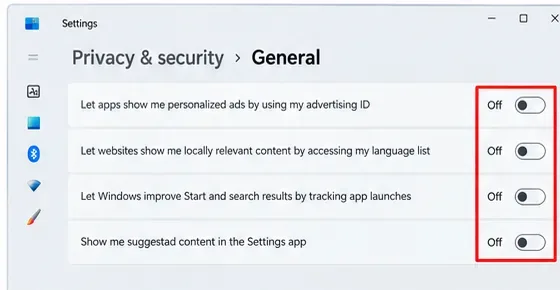
Review and turn off the controls you do not want, especially the Windows advertising ID and settings that personalize Start, Search, recommendations, or suggested content. Turning off the advertising ID does not remove ads; it prevents apps from using that Windows identifier to make ads more personalized.
On builds that still show the General page, disable the advertising ID and other personalization switches you do not want; newer builds may place these under Recommendations & offers.
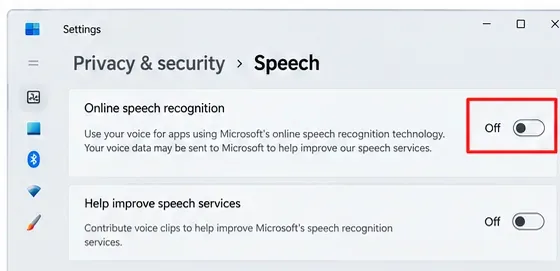
Go to Settings > Privacy & security > Speech and turn off Online speech recognition if you do not need cloud-based speech recognition. Microsoft distinguishes online speech recognition from device-based speech recognition: online recognition uses Microsoft cloud services, while device-based recognition processes voice locally.
This is a good example of why “disable AI collection” needs to be specific. Turning off online speech can reduce cloud processing of voice input, but it may also remove dictation or voice features that depend on the online service.
Disable Online speech recognition if you prefer not to use Microsoft’s cloud speech-recognition service.
Step 4: Turn off inking and typing personalization
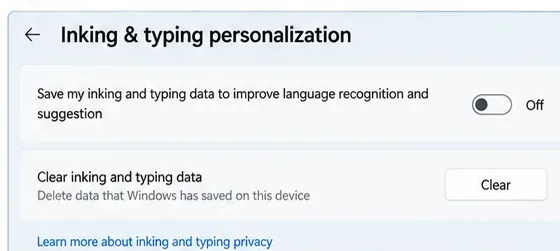
Go to Settings > Privacy & security > Inking & typing personalization. Turn off the custom inking and typing word list if you do not want Windows to build a personalized dictionary from words you type or write.
Microsoft says turning this off clears the custom word list. This setting is different from the Improve inking & typing diagnostic option described earlier: one controls your personalized word list, while the other controls diagnostic samples used to improve typing and handwriting services more broadly.
Turn off inking and typing personalization and clear the custom data if you do not want Windows maintaining a personalized word list.
Step 5: Turn off Recall snapshots on a Copilot+ PC
Recall is an optional Copilot+ PC feature that can save periodic snapshots of your screen so you can search for things you previously saw. It is important not to describe Recall snapshots as Microsoft cloud telemetry. Microsoft says the snapshots and associated data are processed and stored locally on the Copilot+ PC and are not shared with Microsoft or third parties.
If you do not want this local collection at all, go to Settings > Privacy & security > Recall & snapshots and turn Save snapshots off. You can also delete previously saved snapshots from the same page.
If you want Recall removed rather than merely paused, search for Turn Windows features on or off, clear the Recall checkbox, and restart. Microsoft says removing Recall deletes previously saved snapshots on the device.
Go to Settings > Privacy & security > Activity history. If you do not want Windows storing a local record of app, file, and related activity, turn off Store my activity history on this device and clear the existing history.
This is another area where old privacy advice can be misleading. Microsoft says the option to send Windows activity history to Microsoft was deprecated in Windows 11 23H2 and 22H2 with the January 23, 2024 update. On current Windows, activity history is primarily a local-storage control, not a current cloud telemetry switch. See Windows activity history and your privacy.
Step 7: Review Microsoft Copilot account data separately
Microsoft Copilot is an online service, so its account history and personalization controls are separate from Windows diagnostic telemetry. If you use the current Copilot app with a personal Microsoft account, review Copilot’s settings for memory, personalization, shared experiences, chat history, web search, and personalized advertising.
There was an important change in 2026. Microsoft says an updated Copilot app became available on August 18, 2026, and its current support material states that prompts, responses, and file contents used in the Microsoft Copilot app are not used to train foundation models. Older Copilot documentation described separate model-training toggles, so do not follow a stale screenshot or article that assumes the old app.
After changing the settings, return to Settings > Privacy & security > Diagnostics & feedback. If available, enable View diagnostic data and open Microsoft’s Diagnostic Data Viewer. Microsoft notes that the viewer shows diagnostic data available while the viewer is running; it is not a complete historical archive.
Use the Diagnostic Data Viewer as a verification tool after reducing diagnostics; it helps you inspect what the device is reporting while the viewer is running.
Use this checklist:
Diagnostic data is set to the lowest supported level for your Windows edition.
Optional diagnostic data is off.
Tailored experiences or equivalent recommendation personalization is off if you do not want it.
Advertising ID and other recommendation switches are off if unwanted.
Online speech recognition is off if you do not use cloud speech.
Inking and typing personalization is off if you do not want a custom word list.
Recall snapshot saving is off, or Recall is removed, if you do not want screen snapshots stored locally.
Activity history is off if you do not want local activity tracking.
Copilot memory, personalization, and history have been reviewed independently of Windows telemetry.
Advanced option for Enterprise or Education devices
Organizations using Windows Enterprise or Education can use Group Policy or device-management policy to reduce diagnostic data further. Microsoft documents the Group Policy path as Computer Configuration > Administrative Templates > Windows Components > Data Collection and Preview Builds, where administrators can configure Allow diagnostic data. The Diagnostic data off level is not a general consumer setting; Microsoft limits it to Enterprise, Education, and Server editions.
Organizations can also manage Recall through Windows AI policies. Microsoft’s WindowsAI Policy CSP documents controls that can make Recall unavailable or prevent snapshot saving on managed devices. See WindowsAI Policy CSP.
Mistakes to avoid
Mistake
Why it is a problem
Better approach
Disabling random Windows services labeled “telemetry”
Service dependencies change and unsupported tweaks can interfere with updates, Store functions, troubleshooting, or security.
Use documented Settings, Group Policy, or MDM controls.
Blocking Microsoft endpoints with a copied hosts file
Endpoint lists go stale and may block unrelated Microsoft services.
Reduce collection with supported privacy settings and inspect the result with Diagnostic Data Viewer.
Calling Recall “cloud telemetry”
Microsoft says Recall snapshots are stored locally and are not shared with Microsoft or third parties.
Disable Recall because you do not want local snapshots, not because it is a cloud telemetry feed.
Assuming Copilot settings control Windows diagnostics
Copilot account data and Windows diagnostic data are separate systems.
Review both independently.
Following a “Windows 12” screenshot that Microsoft has not documented
Menus and labels may be fabricated or based on a concept build.
Use current Microsoft documentation and recheck it if a future Windows release changes the UI.
What a successful privacy setup looks like
A successful setup is not “zero bytes ever leave the PC.” On a typical Home or Pro installation, Windows still sends required diagnostic data. Instead, the goal is to stop optional collection and personalization you do not need, disable AI features that store or process data you do not want, and understand which information stays local versus which is sent to Microsoft.
If Microsoft later releases a product officially named Windows 12, verify three things before applying this guide unchanged: the exact Privacy & security menu names, the diagnostic-data levels supported by your edition, and the current privacy behavior of Recall and Copilot. Those are the areas most likely to change with a major Windows release.