Home
» Computers
»
How to Fix “Windows 12 Start Menu Not Opening” in a Floating Taskbar Layout
How to Fix “Windows 12 Start Menu Not Opening” in a Floating Taskbar Layout
Important verification note (September 14, 2026): Microsoft’s current Windows release-health documentation lists supported Windows 11 releases, including version 26H1; it does not list an official Windows 12 client release. Microsoft also documents the built-in Windows taskbar as bottom-positioned with center or left icon alignment, not as a native floating taskbar. See Microsoft Windows release health and Microsoft’s taskbar customization guide. If your desktop is labeled “Windows 12” or uses a floating taskbar, it may be a concept build, third-party customization, theme, shell replacement, or other configuration that Microsoft has not documented as a standard Windows interface.
That distinction matters because a Start button that suddenly stops opening is often a Windows shell problem rather than a problem with the visual layout itself. The Windows shell is the part of Windows that provides the desktop, taskbar, Start menu, and File Explorer experience. The safest troubleshooting path is to restore the supported shell first, repair Windows components if needed, and only then add the floating-taskbar customization back.
What to know before you change anything
Start with the least disruptive fixes. Save open work, make sure you know your Windows sign-in password, and note any taskbar or Start-menu customization utility you installed. If the computer is managed by an employer or school, do not remove management software or change recovery settings without your administrator’s approval.
Before troubleshooting, test both ways to open Start: click the Start button and press the Windows logo key on the keyboard. If one method works and the other does not, the problem may be input-related rather than a complete Start-menu failure. If neither works but Ctrl + Shift + Esc opens Task Manager, you can complete most of the steps below without the Start menu.
Symptom
What it suggests
Best first move
Start button and Windows key both fail
Shell process, system component, update, or customization conflict
Restart Windows Explorer
Problem began after enabling a floating taskbar
Customization layer may be interfering with the shell
Return temporarily to the stock taskbar
Start fails after an update or crash
Pending update or damaged system component is possible
Update Windows, then run DISM and SFC if needed
Start still fails after component repair
Windows installation may need a repair reinstall or recovery
Use Windows recovery options
Step 1: Restart Windows Explorer
Windows Explorer is not just the file-browsing window; the explorer.exe process also hosts major parts of the desktop shell. Restarting it is quick and does not delete your files.
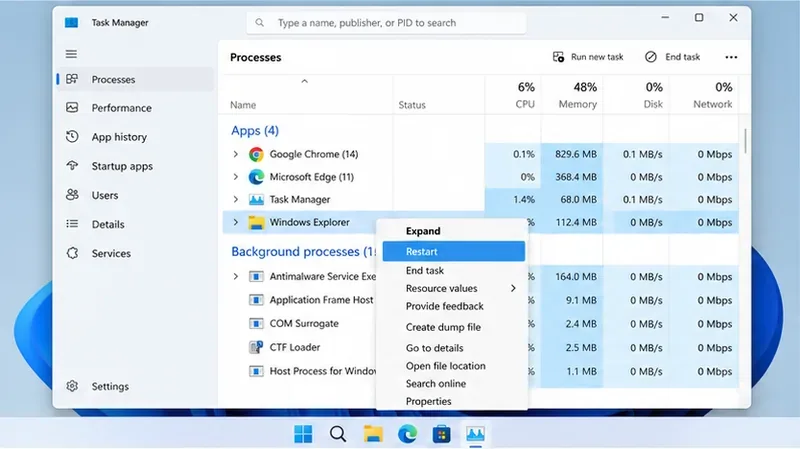
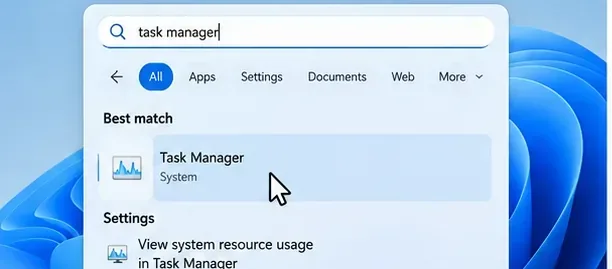
Press Ctrl + Shift + Esc to open Task Manager.
On the Processes page, find Windows Explorer.
Right-click it and choose Restart.
Wait a few seconds for the taskbar and desktop to disappear and return, then test Start again.
Microsoft recommends restarting Windows Explorer in shell-related troubleshooting scenarios, including when desktop elements become unresponsive. If Windows Explorer is not listed, use Task Manager’s option to run a new task, enter explorer.exe, and press Enter.
Restart Windows Explorer first because it refreshes the desktop shell without reinstalling Windows.
Step 2: Temporarily return to the supported taskbar layout
If the Start problem began after enabling a floating taskbar, disable that customization before repairing Windows. Microsoft’s current taskbar settings support centered or left-aligned icons while keeping the taskbar at the bottom of the screen. A floating, detached, top, or side layout is therefore a sign that another component is modifying the standard shell.
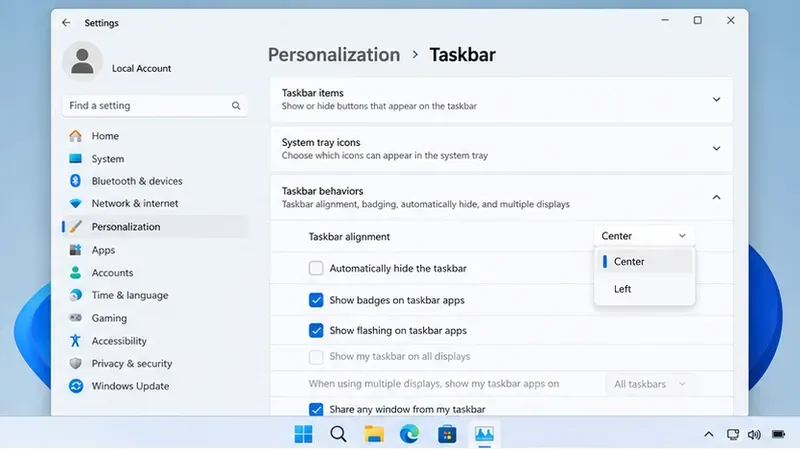
Open Settings with Windows + I if that shortcut still works, then go to Personalization > Taskbar > Taskbar behaviors. Set taskbar alignment to Center or Left. If a separate app, script, theme utility, or shell replacement created the floating layout, disable it from its own settings or stop it from starting with Windows, then sign out or restart the PC.
Do not start by deleting shell files, editing undocumented registry values, or replacing Windows packages from random scripts. Those changes can make a recoverable shell problem harder to diagnose.
Use the documented taskbar settings as the baseline while troubleshooting a customized floating layout.
Step 3: Install Windows updates and restart
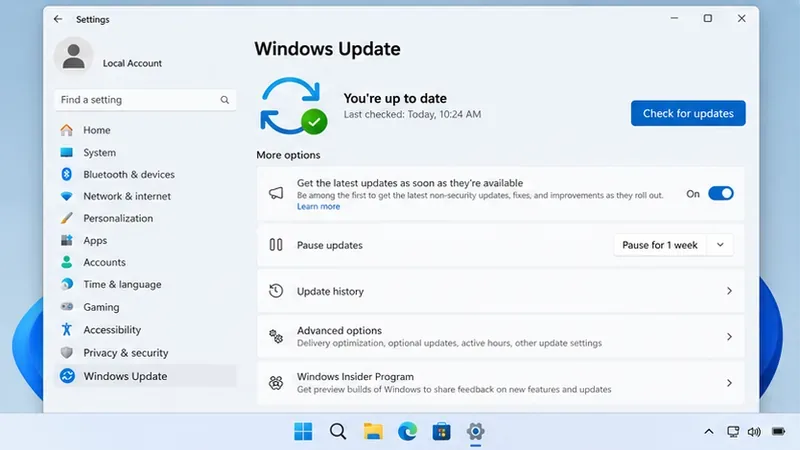
Open Settings > Windows Update and select Check for updates. Install applicable quality and security updates, including any restart that Windows requests. Microsoft’s release-health page is also the right place to check whether a current update has a documented issue affecting your Windows version.
As of the research date for this guide, Microsoft’s Windows 11 version 26H1 known-issues page does not list a Start-menu or taskbar issue in its current issue table. That does not prove every Start problem is local, but it means you should avoid assuming there is a Microsoft-confirmed widespread Start outage without checking the current release-health page yourself.
Check Windows Update before deeper repairs so you are not troubleshooting a problem that is already fixed by a current update.
Step 4: Repair the Windows component store with DISM
If Start still will not open, repair Windows system components. DISM means Deployment Image Servicing and Management. Microsoft recommends running DISM before System File Checker because DISM can repair the Windows image that SFC uses as a source.
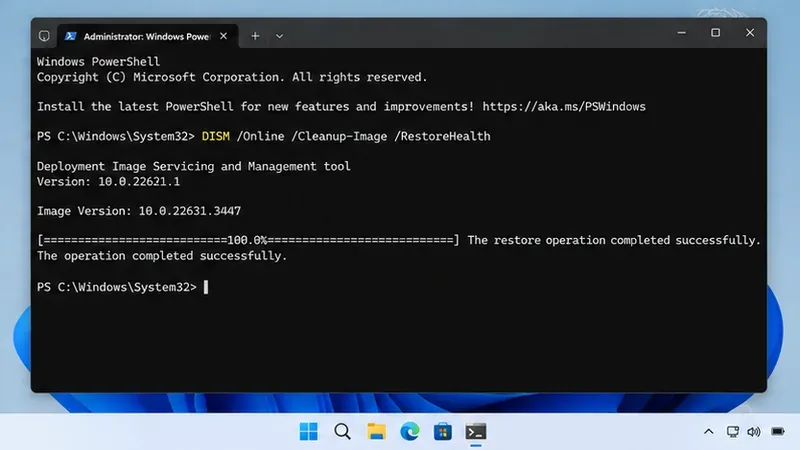
Open Task Manager with Ctrl + Shift + Esc, choose the option to run a new task, type cmd or powershell, and select the option to create the task with administrative privileges. Then run:
DISM.exe /Online /Cleanup-Image /RestoreHealth
Let it finish even if progress appears to pause. Keep the PC connected to the internet unless your organization provides another repair source. Microsoft documents this sequence in its DISM and System File Checker guidance.
DISM repairs the Windows component store that later system-file checks depend on.
Step 5: Run System File Checker
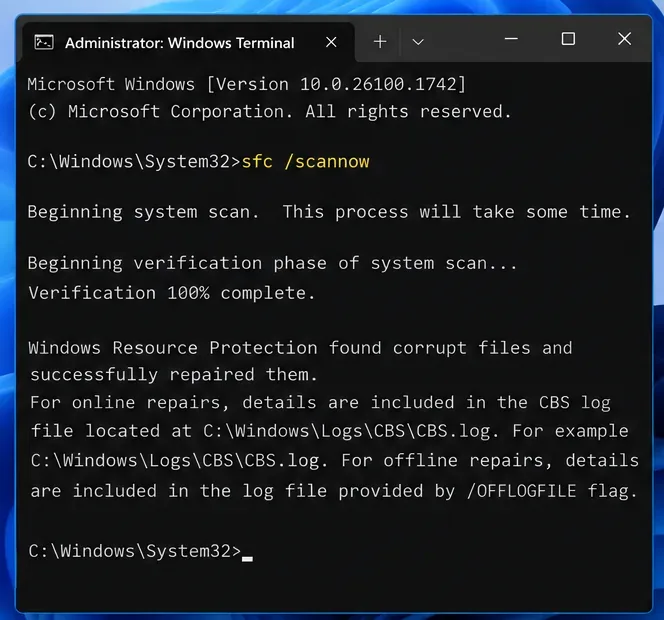
System File Checker (SFC) scans protected Windows system files and replaces damaged copies when possible. In the same elevated command window, run:
sfc /scannow
Wait until verification reaches 100 percent. If SFC reports that it repaired files, restart Windows and test Start before doing anything more invasive. If it reports that it could not repair some files, return to Microsoft’s SFC guidance for the documented follow-up options rather than downloading replacement system files from third-party sites.
Run SFC after DISM to verify and repair protected Windows system files.
Step 6: Repair-reinstall the current Windows version
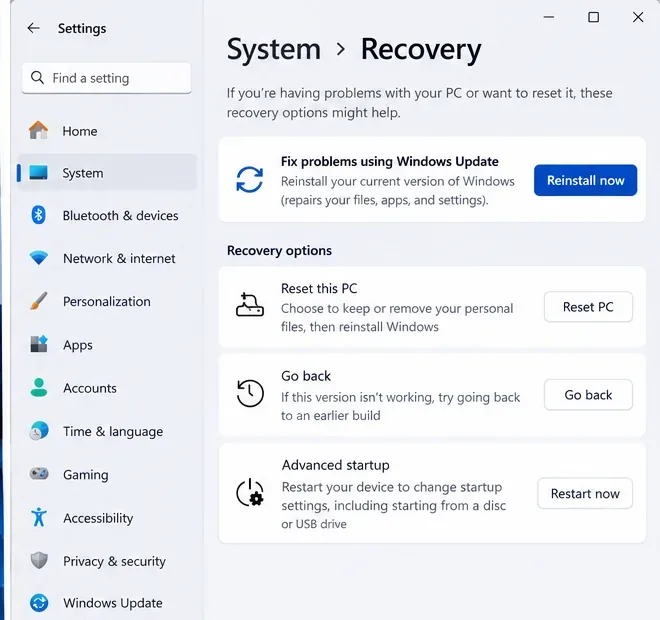
If Explorer restart, the stock taskbar, updates, DISM, and SFC do not restore Start, use Windows 11’s supported repair reinstall when it is available on your PC. Go to Settings > System > Recovery. Under Fix problems using Windows Update, select Reinstall now.
Microsoft says this option reinstalls the same Windows version, repairs system files and components, and preserves your apps, files, and settings. Keep the computer connected to power and the internet throughout the process. The option may be unavailable on some managed devices or configurations; do not substitute a random ISO or modified installer. Follow Microsoft’s repair-reinstall instructions.
The repair reinstall is designed to preserve apps, files, and settings while rebuilding Windows components.
Step 7: Use recovery tools if the failure began after a recent change
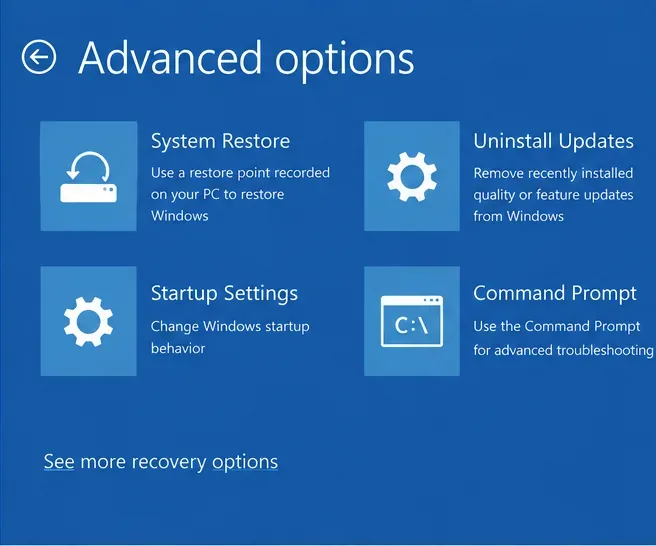
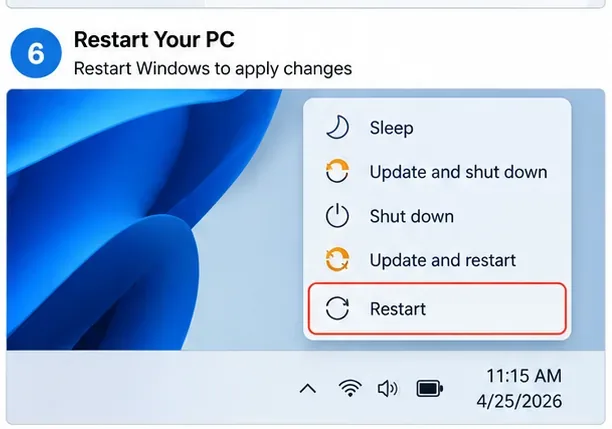
If the Start menu broke immediately after a driver, app, shell utility, or Windows update and the repair reinstall did not help, Windows Recovery Environment (Windows RE) gives you additional rollback tools. From Settings, go to System > Recovery > Advanced startup > Restart now. You can also hold Shift while choosing Restart when that path is available.
In Windows RE, Uninstall Updates can remove a recent Windows update, while System Restore can roll system files and settings back to a restore point without changing your personal files. System Restore can remove apps, drivers, or settings installed after the selected restore point, so review the affected programs before confirming. If BitLocker is enabled, some recovery actions may require the recovery key.
Windows RE provides rollback and recovery tools when the Start failure follows a recent system change.
Step 8: Confirm the Start menu is stable before restoring the floating layout
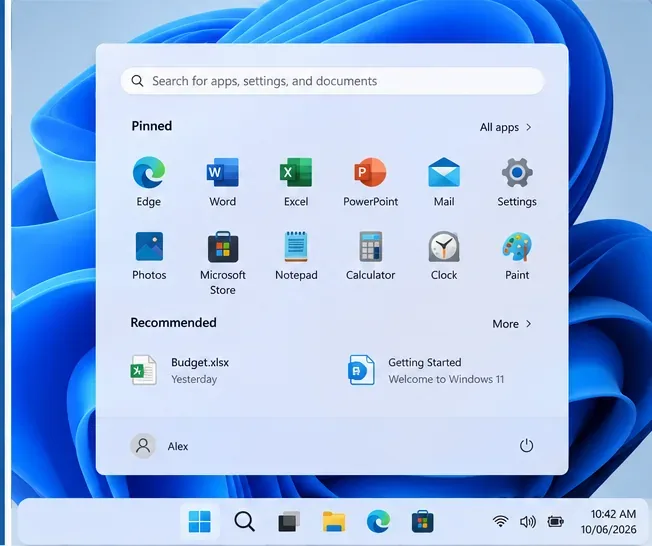
After the Start menu opens normally, test it several times after a restart and after signing out and back in. Open a few pinned apps, search for Settings, and confirm that the taskbar remains responsive. This is your clean baseline.
If you still want the floating layout, re-enable only one customization at a time. Restart after each change and test Start again. If the problem returns immediately after one utility or theme is enabled, leave that component disabled and check its developer’s compatibility information for your exact Windows build. Do not treat a visually convincing “Windows 12” theme as proof that the underlying operating system is Windows 12.
Reintroduce customizations only after the Start menu works reliably in the supported baseline layout.
Common mistakes to avoid
Assuming the floating taskbar is a Microsoft feature. Verify the actual Windows version in Settings > System > About before following version-specific advice.
Running unverified PowerShell scripts that re-register or replace shell packages. Package commands found online can be outdated or unsuitable for your Windows build.
Resetting the PC too early. Explorer restart, removing the customization layer, Windows Update, DISM, SFC, and the repair reinstall are less destructive starting points.
Skipping backups before recovery. Some recovery choices can remove apps, settings, or files. Microsoft recommends backing up important data before reset or reinstall operations.
Changing several variables at once. If you disable multiple shell utilities, edit the registry, and uninstall an update together, you may fix the symptom without learning what caused it.
When you should stop and get help
Stop troubleshooting and use Microsoft support or your organization’s IT team if Windows will not sign in, the desktop repeatedly crashes, BitLocker asks for a recovery key you do not have, you suspect malware, or Windows Recovery Environment reports errors. If the computer contains business-critical data, make a verified backup before any reset or reinstall.
For a “Windows 12 Start menu not opening” problem in a floating taskbar layout, the most reliable approach is to separate the visual customization from the underlying Windows shell. Microsoft’s currently documented client platform remains Windows 11, and its built-in taskbar does not provide a floating layout. Restart Explorer, return temporarily to the supported taskbar, install updates, run DISM and SFC, and use Windows’ repair or recovery tools only if the simpler fixes fail. Once Start is stable again, add customizations back one at a time so you can identify the exact trigger instead of guessing.