Home
» Computers
»
How to Bypass the Windows 12 Microsoft Account Requirement During Setup: What Still Works in 2026
How to Bypass the Windows 12 Microsoft Account Requirement During Setup: What Still Works in 2026
Updated September 13, 2026: There is no officially released or announced consumer operating system called Windows 12 in Microsoft’s current Windows release documentation. Microsoft’s release-health pages still identify the active client platform as Windows 11, including Windows 11 version 26H1, while Windows 11 version 26H2 is in the Release Preview Channel ahead of general availability. See Microsoft’s Windows 11 release information and the Windows 11 26H2 Release Preview announcement.
That matters because a guide claiming a tested “Windows 12 bypass” would be inventing behavior that cannot yet be verified. The practical answer today is to use the setup rules Microsoft has documented for current Windows 11 and to understand which older shortcuts Microsoft has been removing. If a future Windows 12 keeps the same account policy, the decision framework below will still help, but the exact screens and commands must be rechecked against the shipping build.
Quick answer: the dependable choices are no longer the old OOBE tricks
For a personal Windows PC, the most dependable supported route is to complete setup with a Microsoft account and then switch the Windows sign-in to a local account after reaching the desktop. For a company-owned PC running a supported edition, use the “Set up for work or school” path and join the organization through Microsoft Entra ID instead of using a personal Microsoft account. For managed deployments, IT administrators can use Microsoft’s unattended setup components to create local accounts, but that is a deployment workflow rather than a consumer shortcut.
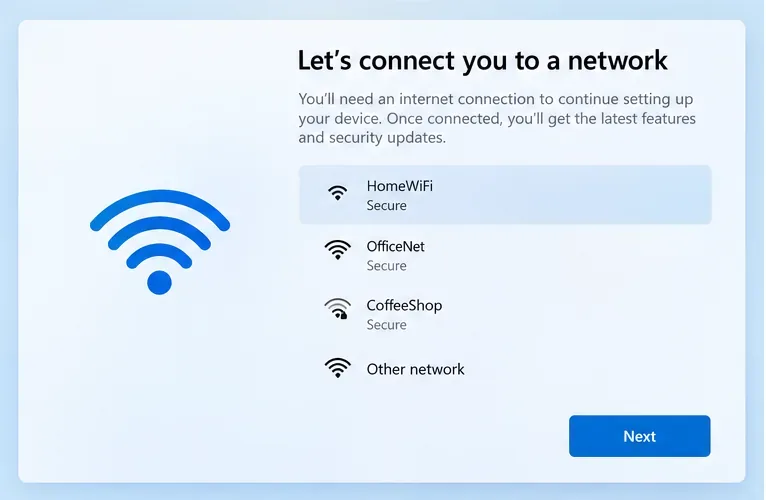
Microsoft currently states that Windows 11 Home and Windows 11 Pro for personal use require internet connectivity and a Microsoft account during initial device setup. Microsoft also says an internet connection is required to finish setting up a Windows Home or Pro device. Those requirements are documented in Windows 11 system requirements and Microsoft’s setup connectivity guidance.
A Windows setup screen at the network-connection stage. On current Windows Home and Pro consumer setup, Microsoft documents internet connectivity as a requirement.
Which option fits your situation?
Option
Best for
Personal Microsoft account during OOBE?
Main trade-off
Finish setup, then switch to a local account
Most personal PCs
Yes, temporarily
Most reliable and supported, but it does not avoid the Microsoft account during OOBE itself
Set up for work or school
Company-managed Pro/Enterprise/Education devices
No personal account
Requires organizational credentials and internet; Windows Home cannot perform Microsoft Entra join
Unattended deployment with LocalAccounts
IT admins, labs, imaging workflows
Can be avoided depending on the deployment design
More setup and testing; must be validated on the exact Windows image and edition
Old OOBE command or offline bypasses
Legacy images only
Sometimes on older builds
Not dependable: Microsoft has explicitly removed or targeted known local-account bypass mechanisms
Option 1: Complete setup, then switch from a Microsoft account to a local account
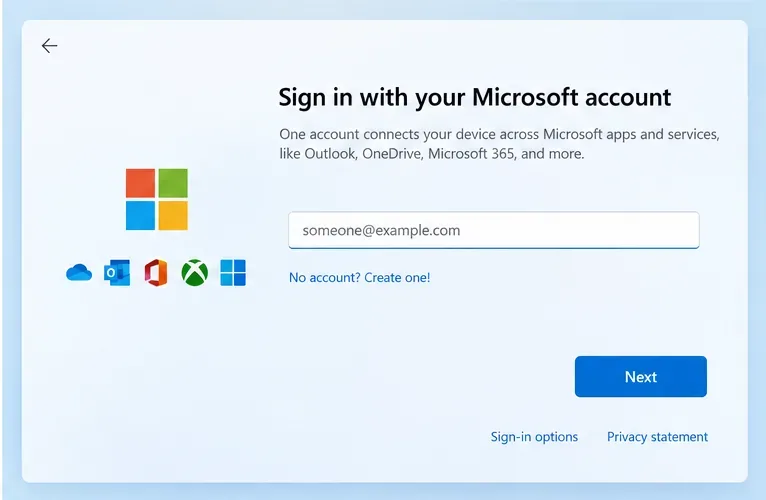
This is the least fragile choice for a personally owned Windows 11 Home or Pro PC. It follows the setup flow Microsoft currently supports, then uses a documented Windows setting to change the sign-in type. The trade-off is obvious: you still need a Microsoft account during initial setup.
The Microsoft account sign-in stage used for personal setup. The exact layout can vary by Windows build and OEM, but the account requirement is documented for current Home and Pro personal-use setup.
How to do it
Complete the Windows setup screens, connect to the internet, and sign in with your Microsoft account.
Finish OOBE and reach the Windows desktop.
Open Settings > Accounts > Your info.
Select Sign in with a local account instead, enter the local username and password you want, then follow the prompts to sign out and finish the change.
Microsoft documents this exact account-type switch in Change From a Local Account to a Microsoft Account in Windows. The same page also explains the reverse direction. Microsoft recommends a Microsoft account because of service integration, security features, and device-to-device sync, while a local account is specific to one PC and does not require internet connectivity to sign in.
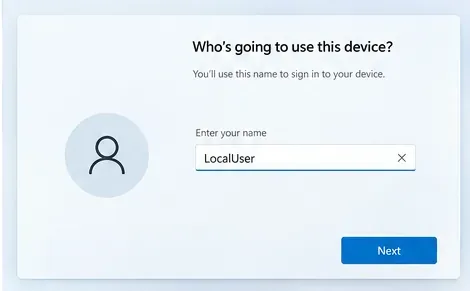
A local-user naming screen illustrating the information Windows needs for a local account. Exact prompts vary depending on whether the account is created during deployment or when switching account types after setup.
When this is the better trade-off
Choose this path if your priority is a stable setup on a personal computer and you do not want to depend on undocumented tricks that can disappear after an update. It is also sensible if you want a local Windows sign-in but still plan to use individual Microsoft services later. A local Windows account does not prevent you from signing into apps such as OneDrive or Microsoft 365 separately.
The downside is that the first-run experience still links the machine to a Microsoft account until you switch. If your requirement is “never enter a personal Microsoft account on this device at all,” use the organization or deployment options below instead.
Option 2: For a company PC, use “Set up for work or school”
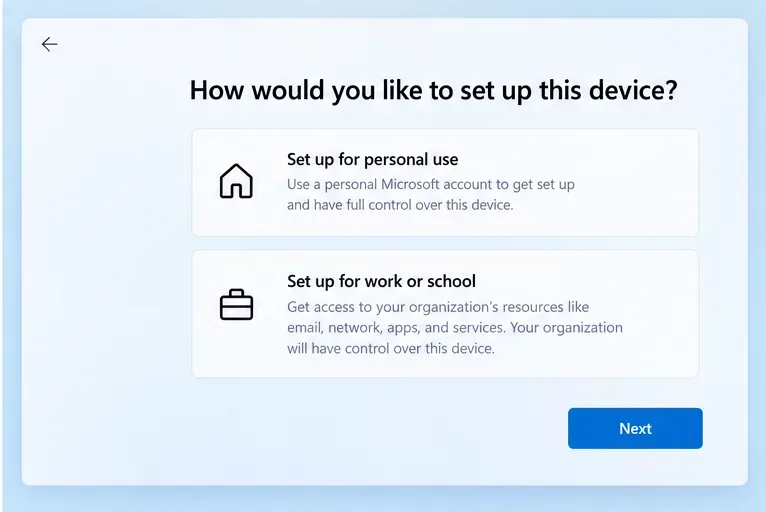
If the device belongs to an organization, a personal Microsoft account is usually the wrong identity in the first place. Microsoft supports joining eligible Windows 11 devices to Microsoft Entra ID during OOBE. On the “How would you like to set up this device?” screen, choose Set up for work or school and sign in with the credentials supplied by your organization.
The setup choice for personal use versus work or school. Microsoft documents the work-or-school route for Microsoft Entra ID joining on supported Windows editions.
Microsoft’s Microsoft Entra ID OOBE documentation states that the device must be connected to the internet for this process. It also notes that Windows Home editions do not support Microsoft Entra join.
This option avoids using a personal Microsoft account, but it does not create an unmanaged local-only PC. Your organization can apply device-management policies, enroll the device in mobile device management, and control access to company resources. That is desirable for corporate hardware and usually undesirable for a privately owned machine unless your organization explicitly supports bring-your-own-device management.
Option 3: IT administrators can use supported unattended deployment components
For imaging labs, kiosks, test machines, classrooms, or other controlled deployment scenarios, Microsoft publishes unattended setup components for creating local users during installation. The LocalAccounts component under Microsoft-Windows-Shell-Setup is designed to define local accounts during installation, including account names, groups, and password settings.
This is a better engineering choice than building automation around an undocumented OOBE shortcut. It is reproducible and belongs to Microsoft’s deployment framework. The trade-off is maintenance: answer files must be protected, tested against the exact edition and build, and reviewed whenever Microsoft changes setup behavior. It is not the path I would recommend to someone setting up a single home laptop.
Why OOBE\BYPASSNRO and similar tricks are a poor 2026 recommendation
Many older Windows 11 guides tell users to press Shift+F10 during OOBE and run OOBE\BYPASSNRO, disconnect the network, or launch a local-only account flow. Those techniques became popular because they worked on particular Windows 11 builds. They should no longer be presented as universally reliable.
Those announcements were made through Insider builds, so the exact moment a particular retail image stops accepting a given trick can vary. That uncertainty is the important point. A bypass that works on one ISO, OEM image, or virtual machine may fail on another. It is therefore a poor choice for a guide that promises repeatable results.
What about simply disconnecting Wi-Fi or unplugging Ethernet?
On old Windows images, disconnecting the network could expose an “I don’t have internet” or limited-setup path. On current consumer Windows 11, Microsoft’s support documentation says internet access is required to finish Home or Pro setup. That means “just go offline” is no longer a dependable recommendation for a new machine.
If an older image does show a local or limited-setup route, it may still function on that specific build. Treat that as build-specific behavior rather than a feature you can expect on the next Windows release. If you are preparing many systems, test the exact ISO and cumulative update level you intend to deploy instead of assuming an older walkthrough still applies.
Should you use a fake, blocked, or temporary Microsoft account?
I would not make that the default recommendation. It depends on intentionally triggering an authentication failure or using an account you do not intend to keep, and Microsoft does not document it as a supported OOBE path. It can stop working without notice, complicate account recovery, or leave you uncertain about what identity is attached to the installation.
If your goal is privacy or offline sign-in, the supported post-setup switch is cleaner. If the machine is organizational, use the work-or-school path. If the machine is part of a repeatable deployment workflow, use deployment tooling.
Microsoft account vs. local account: the practical trade-offs
Choose a Microsoft account if you want easier cloud integration
A Microsoft account can synchronize settings and connect Windows to Microsoft services across devices. Windows Backup and OneDrive are designed around that cloud identity. For users who replace PCs frequently, use OneDrive heavily, or want Microsoft services to feel integrated from the first boot, keeping the Microsoft account as the Windows sign-in is the simpler choice.
Choose a local account if device independence matters more
A local account exists only on the PC. It does not need an internet connection for sign-in, and it separates the Windows login from your Microsoft cloud identity. That can be useful for offline machines, lab systems, privacy-conscious personal setups, or computers where cloud synchronization is unnecessary.
The trade-off is that account recovery and synchronization are more local. Microsoft recommends creating a password reset disk for a local account because forgetting the password can be harder to recover from than with a Microsoft account.
Choose Entra ID if the organization owns the identity and device policy
For business hardware, Microsoft Entra ID gives the organization a supported identity path without requiring a personal Microsoft account. The trade-off is management: the organization may enforce security settings, software deployment, compliance checks, and mobile-device-management enrollment.
What I would choose in each common scenario
New personal Windows Home laptop: finish OOBE with a Microsoft account, then switch to a local account if you still want one. This has the lowest risk of setup failure.
Personal Windows Pro desktop that must stay mostly offline: use the same supported setup-then-switch route unless your exact installation image exposes a documented local path. Do not build your plan around BYPASSNRO.
Company-owned Windows Pro/Enterprise PC: choose work or school and use your organization’s Microsoft Entra credentials.
Lab, classroom, kiosk, or imaging workflow: use supported deployment tooling and unattended account configuration, then validate it on the exact build before rollout.
Future Windows 12 device: re-check Microsoft’s official setup requirements after Microsoft actually announces and ships the product. Do not assume a Windows 11 command remains available.
Bottom line
If you searched for a way to bypass a “Windows 12 Microsoft account requirement,” the biggest correction is that Windows 12 is not an officially documented Microsoft release as of September 13, 2026. On current Windows 11 Home and Pro personal setup, Microsoft documents both internet connectivity and a Microsoft account as requirements, while it has also been removing known local-account bypass mechanisms from newer setup builds.
The most reliable choice depends on your goal rather than on finding one universal bypass: personal users can complete setup and switch to a local account, organizations can use Microsoft Entra ID, and administrators can use supported deployment tooling. Old command-line and offline tricks are best treated as version-specific legacy behavior, not as a durable setup strategy.