Home
» Computers
»
How to Fix Windows 12 AI Copilot Not Responding After Startup: Practical Windows 11 Steps
How to Fix Windows 12 AI Copilot Not Responding After Startup: Practical Windows 11 Steps
If “Windows 12 AI Copilot” stops responding right after startup, troubleshoot the Microsoft Copilot app rather than assuming the operating system itself is broken. As of September 13, 2026, Microsoft’s public release information still identifies the current client operating system as Windows 11, with supported releases including 26H1, 25H2, and 24H2. Microsoft has not published an official Windows 12 release in its Windows release-health documentation. If your PC, a utility, or a website labels the system “Windows 12,” verify the actual version before following version-specific advice.
You can confirm the official Windows version with Settings > System > About or by pressing Windows + R, typing winver, and pressing Enter. For current Microsoft release details, see Windows 11 release information.
Quick diagnosis: which fix should you try first?
What you see
Best first action
What it usually helps isolate
Copilot does not open from the taskbar or shortcut
Open Copilot from Start, then restart Windows
Broken shortcut, stuck app session, or incomplete startup state
Copilot opens but stays blank, spins, or will not answer
Check the internet connection, then update the app
Connectivity, account, or outdated app components
Copilot repeatedly fails after every sign-in
Repair the app, then test startup conflicts
Damaged app data or another startup program interfering
Copilot works in a browser but not in the Windows app
Repair or reset the installed Copilot app
Local app state rather than a general Copilot access problem
Several Microsoft Store apps fail at the same time
Update Windows and Microsoft Store apps first
Broader app-platform or update issues
Before troubleshooting: confirm you are using the current Copilot app
Microsoft documents Copilot on Windows as an installed app. On new Windows 11 PCs it may already be installed, and it can also be obtained through Microsoft Store. Microsoft currently documents the Copilot key and Windows + C as launch methods, depending on device and app settings. See Getting started with Copilot on Windows.
If a third-party launcher, OEM utility, old shortcut, or browser extension is what you have been calling “AI Copilot,” do not apply app-reset instructions until you verify that the installed app is Microsoft Copilot.
Step 1: Open Copilot from Start and perform a clean restart
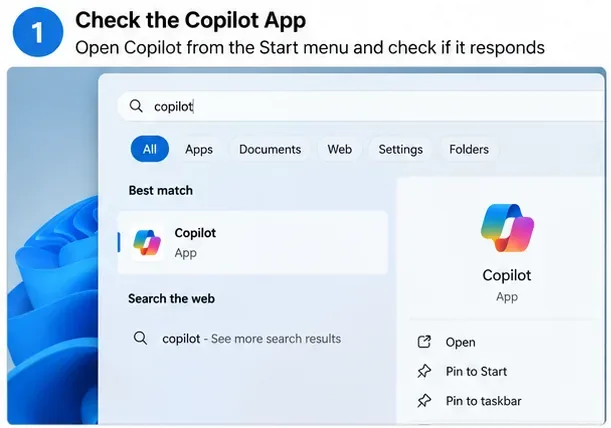
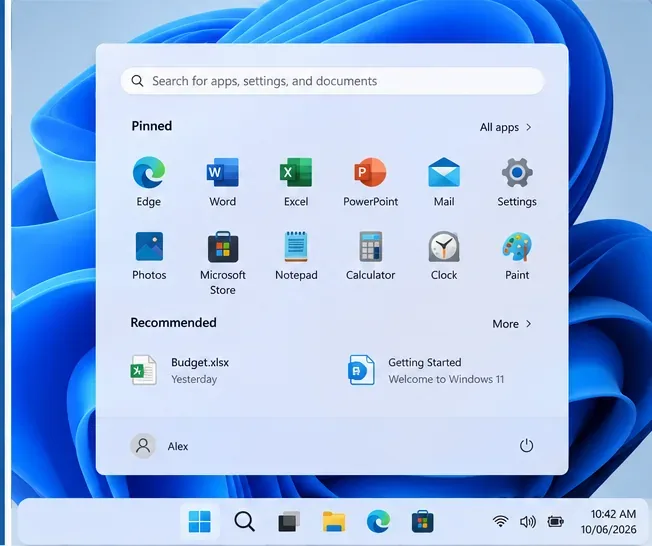
Start with the least destructive test. Select Start, search for Copilot, and open the Microsoft Copilot app directly. This bypasses a taskbar shortcut that may be stale or misconfigured.
Example Windows Search view for opening Copilot directly from Start before changing app settings.
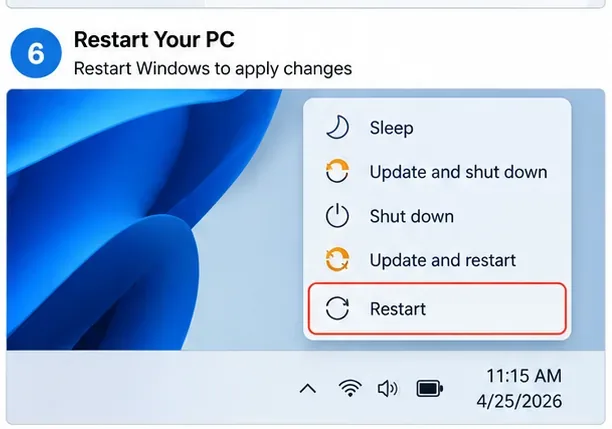
If the app still does not respond, close it and restart the PC using Start > Power > Restart. A restart is preferable to Shut down for this test because it starts a fresh Windows session and completes any pending restart-dependent updates.
Microsoft’s troubleshooting guidance for Store apps begins with closing and reopening the app and making sure Windows is up to date. See Fix problems with apps from Microsoft Store.
Step 2: Update Windows and the Microsoft Copilot app
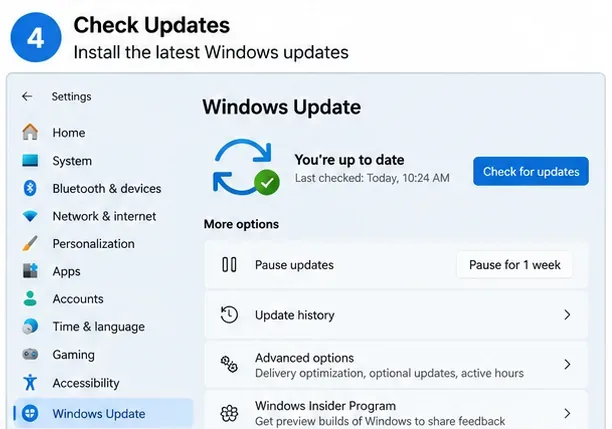
If Copilot fails mainly after startup, an incomplete update is one of the simplest possibilities to eliminate. Open Settings > Windows Update and select Check for updates. Install available quality and security updates, then restart if Windows requests it.
Check Windows Update before deeper troubleshooting so the operating system is on the latest update available to the device.
Next, update Store-delivered apps. Open Microsoft Store, go to its downloads or library area, and select Check for updates. Microsoft states that Store apps are increasingly updated automatically, but a manual check is still useful when diagnosing a specific app. See Get updates for apps and games in Microsoft Store.
After updates finish, restart Windows and test Copilot before changing anything else. This gives you a clear checkpoint: if Copilot works now, you do not need to reset app data or disable startup software.
Step 3: Repair Copilot first, then reset it only if repair fails
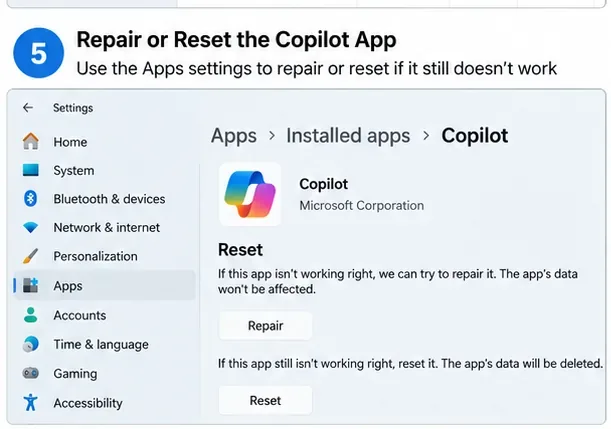
Windows includes app recovery controls for apps that expose them. Go to Settings > Apps > Installed apps, find Microsoft Copilot, open its Advanced options if available, and select Repair.
Use Repair before Reset; Microsoft’s Windows app-recovery guidance recommends trying Repair first when the option is available.
Repair is the safer first choice because Windows attempts to fix the app without using the more disruptive reset path. If Repair does not solve the problem, return to the same page and use Reset. Microsoft notes that not every app exposes every repair option, so do not assume something is wrong if the exact button is absent on your PC. The official process is documented in Repair apps and programs in Windows.
After Repair or Reset, open Copilot and sign in again if requested. Test a short prompt before restoring any optional startup software or changing additional settings.
Step 4: If the failure happens only after startup, isolate startup conflicts
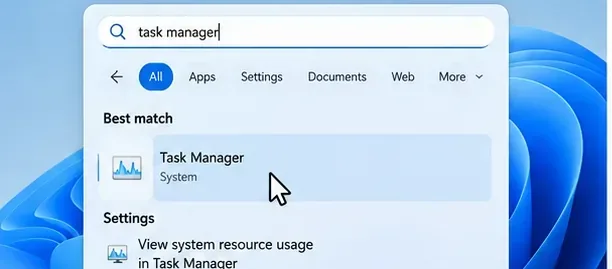
A problem that appears immediately after sign-in but disappears later can point to startup congestion or a third-party background program rather than Copilot itself. Open Task Manager, select Startup apps, and temporarily disable nonessential third-party items you do not need for the test. Do not disable security, accessibility, device-management, or corporate tools unless you understand their role or your administrator instructs you to do so.
Restart Windows after changing startup items, then test Copilot before opening other applications.
Restart Windows after updates, app repair, or startup changes so the next Copilot test begins in a clean session.
If a simple startup-app test does not isolate the problem, Microsoft documents a more controlled clean boot procedure that starts Windows with essential drivers and startup programs. Follow the official instructions carefully, especially the requirement to hide Microsoft services before disabling non-Microsoft services. See How to perform a clean boot in Windows.
If Copilot opens but will not answer, check connectivity instead of resetting Windows
When the Copilot window opens normally but prompts never complete, first verify that ordinary websites load and that your clock, account sign-in, VPN, proxy, and firewall are not blocking Microsoft services. On managed work or school devices, do not remove corporate VPN or security controls; contact the administrator instead.
Microsoft also provides a Copilot connectivity troubleshooter in the Get Help app. Open Get Help, search for Copilot connectivity troubleshooter, and follow the diagnostic prompts. Microsoft says this troubleshooter checks for firewall rules or other connection blockers. See Copilot troubleshooters.
A useful isolation test is to open the official Copilot web experience in a browser. If the web experience works while the Windows app does not, focus on the installed app, Store updates, and app recovery. If both fail on the same network and account, connectivity or service access becomes more likely than a local Copilot app problem.
What not to do first
Do not use Startup Repair just because Copilot fails after startup. Windows Startup Repair is intended for problems that prevent Windows itself from starting, not for one app that fails after sign-in.
Do not reset the entire PC as an early troubleshooting step. App Repair, app Reset, updates, connectivity checks, and startup isolation are much less disruptive.
Do not disable Microsoft services at random. If you use clean boot, follow Microsoft’s documented sequence and hide Microsoft services before disabling the remaining services.
Do not install unofficial “Copilot fix” packages. Use Windows Update, Microsoft Store, Settings, Get Help, and Microsoft’s support pages.
Do not assume every “Windows 12” guide matches your system. Verify the installed Windows version first and use instructions for the version Microsoft actually supports on your device.
Is this a known Windows update bug?
At the time of research on September 13, 2026, Microsoft’s public Windows 11 release-health pages list current known issues for supported Windows 11 releases, but they do not identify a general “Copilot not responding after startup” issue. That does not prove no individual device can have an update-related Copilot problem; it means there is no broadly documented Microsoft release-health incident matching that exact symptom in the material reviewed. Check Windows release health before assuming a new cumulative update is responsible.
Practical checklist
Verify the real Windows version with Settings or winver.
Open Microsoft Copilot directly from Start.
Restart Windows and retest before making deeper changes.
Install Windows updates and Microsoft Store app updates.
Use Repair before Reset for Copilot.
If the issue occurs only immediately after sign-in, test nonessential startup apps or perform Microsoft’s clean-boot procedure.
If the app opens but cannot answer, run the Copilot connectivity troubleshooter.
On managed work or school devices, involve IT before changing VPN, firewall, security, or policy-controlled settings.
For most “Copilot not responding after startup” cases, the efficient path is straightforward: verify the Windows version, restart the app and PC, update Windows and Store apps, repair Copilot, then isolate startup or connectivity conflicts. That sequence stays close to Microsoft’s current support guidance and avoids destructive system-wide fixes unless evidence points to a broader Windows problem.