Home
» Computers
»
How to Fix “Windows 12 Black Screen After Update” Without Reinstalling (Current Windows 11 Steps)
How to Fix “Windows 12 Black Screen After Update” Without Reinstalling (Current Windows 11 Steps)
There is one important September 2026 update before you start troubleshooting: Microsoft documented a recent Windows 11 issue in which the desktop background could turn solid black after the August 27, 2026 update KB5120998 on some Windows 11 24H2 and 25H2 systems. Microsoft says that specific issue was resolved by the September 8, 2026 update KB5124008 and later updates. If you can still see the taskbar, icons, windows, and mouse pointer and only the wallpaper is black, install the latest Windows update first instead of treating it as a full display failure.
The search phrase “Windows 12 black screen after update” is common, but as of September 13, 2026, Microsoft’s public client release information still lists supported Windows client releases under Windows 11, including versions 26H1, 25H2, and 24H2. This guide therefore uses Microsoft’s current Windows 11 recovery paths rather than inventing Windows 12 menus or features. You can verify current versions on Microsoft Windows release health.
A true blank screen means the display shows no usable desktop; this is different from the September 2026 solid-black wallpaper issue where Windows remains visible and usable.
First, identify which kind of black screen you actually have
What you see
Most useful first action
Desktop, taskbar, and icons are visible, but the wallpaper is solid black
Install KB5124008 or a later Windows update; Microsoft resolved a recent black-background settings issue this way.
Black screen with a mouse pointer
Try the graphics reset shortcut, then restart Windows Explorer from Task Manager if you can open it.
Completely blank display after sign-in or after an update
Reset the graphics driver and cycle display output; if that fails, enter Safe Mode.
Windows never reaches the sign-in screen
Use Windows Recovery Environment (WinRE) for Startup Settings, Uninstall Updates, System Restore, or Startup Repair.
Black screen with a blinking text cursor before Windows loads
This can indicate that firmware cannot find a boot device; treat it as a boot problem rather than a normal display-driver issue.
Microsoft’s current blank-screen guidance covers black screens at startup, after login, and after an update. The official reference is Troubleshooting blank screens in Windows.
Step 1: Recover the display session before changing Windows
Start with actions that do not remove updates or change drivers. Make sure the PC has power and, if you use an external monitor, verify that the monitor is powered on and its HDMI or DisplayPort cable is seated correctly. On a laptop, disconnect docks and external displays temporarily so Windows has only one screen to manage.
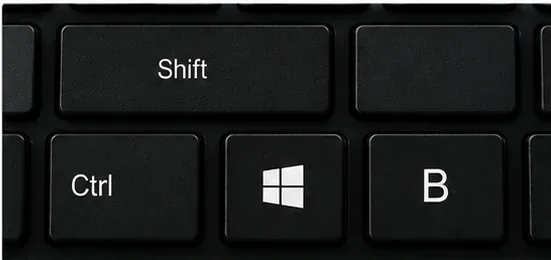
Next, press Windows + Ctrl + Shift + B. Microsoft recommends this shortcut to reset the graphics driver. A successful reset may produce a beep or a brief screen flicker. If Windows is running but sending the desktop to the wrong display, press Windows + P, press P again, and then press Enter to cycle display modes.
Press Windows + Ctrl + Shift + B to reset the graphics driver before moving to recovery tools.
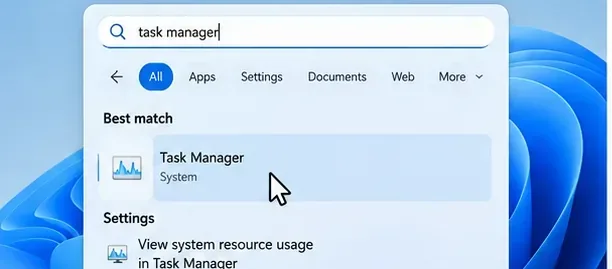
If Ctrl + Alt + Del brings up the Windows security screen, the display stack is at least partly functional. Open Task Manager. If you see Windows Explorer, right-click it and select Restart. If Explorer is missing, use Run new task, enter explorer.exe, and run it. This is especially useful when you see only a pointer on an otherwise black desktop.
If the screen comes back, stop here. Do not uninstall an update simply because the problem occurred after updating; the least disruptive fix is preferable.
Step 2: Enter Windows Recovery Environment and test Safe Mode
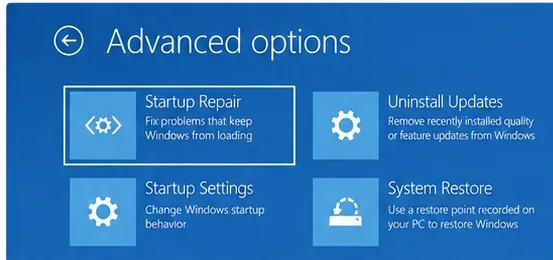
If the screen stays blank, Safe Mode is the next useful test because it starts Windows with a reduced set of drivers and services. Microsoft’s blank-screen instructions say you can force shutdown by holding the power button, repeat the interrupted startup two or three times until Windows enters recovery, then choose Troubleshoot > Advanced options > Startup Settings > Restart. Press F5 for Safe Mode with Networking.
WinRE groups the non-reinstall recovery tools you need: Startup Settings for Safe Mode, Uninstall Updates, System Restore, and Startup Repair.
If Safe Mode displays normally, that strongly narrows the problem to something that loads during a normal Windows session, such as a display driver or startup component. Do not interpret Safe Mode as a permanent fix; use it as a controlled environment for the next step.
Windows Recovery Environment may ask for a BitLocker recovery key before allowing some recovery operations on encrypted devices. Microsoft documents WinRE and its available recovery tools at Windows Recovery Environment.
Step 3: Roll back or update the display driver
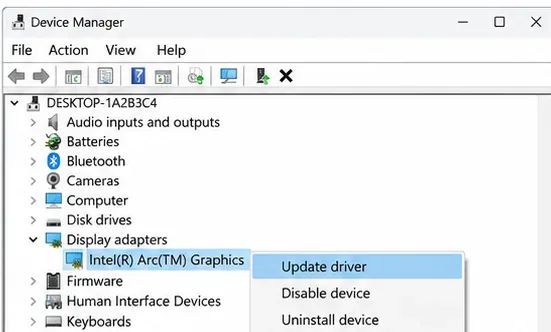
Display-driver problems are a common cause of a black screen that begins after an update. While in Safe Mode, open Device Manager, expand Display adapters, right-click your graphics adapter, and open its properties. If the problem began immediately after a driver change and Roll Back Driver is available on the Driver tab, use it. Microsoft specifically recommends rolling back when the blank screen started after an update.
In Safe Mode, use Device Manager to inspect the display adapter; roll back a recently changed driver when that option is available, or update the driver if appropriate.
If no rollback is available, try Update driver. For OEM laptops and desktops, also check the computer manufacturer’s support page for a graphics driver specifically validated for your model. Avoid random driver-download sites; a mismatched graphics package can make a display problem worse.
Restart normally after the driver change. If Windows now reaches the desktop, run Windows Update again and allow the system to settle before installing optional graphics packages.
Step 4: Reverse the recent Windows change without reinstalling
If Safe Mode works but normal Windows still goes black, or the issue clearly began with a specific Windows quality update, use the built-in recovery options before considering a reinstall.
Option A: Uninstall the latest quality update
From WinRE, choose Troubleshoot > Advanced options > Uninstall Updates, then choose the latest quality update. Microsoft notes that some updates cannot be uninstalled and that removing a security update has security implications, so use this when the timing strongly points to the newest update rather than as a routine first step. See How to uninstall a Windows Update.
There is one exception worth emphasizing in September 2026: if your only symptom is the solid-black desktop background associated with KB5120998, Microsoft resolved that issue with KB5124008 and later. In that situation, installing the newer update is better than rolling back. The current status is documented on Windows 11, version 24H2 known issues and notifications.
Option B: Use System Restore
If a restore point exists from before the black-screen problem, select System Restore in WinRE. System Restore reverts recent system changes without deleting personal files, although programs, drivers, and updates installed after the restore point can be affected. This is often a better fit than a full reset when the PC worked normally shortly before the update.
Option C: Run Startup Repair if Windows cannot boot normally
If the failure happens before the sign-in screen and Windows itself is not loading correctly, choose Startup Repair from WinRE. Microsoft describes Startup Repair as a tool for diagnosing and repairing common problems that prevent Windows from starting. It is less relevant when Windows clearly boots and only the desktop session is black.
What should you avoid if you want to preserve the current installation?
Do not jump straight to Reset this PC. WinRE offers several less disruptive tools first.
Do not install unofficial “black screen fix” utilities. Use Microsoft recovery tools and device-manufacturer drivers.
Do not repeatedly force power off once WinRE is available. Forced shutdown is useful to trigger recovery, but repeated interruptions are not a repair method.
Do not confuse a black wallpaper with a blank display. The September 2026 wallpaper issue has a documented update resolution.
Do not remove a security update without a reason. If a newer Microsoft update fixes the problem, installing the fix is preferable.
Quick no-reinstall checklist
Confirm whether Windows is actually blank or only showing a black desktop background.
If you are on affected Windows 11 24H2/25H2 builds with the black-background issue, install KB5124008 or later.
Press Windows + Ctrl + Shift + B, then test Windows + P.
If Ctrl + Alt + Del works, restart Windows Explorer.
Enter WinRE and start Safe Mode with Networking.
Roll back or update the display driver in Device Manager.
If the newest quality update clearly caused the issue, uninstall it from WinRE.
Use System Restore or Startup Repair before considering Reset this PC or a reinstall.
These steps preserve the existing Windows installation and focus on the most likely post-update failure points: display output, the Explorer session, graphics drivers, and the most recent system change. If the display remains completely blank even in WinRE, on an external monitor, and before Windows starts, the problem may be hardware or firmware-related rather than an update problem; at that point, use your PC manufacturer’s diagnostic and support resources.