If your PC suddenly runs hot, drains its battery, or feels sluggish while Task Manager shows sustained CPU or NPU activity, the hardest part is often deciding whether you are looking at a real fault or normal background work. That distinction matters even more on newer Copilot+ PCs, where a neural processing unit (NPU) can run local AI workloads that older Windows systems would have sent to the CPU or GPU.
There is one naming issue to clear up first. As of September 2026, Microsoft's official Windows client release pages list Windows 11 versions 26H1, 25H2, and 24H2; they do not list an officially supported Windows 12 client release. This guide therefore uses the current Windows 11 interface and behavior documented by Microsoft. If a PC maker, retailer, preview build, or forum calls your system "Windows 12," verify the actual version before changing settings. See Microsoft's Windows 11 release information and Windows release health.
Start by deciding what problem you actually need to solve
High resource usage is not automatically bad. The CPU is a general-purpose processor, while an NPU is specialized hardware designed to execute machine-learning operations efficiently. Microsoft documents NPU use in Copilot+ PCs for local AI workloads and exposes NPU activity in Task Manager. In other words, a brief NPU spike during an AI feature can be expected behavior rather than a defect. See the Copilot+ PC NPU developer guide.
Instead of chasing a fixed percentage, look for a pattern: activity that remains high after the workload should have ended, repeated fan noise at idle, unusual battery drain, lag in ordinary apps, or the same process repeatedly waking the system. There is no universal NPU or CPU percentage that proves something is wrong across all processors and workloads.
| What you observe | Best first move | Main trade-off |
|---|
| Short NPU spikes only during AI features | Leave the feature enabled unless battery life matters more | You keep the feature and accept some local processing |
| CPU stays busy after login | Review startup and background apps | Some apps may stop syncing or notifying instantly |
| CPU rises while Search is indexing | Use Classic indexing or exclude large folders | Search becomes less comprehensive |
| NPU rises during video calls | Test with Windows Studio Effects disabled | You lose effects such as framing, blur, or eye-contact correction |
| Usage started after an update or driver change | Update Windows and hardware drivers before disabling services | Takes time and may require a restart |
| Usage persists with no obvious app open | Use a clean boot; advanced users can capture a trace | Temporary loss of startup functionality and a more technical diagnosis |
1. Measure first: confirm the version and establish a baseline
Open Task Manager with Ctrl + Shift + Esc. On the Processes page, sort by CPU to see which processes are active. Then open Performance and select the NPU entry if your device has one. Microsoft's documentation says Task Manager can display NPU utilization, memory information, driver version, and other hardware details on supported systems.
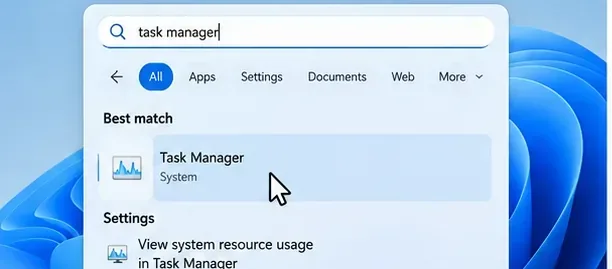
Open Task Manager first so you can compare CPU activity and, on supported Copilot+ PCs, NPU activity before and after each change.
Take a simple before-and-after baseline. Close the apps you are not testing, wait for obvious foreground work to finish, and note whether the CPU and NPU settle. If the NPU is busy only while a local AI feature is running and returns to low activity afterward, disabling system components may create more problems than it solves.
For NPU attribution that Task Manager cannot explain, Microsoft provides a Neural Processing profile in Windows Performance Recorder (WPR) and graphs in Windows Performance Analyzer (WPA). This is a better escalation path than guessing which service to disable. Microsoft's Windows Performance Toolkit documentation describes the Neural Processing trace profile.
2. Reduce optional background work, but choose what you are willing to give up
Startup apps: best for PCs that are busy immediately after sign-in
Open Settings > Apps > Startup, or use Task Manager's Startup apps page. Disable programs that do not need to launch with every sign-in. Microsoft's startup guidance notes that Task Manager also reports startup impact, which can help prioritize changes. See Configure startup applications in Windows.
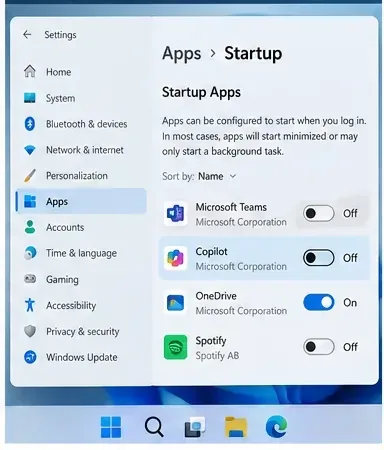
The Startup apps page lets you prevent nonessential software from launching automatically without uninstalling it.
Trade-off: disabling a startup entry can delay synchronization, tray controls, update checks, or notifications until you open the app manually. For cloud storage, VPN, password-manager, accessibility, security, or device-control software, understand what the app does before disabling it.
Background permissions: best when one Store-style app keeps waking up
For supported apps, go to Settings > Apps > Installed apps, open the app's Advanced options, and review Background app permissions. Microsoft documents three choices: Always, Power optimized, and Never. Power optimized is a sensible middle ground if you still want notifications; Never is more aggressive and may stop background updates. See Windows background apps and your privacy.
Desktop applications are an important exception: Microsoft notes that many traditional .EXE desktop apps do not use these per-app background permission controls. For those programs, use the application's own settings, Startup apps, or a clean boot to isolate them.
Search indexing: choose coverage versus resource use
Windows Search offers Classic and Enhanced indexing. Classic focuses on common user folders and uses fewer resources; Enhanced indexes the PC more broadly and can consume more CPU, especially during initial indexing or after large file changes. Microsoft says the initial indexing process can take up to a couple of hours and that Enhanced mode may use more system resources. See Search indexing in Windows.
On Copilot+ PCs, improved Windows Search also uses semantic indexing. Microsoft says this data stays local. If high CPU activity clearly tracks indexing, switch to Classic mode or exclude large folders you rarely search. Do not disable Search outright unless you have confirmed it is the source and can accept weaker search behavior. Microsoft's Windows Search and privacy page explains the trade-off.
Windows Studio Effects: useful to test when NPU usage appears during calls
Windows Studio Effects can use the NPU for features such as automatic framing, eye-contact correction, background effects, and voice focus. Microsoft specifically notes that some camera effects can significantly affect performance and battery life on some devices. If NPU use rises during meetings, disable the effects temporarily in Quick Settings or under Settings > Bluetooth & devices > Cameras and compare. See Windows Studio Effects.
Trade-off: turning the effects off can reduce AI processing, but you lose the visual or audio enhancement. Keep them enabled if the feature matters and the device remains cool and responsive.
Recall and Click to Do: test, do not assume
Recall on Copilot+ PCs is opt-in for saving snapshots, and Microsoft lets you pause or turn off snapshot saving under Settings > Privacy & security > Recall & snapshots. Click to Do can also be disabled under Privacy & security. If your measurements show that NPU or CPU activity lines up with those features, test again with them paused. If the behavior does not change, turn them back on if you use them. See Microsoft's Recall privacy and control and Click to Do documentation.
3. Update the software stack before treating system services as the enemy
NPU behavior depends on Windows, the hardware driver, the AI runtime, and the application using it. If high activity started after a new app, Windows update, or driver change, bring the stack to a known current state before making registry edits or permanently disabling Microsoft services.
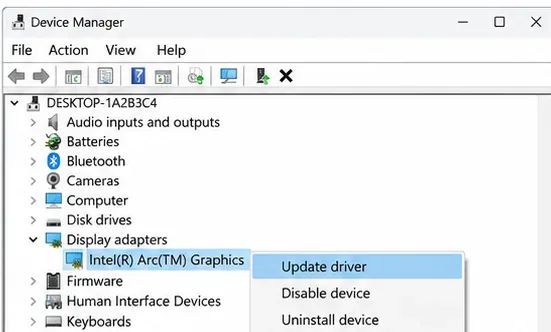
Open Settings > Windows Update, install applicable updates, then review optional driver updates if Microsoft offers them. Windows 11 can install recommended hardware drivers through Windows Update, and Microsoft documents optional driver updates as a supported path. See Automatically get recommended and updated hardware drivers.
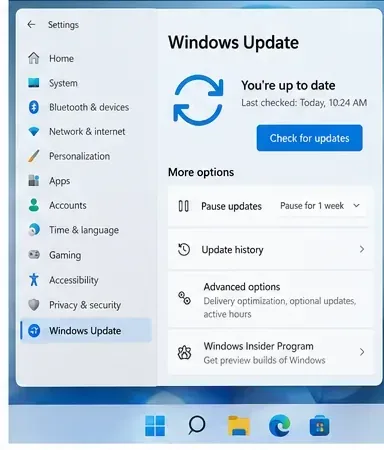
Windows Update is the first supported place to check for OS and recommended driver fixes before changing low-level services.
If your PC manufacturer provides a newer chipset, NPU, firmware, or BIOS package for your exact model, use the manufacturer's official support page rather than a third-party driver-download site.
Run a security scan when the process is unfamiliar
If the heavy process has an unfamiliar name, appears from an unexpected path, or returns immediately after you end it, run Windows Security. A Quick scan is a reasonable first pass; a Full scan is slower and more disruptive but checks more files. Microsoft notes that a full scan can make the PC slower while it is running. See Stay protected with the Windows Security app.
Use DISM and SFC only when Windows itself appears damaged
DISM and System File Checker are not general-purpose performance boosters. Use them when Windows features malfunction, files appear corrupted, or the system becomes unstable. Microsoft recommends running DISM before sfc /scannow. The official instructions are at Use the System File Checker tool.
4. Pick the right power mode, then escalate with a clean boot if needed
Power mode is a trade-off, not a cure for a runaway process. Under Settings > System > Power & battery, Best power efficiency can limit background activity and reduce energy use, while Best performance gives the processor more room to run at higher performance. Balanced is usually the least disruptive choice for everyday diagnosis.
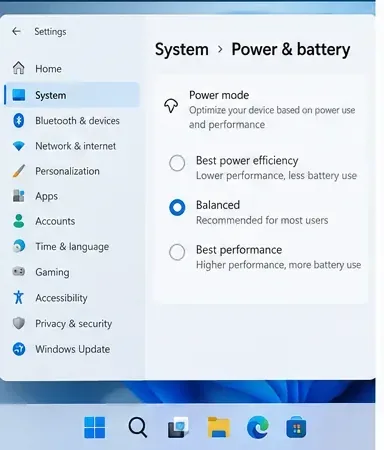
Power mode changes the performance-versus-energy balance; it does not identify the process causing sustained CPU or NPU activity.
Choose Best power efficiency when battery life, fan noise, and thermals matter more than maximum foreground speed. Choose Balanced when you want normal performance without forcing either extreme. Choose Best performance only when foreground responsiveness is the priority and higher power draw or heat is acceptable. Microsoft's Power settings in Windows 11 explains how efficiency modes limit background activity.
Clean boot: the strongest practical isolation test
If the problem persists, perform a clean boot rather than disabling random services permanently. Microsoft's clean-boot procedure starts Windows with essential drivers and startup programs so you can determine whether a third-party service or startup app is responsible. It also warns that some functionality may be temporarily unavailable. Follow the official clean boot instructions.
The useful result is diagnostic, not merely a lower percentage:
- If the high CPU or NPU activity disappears in a clean boot, re-enable services and startup items in groups until the problem returns.
- If the activity remains, focus on Windows components, drivers, firmware, or the specific feature that your earlier measurements identified.
- If the NPU is the unexplained resource, capture a Neural Processing trace with WPR/WPA and provide it to the device manufacturer, app developer, or Microsoft support instead of guessing.
How to verify that the fix actually worked
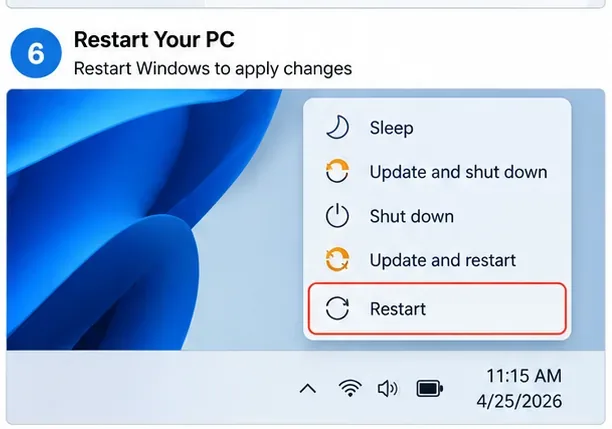
Restart after making a meaningful change, then repeat the same workload you used for the baseline. Compare like with like: same apps, same power source, same video-call effects, and roughly the same amount of idle time.
- Good sign: CPU activity settles after startup work completes, and the PC no longer remains hot or noisy at idle.
- Good sign: NPU activity rises when you intentionally use an AI feature and falls again when that feature stops.
- Good sign: battery drain and responsiveness improve without breaking notifications, sync, search, or camera features you actually need.
- Change approach: if a setting lowers resource use but removes a feature you rely on, restore it and target a narrower source instead.
- Escalate: if sustained resource use remains after updates and a clean boot, collect a trace or contact the PC maker with the process name, Windows build, driver versions, and reproduction steps.
What not to do
- Do not permanently disable Microsoft services just because their names appear near the top of Task Manager.
- Do not use third-party "optimizer" tools that promise to turn off large groups of Windows services without explaining the consequences.
- Do not assume every NPU spike is wasted work; moving supported AI inference from CPU/GPU to the NPU is often the intended design.
- Do not switch to Best performance expecting background usage to disappear; that mode can increase power consumption and heat.
- Do not follow a "Windows 12" screenshot blindly. Verify the actual Windows build first because Microsoft's current documented client UI is Windows 11.
Bottom line
For most people, the safest order is: measure first, reduce only the background features you do not need, update Windows and hardware drivers, then use a clean boot if the cause is still unclear. On Copilot+ PCs, the NPU is not a problem by itself; it is a dedicated resource that should be active when local AI work needs it. The goal is not to force CPU and NPU usage to zero. The goal is predictable activity that stops when the associated workload ends, reasonable thermals and battery life, and a system that still delivers the features you chose to keep.