How to Fix iPhone 17 Overheating During Fast Charging
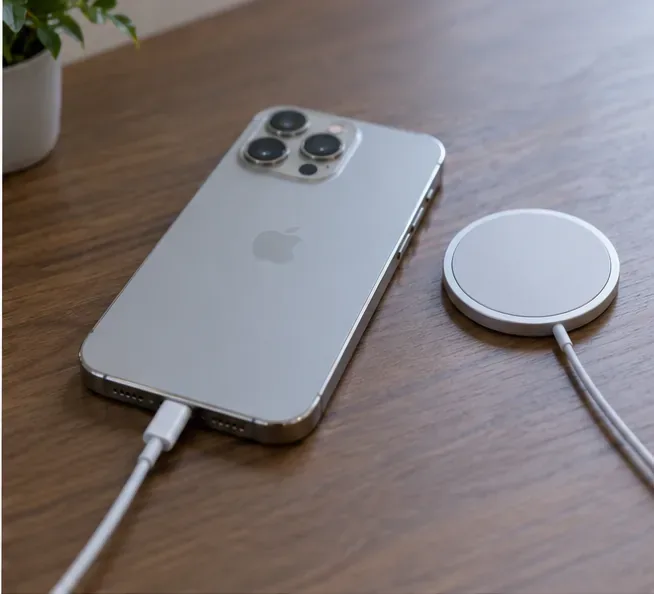
iPhone 17 getting too hot while fast charging? Learn how to cool it safely, check your charger, reduce heat, and know when Apple service is appropriate.
If people cannot hear you on calls from an iPhone 17, do not assume immediately that the phone has a failed microphone. Apple’s current troubleshooting process separates microphone testing from call-network troubleshooting because the same symptom can come from different causes: a blocked microphone opening, the wrong audio input, a permission problem in one app, software behavior, a network or carrier issue, or hardware that needs service.
What is verified: Apple recommends removing cases or films that can block openings, clearing debris, testing phone-call audio with Voice Memos, testing speakerphone-related audio with Camera recordings, and checking microphone permission when the problem is limited to one app. Apple’s service documentation also treats multiple microphone locations separately rather than treating the iPhone as if it had only one audio input.
What depends on your situation: A successful recording does not prove that every call path is perfect, and a bad cellular call does not automatically prove the microphone itself is defective. Bluetooth routing, a calling app, your carrier, and the location of the failure all matter.
Action: Follow the steps below in order and make a short test call after each meaningful change. That gives you evidence about the cause instead of changing several variables at once.
Start with the simplest physical cause. Remove the case, screen protector, film, or accessory that could cover an opening. Then inspect the bottom edge and other microphone areas for lint or debris.
What is verified: Apple specifically tells users to remove screen protectors, films, and cases when troubleshooting microphones. Apple’s sound troubleshooting guidance says to turn the iPhone off, unplug cables, and gently clean speaker and microphone openings with a small, clean, dry, non-metallic, soft-bristled brush. It also says not to use compressed air and to avoid moisture in openings.
What is not safe to assume: More aggressive cleaning is not necessarily better. Pushing pins, needles, liquids, or pressurized air into an opening can create a new problem.
Action: Power the iPhone off, remove the case, gently brush visible debris away, wipe loosened debris with a microfiber cloth, then turn the phone back on and place a test call.

Open Voice Memos, start a recording, speak normally toward the bottom of the iPhone, stop, and play the recording back.
What is verified: This is Apple’s recommended test when people cannot hear you on phone or FaceTime calls. Apple says your voice should play back clearly.
What the result means: If the recording is extremely quiet, distorted, intermittent, or silent after you have removed obstructions, that points more strongly toward a microphone or hardware-related problem. If the recording is clear, the phone can capture your voice in this test, so the next steps should focus on speakerphone testing, audio routing, app settings, and the call connection.
Action: Save the result in your head as “Voice Memos clear” or “Voice Memos bad.” That distinction will make the later troubleshooting much faster.

If callers mainly stop hearing you when Speaker is enabled, test more than the bottom microphone. Open Camera and record a short video while speaking toward the top of the iPhone. Switch cameras and record another short video, then play both clips.
What is verified: Apple recommends this front-camera/back-camera video test when people cannot hear you while you use speakerphone. Your voice should be clear in both recordings.
What depends on the result: If Voice Memos is clear but one Camera recording is consistently bad, the problem is more localized than a total microphone failure. If all recordings are clear but actual calls remain bad, continue to audio routing, software, and network checks.
Action: Test both camera directions instead of stopping after one clip, then compare those results with your Voice Memos test.

A microphone can appear “dead” when the call is using a different input. This is especially relevant if AirPods, Bluetooth earbuds, a car system, a USB-C audio device, or another accessory was recently connected.
What is verified: Apple’s current Mic Mode documentation says that when multiple audio devices are connected, you can open Control Center during a call, tap the app’s controls, and choose the audio input you want to use.
What depends on your setup: The Audio Input section appears when applicable. If no external audio device is connected, there may be nothing useful to switch. Also check that the call is not muted.
Action: During the problem call, open Control Center, open the Phone or calling-app controls, inspect Audio Input if it is available, and select iPhone for a direct test. Disconnect unnecessary Bluetooth or USB-C audio accessories and call again.

If normal Phone calls work but a third-party calling app cannot hear you, treat that as an app-specific problem first.
What is verified: Apple directs users to Settings > Privacy & Security > Microphone and says to make sure the affected app is enabled. If the app has permission and still fails, Apple recommends contacting the app developer.
What depends on your situation: The list only contains apps that have requested microphone access, so your screen will not necessarily match another person’s list. A system call problem is also different from a permission problem in a third-party app.
Action: Open Settings > Privacy & Security > Microphone, enable the affected calling app if it is listed, reopen the app, and make a test call.

Mic Mode changes how iPhone processes audio. It can improve voice clarity in the right conditions, but it does not repair a blocked or electrically failed microphone.
What is verified: Apple says Voice Isolation can be used during phone calls on iOS 16.4 or later, Automatic Mic Mode requires iOS 18 or later, and Voice Isolation prioritizes your voice while reducing ambient noise. Apple also states that Wide Spectrum is not available for phone calls.
Common misconception: Switching to Voice Isolation is not proof that a microphone was “fixed.” If Voice Memos or both Camera tests are silent, processing modes are not a substitute for hardware diagnosis.
Action: During a call, open Control Center, tap Phone Controls, and test Automatic or Standard first. If callers mainly complain about background noise, test Voice Isolation and ask whether your voice becomes clearer.

A restart is a reasonable software troubleshooting step after you have captured the microphone-test results. It clears the current system session without erasing your data.
What is verified: Apple’s restart instructions for iPhone X and later apply to iPhone 17: press and hold either volume button and the side button until the power-off slider appears, drag the slider, wait about 30 seconds for the device to turn off, then hold the side button until the Apple logo appears.
What is unknown: A restart cannot tell you why the problem occurred, and a temporary improvement does not prove whether the original cause was the Phone app, another process, an accessory, or a transient system state.
Action: Restart exactly once, then repeat the same test call under the same conditions so you can tell whether anything actually changed.

If the microphone tests are not clearly indicating hardware failure, update iOS before spending time on deeper resets. Apple updates can include bug fixes, security changes, and system improvements.
What is verified: Apple’s current update path is Settings > General > Software Update. Apple recommends backing up the device before updating and following the onscreen instructions if an update is available.
What is not verified: Do not assume that an iOS update caused your iPhone 17 microphone problem unless Apple or another authoritative source documents that specific issue. The Apple support sources cited in this guide provide general microphone and call troubleshooting rather than identifying a universal iPhone 17 call-microphone defect.
Action: Back up the iPhone, connect it to power and Wi-Fi as appropriate, install the latest update shown for your device, then repeat Voice Memos, Camera, and a real call.

At this point, a microphone failure becomes less likely than it was at the beginning, although it is not mathematically ruled out. If Voice Memos and both Camera recordings are consistently clear but people still cannot hear you during cellular calls, investigate the call path rather than repeatedly cleaning the phone.
What is verified: Apple’s call troubleshooting guidance says call failures can be related to settings, out-of-date software, or the cellular network. Apple recommends checking for a carrier settings update, trying calls in another location, and contacting the carrier about account status, outages, or call errors.
Action: Connect to Wi-Fi, go to Settings > General > About and install a carrier settings update if one is offered. Then try a call in another location. If the problem is only cellular and recordings stay clear, ask your carrier to check for an outage or account-side call errors.
Reset Network Settings is a broader step, not a first-line microphone fix.
What is verified: Apple lists Settings > General > Transfer or Reset iPhone > Reset > Reset Network Settings as a call-troubleshooting step. Apple also warns that this erases saved Wi-Fi passwords, preferred networks, and VPN and APN settings you have used.
Common misconception: A network reset does not repair a physically blocked or failed microphone. It is more appropriate when recordings are good but call connectivity remains abnormal.
Action: Before resetting, make sure you know any Wi-Fi credentials or custom network settings you need. Reset only if the earlier microphone tests are clean and call/network symptoms persist.
| What you observe | What it suggests | Best next action |
|---|---|---|
| Voice Memos is muffled or silent | A bottom-microphone path or obstruction may be involved | Remove accessories, clean safely, retest, then seek service if still bad |
| Voice Memos is clear, but one or both Camera videos sound bad | The issue may affect a different microphone path | Retest without a case; if repeatable, move toward Apple diagnostics/service |
| All recordings are clear, but only one third-party calling app fails | App permission, app configuration, or app behavior is more likely | Check Settings > Privacy & Security > Microphone and update/contact the app developer |
| All recordings are clear, but cellular calls fail in specific places | Network coverage or carrier-side conditions may be involved | Try another location, check carrier settings, and contact the carrier |
| The problem appears only with earbuds, car audio, or USB-C accessories | The selected audio input or accessory may be involved | Switch Audio Input to iPhone and test without the accessory |
| Recordings remain bad after cleaning, restarting, and updating | Hardware service becomes more plausible | Use Apple diagnostics/support or arrange service |
If your voice remains unclear or absent in Voice Memos and Camera tests after removing obstructions, restarting, and updating, continuing to toggle call settings is unlikely to add much evidence. Apple’s microphone support page says the device may need service if sound remains unclear during calls, recordings, or apps.
Apple’s 2026 sound troubleshooting documentation also includes dedicated diagnostic procedures and identifies separate microphone-related service paths for iPhone 17 hardware. That does not mean every bad call requires a repair; it means persistent failures that reproduce outside the Phone app deserve a hardware diagnosis.
Action: Before service, note which tests fail: Voice Memos, front-camera video, rear-camera video, normal handset call, speakerphone call, and calls with external audio disconnected. Giving those results to Apple Support or a service provider is more useful than saying only “the microphone does not work.”
Not necessarily. Apple uses different tests for normal call complaints and speakerphone complaints, which is a strong reason not to treat one successful recording as a complete hardware certification.
Action: Run both the Voice Memos and two Camera video tests before drawing a conclusion.
No. Voice Isolation is an audio-processing mode that prioritizes your voice and suppresses ambient sound. It can improve intelligibility when the microphone is functioning, but it is not a physical repair.
Action: Use it after confirming the phone can record your voice clearly.
No. Apple does include network reset in call troubleshooting, but it also erases saved network information. It is not the right first move when Voice Memos and Camera tests are already showing a microphone capture problem.
Action: Reserve it for persistent call/network symptoms after microphone tests are clear.
This guide was researched against current Apple support material available in September 2026. For the original instructions, see Apple: If the microphones on your iPhone aren’t working, Apple: iPhone Troubleshooting Sound Issues, Apple: Use Voice Isolation, Wide Spectrum, or Automatic Mic Mode, Apple: Restart your iPhone, Apple: Update your iPhone or iPad, Apple: If your call fails or you can’t receive calls on your iPhone, and the iPhone 17 Repair Manual.
iPhone 17 getting too hot while fast charging? Learn how to cool it safely, check your charger, reduce heat, and know when Apple service is appropriate.
Fix iPhone 17 camera lag when switching lenses with verified iOS, Macro Control, Camera Control, storage, heat, and hardware checks.
Apple lists no Intel Macs for macOS 27. Learn how to identify your Mac, check the latest compatible release, and prepare apps and backups before upgrading.
Fix iPhone 17 game stutter and frame drops by checking Low Power Mode, Game Mode, heat, updates, storage, restarts, and last-resort settings.
Fix eSIM Transfer Failed on iPhone 17 Pro Max by checking Quick Transfer requirements, Wi-Fi and Bluetooth, iOS updates, carrier support, and QR-code fallback options.
Fix an iPhone 17 “Storage Almost Full” warning after an iOS update by checking real usage, allowing indexing to finish, freeing safe space, and updating iOS.
Fix repeated Wi‑Fi 7 disconnects on iPhone 17 Pro with Apple-supported steps for iOS, 6 GHz mode, router settings, VPNs, Private Wi‑Fi Address, and network reset.
Move contacts, photos, messages, apps, and WhatsApp chats from Android to iPhone 17 using the official Move to iOS method, with setup requirements and recovery tips.
Fix an iPhone 17 microphone that stops working on calls with Apple-verified tests for blocked mics, audio routing, permissions, iOS, and service.
Fix Apple Intelligence on iPhone 17 with verified Apple steps for iOS updates, model downloads, storage, language and region settings, Screen Time, Siri, and restart checks.