How to Fix iPhone 17 Camera Lag When Switching Lenses
Fix iPhone 17 camera lag when switching lenses with verified iOS, Macro Control, Camera Control, storage, heat, and hardware checks.
If your iPhone 17 hesitates, briefly freezes, or shows a noticeable visual jump when you move between camera zoom levels, start by separating normal camera behavior from an actual performance problem. The base iPhone 17 has a 48MP Fusion Main camera and a 48MP Fusion Ultra Wide camera. Its 2x option is an optical-quality crop from the Main camera rather than a separate telephoto camera, so moving from 1x to 2x is not the same hardware switch as moving between 0.5x and 1x. Apple documents these camera specifications on the iPhone 17 technical specifications page.
There is also an important software context as of September 2026. Apple's iOS 26 release notes document camera-related fixes on the iPhone 17 family, including a fix in iOS 26.0.1 for unexpected photo artifacts under some lighting conditions, but the published notes do not identify a specific fix for lens-switching lag. Later iOS 26 releases include additional bug fixes and security updates. That means updating iOS is still the right first step, but it should not be presented as a guaranteed cure. See Apple's iOS 26 update notes for the version history.
When the camera is working normally, a change in framing, exposure, focus, or color can be visible when the app changes between physically different cameras. What you are trying to eliminate is repeated stalling, a black preview, a camera that stops responding, unusually long refocusing, or a delay that makes it hard to frame a shot.
Use the Apple Camera app for your first tests. If switching is smooth in Apple's app but delayed in Instagram, TikTok, a scanning app, or another third-party camera, the problem is more likely to be in that app's camera implementation. Update that app before changing system settings.
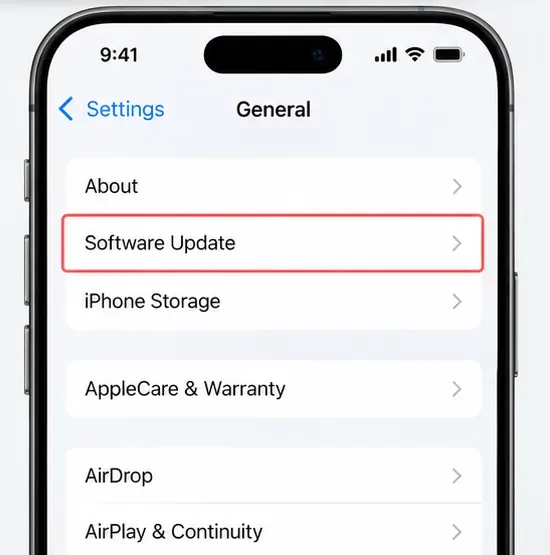
Go to Settings > General > Software Update. Install the current public update offered to your device, then restart the camera test. Apple explicitly includes updating iOS among its recommended steps when the iPhone camera is not working correctly.
If you just installed a major iOS update, do not judge camera performance immediately while the phone is hot or busy. Apple notes that update-related tasks can continue in the background for a period after installation and can affect thermal performance. Give the phone time to finish background work, especially if it is warm.
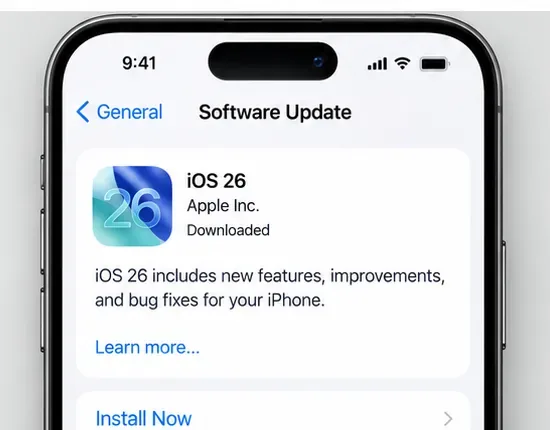
After the update and a normal restart, open Camera in Photo mode and switch several times between 0.5x, 1x, and 2x while pointing at the same well-lit scene. If the lag is gone, stop there. If it remains, continue with the behavior-specific checks below.
The iPhone 17 supports macro photography using the Ultra Wide camera. Apple explains that when you move very close to a subject, the Camera app can automatically switch to Ultra Wide to enable macro capture. That automatic change can look like an unexpected lens jump or refocus event, especially when you are moving the phone toward and away from a small object.
To test this, open Camera in Photo mode, move close to a subject, and watch for the Macro control. Tap the Macro control to turn automatic macro switching off for that shot. If you want the choice to persist between camera sessions, go to Settings > Camera > Preserve Settings and turn on Macro Control. Apple's current instructions are in its Macro photography guide.
This is particularly useful if the problem appears only at very close focusing distances. If the delay also happens when photographing a distant outdoor scene, Macro switching is probably not the main cause.
For video recording, Apple provides a setting specifically designed to prevent the device from switching between cameras while recording. Go to Settings > Camera > Record Video, then turn on Lock Camera. Apple's video recording settings guide states that Lock Camera prevents switching between cameras during video recording.
This is a targeted fix if your complaint is a visible jump or pause in the middle of video. It is not the right fix if the Camera app is lagging before recording starts, because Lock Camera only affects switching while recording.
On supported iPhone 17 models, Camera Control can switch between cameras and zoom settings. If the delay happens when you use Camera Control but not when you tap the on-screen 0.5x, 1x, or 2x controls, the issue may be input recognition rather than camera processing.
Apple lets you change Camera Control's light-press force and double-light-press speed under Settings > Accessibility > Camera Control. Test the on-screen controls first; then adjust Camera Control only if the lag is specific to that physical control. Apple's Camera Control accessibility guide documents these options.
Apple recommends removing cases, films, lens converters, magnetic mounts, or other accessories that can interfere with the camera, then testing again. Clean the front and rear lenses with a microfiber cloth if they are dirty. These steps are listed in Apple's camera troubleshooting guidance.
This matters because the camera system depends on autofocus and optical stabilization. A problem that feels like “lens lag” can actually be repeated refocusing or stabilization behavior caused by an accessory near the camera module.
If the phone has spent significant time mounted on a high-powered motorcycle, note that Apple separately warns that prolonged exposure to high-amplitude vibration can degrade camera stabilization and autofocus systems. That scenario is more likely to need service than a settings change.
Camera work is computationally demanding. Apple states that when an iPhone becomes too warm, performance can be reduced and processing can take longer. Let the device cool to a normal temperature before testing. Avoid evaluating camera performance while the phone is in direct sun, wirelessly charging, or hot after prolonged video recording.
Also check Settings > Battery. Apple's general performance guidance says Low Power Mode can make some features work more slowly. For troubleshooting, temporarily turn Low Power Mode off and retest.
Then check Settings > General > iPhone Storage. Apple recommends keeping at least 1 GB of free space to avoid general slowdowns. If storage is nearly full, free space before deciding that the camera hardware is defective.
Under Settings > Camera, iOS includes Prioritize Faster Shooting. Apple says this setting modifies image processing so you can capture more photos when rapidly pressing the shutter. It is enabled by default on supported models.
This setting is worth verifying if your “lag” happens when you switch zoom levels and immediately take several photos. However, it is not documented as a control for the speed of physical lens switching, so do not expect it to fix a black preview or a camera that freezes when changing from 0.5x to 1x.
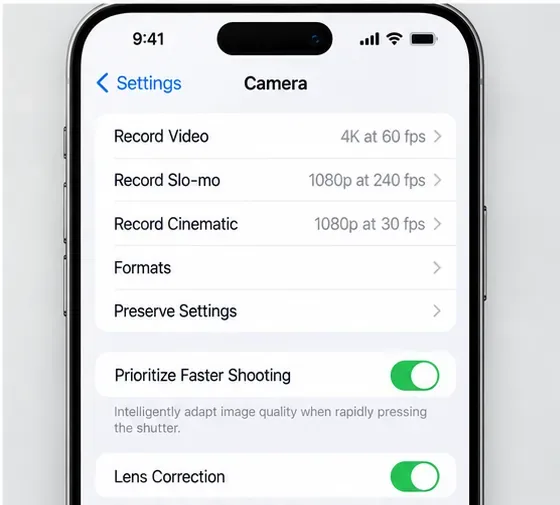
You can read Apple's description on the advanced Camera settings page.
If Camera is frozen, black, or not responding, restart the iPhone and test again. Apple also recommends a restart in its camera troubleshooting process. If the Camera app alone is not responding, you can close that app and reopen it, but do not routinely force-close every app in the app switcher. Apple's general performance guidance notes that unnecessary force-closing can slow app relaunch because the app has to load its data again.
| What you see | Most useful next check | What success looks like |
|---|---|---|
| Jump or refocus only when very close to a subject | Test Macro Control | The unwanted automatic Ultra Wide switch stops |
| Jump only while recording video | Turn on Lock Camera | The camera remains on the selected camera while recording |
| Delay only when using Camera Control | Compare on-screen zoom buttons; adjust Camera Control timing | On-screen switching is immediate and Camera Control responds consistently |
| Camera and other apps are sluggish | Check heat, Low Power Mode, and storage | Performance returns after cooling, leaving low-power restrictions, or freeing space |
| Lag began after a major iOS update | Install current update and allow background tasks to finish | Camera behavior stabilizes after the device completes update-related work |
| One camera repeatedly shows black, shakes, or will not focus | Remove accessories, restart, then seek service | Each camera produces a stable preview and focuses normally |
Software troubleshooting has a limit. If the problem remains in Apple's Camera app after you update iOS, restart, test without accessories, control Macro behavior, and test at a normal temperature, hardware diagnosis becomes more reasonable.
Seek service sooner if one rear camera consistently produces a black preview, autofocus repeatedly hunts in ordinary daylight, the preview visibly shakes when the phone is held still, or the problem began after a hard impact or prolonged high-vibration mounting. Apple's iPhone 17 repair documentation includes dedicated camera troubleshooting and repair procedures, and Apple recommends service when camera problems persist after basic troubleshooting.
Use Apple's iPhone service and repair page to arrange an inspection or find an authorized provider.
For most iPhone 17 lens-switch complaints, the best approach is to identify which transition is actually slow before changing many settings. A close-up jump may be Auto Macro. A video jump can often be prevented with Lock Camera. A delay limited to Camera Control may be an input-timing issue. A phone that is hot, nearly full, or still finishing update work can feel slow more generally.
If none of those conditions explain the behavior and the stock Camera app still freezes or produces unstable output, stop treating it as a settings problem and move to Apple diagnostics or service. That gives you a clear endpoint instead of endlessly toggling camera options that are unrelated to the symptom.
Fix iPhone 17 camera lag when switching lenses with verified iOS, Macro Control, Camera Control, storage, heat, and hardware checks.
Apple lists no Intel Macs for macOS 27. Learn how to identify your Mac, check the latest compatible release, and prepare apps and backups before upgrading.
Fix iPhone 17 game stutter and frame drops by checking Low Power Mode, Game Mode, heat, updates, storage, restarts, and last-resort settings.
Fix eSIM Transfer Failed on iPhone 17 Pro Max by checking Quick Transfer requirements, Wi-Fi and Bluetooth, iOS updates, carrier support, and QR-code fallback options.
Fix an iPhone 17 “Storage Almost Full” warning after an iOS update by checking real usage, allowing indexing to finish, freeing safe space, and updating iOS.
Fix repeated Wi‑Fi 7 disconnects on iPhone 17 Pro with Apple-supported steps for iOS, 6 GHz mode, router settings, VPNs, Private Wi‑Fi Address, and network reset.
Move contacts, photos, messages, apps, and WhatsApp chats from Android to iPhone 17 using the official Move to iOS method, with setup requirements and recovery tips.
Fix an iPhone 17 microphone that stops working on calls with Apple-verified tests for blocked mics, audio routing, permissions, iOS, and service.
Fix Apple Intelligence on iPhone 17 with verified Apple steps for iOS updates, model downloads, storage, language and region settings, Screen Time, Siri, and restart checks.
iPhone 17 battery draining fast after an iOS update? Diagnose post-update activity, apps, display, 5G, power modes, and battery health safely.