How to Fix iPhone 17 Overheating During Fast Charging
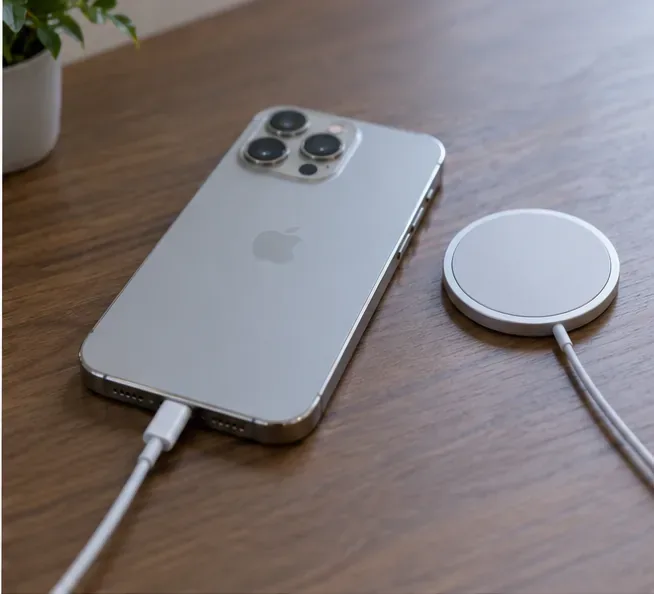
iPhone 17 getting too hot while fast charging? Learn how to cool it safely, check your charger, reduce heat, and know when Apple service is appropriate.
An iPhone 17 can feel noticeably warm during fast charging without necessarily being in an unsafe state. The important distinction is whether the phone is simply warm or whether iOS is actively limiting charging because the device temperature has moved outside its normal range. Apple says an iPhone may feel warmer during charging, software updates, high-performance apps, camera use, streaming, and wireless charging. If the phone becomes too hot, charging can slow or stop automatically.
Illustrative example: imagine Maya plugs an iPhone 17 into a 45W USB-C Power Delivery adapter at 28% battery. The phone is in a thick case, a navigation app is still running, and it is sitting near a sunny window. After several minutes, the back feels much hotter than usual and charging slows. This is a hypothetical scenario used throughout this guide, not a real test result or customer report.
Start by looking for a message rather than judging only by touch. Apple states that an iPhone can become warm during normal demanding activity, including wireless charging. If there is no temperature warning, the phone may still be operating normally. If you see a message such as “Charging On Hold” because of temperature, or the dedicated temperature warning screen, iOS has already stepped in to protect the device.
| What you notice | What it usually means | What to do |
|---|---|---|
| Phone feels warm, charging continues, no warning | Warmth can be normal during charging or heavy use | Reduce unnecessary activity and improve airflow |
| “Charging On Hold” appears | The phone is temporarily too hot or too cold to charge normally | Move it to a more moderate environment and let it return to normal temperature |
| Temperature warning screen appears | The internal temperature is outside the normal operating range | Turn the phone off, move it away from heat or direct sun, and let it cool |
Apple’s current guidance says iPhone is designed for use in ambient temperatures from 32°F to 95°F (0°C to 35°C), while its ideal ambient range is narrower at about 62°F to 72°F (16°C to 22°C). Charging or using the phone above 95°F (35°C) can permanently shorten battery lifespan. See Apple’s iPhone temperature guidance and Apple’s battery charging and temperature guidance.
The iPhone 17 supports faster wired charging than older baseline iPhone models. Apple says the iPhone 17, iPhone 17 Pro, and iPhone 17 Pro Max can reach up to 50% in around 20 minutes with a 40W or higher USB-C adapter under Apple’s test conditions. Actual charging time varies with the adapter, settings, usage, battery state, and environment. Apple also supports comparable third-party USB-C adapters that use USB Power Delivery (USB-PD). Details are in Apple’s fast-charging guide and the iPhone 17 technical specifications.
Fast charging moves more energy into the battery over a shorter period, so some warmth is expected. Apple also notes that the battery naturally warms while charging and that iPhone gradually reduces charging current as the battery approaches full charge. That means charging speed is not constant from 0% to 100%, and a slower rate later in the charge is not automatically a fault.
If the iPhone is much hotter than usual, especially if you see a temperature warning, disconnect it from power. If the dedicated temperature warning screen appears, Apple recommends turning the device off, moving it to a cooler environment away from direct sunlight, and allowing it to cool before resuming use.
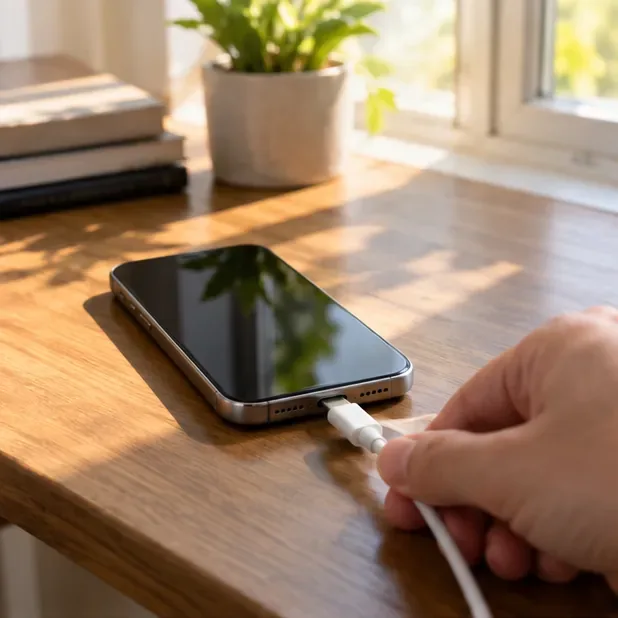
In Maya’s hypothetical case, the first action is not to test another charger immediately. She unplugs the cable and moves the phone away from the sunny window so the phone can return to a normal temperature.
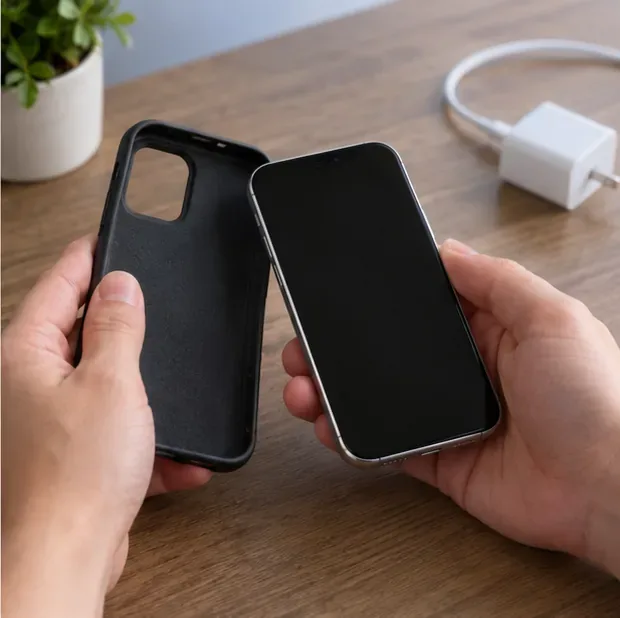
If your iPhone tends to heat up while charging, Apple recommends removing the case as a troubleshooting step. A case is not automatically the cause, but a thick or insulating case can make it harder for heat to leave the phone.
Place the device on a hard, open surface rather than under bedding, on a soft couch, or in another poorly ventilated location. Apple’s safety guidance says the iPhone, charger, and wireless charger should be kept in a well-ventilated area while charging.
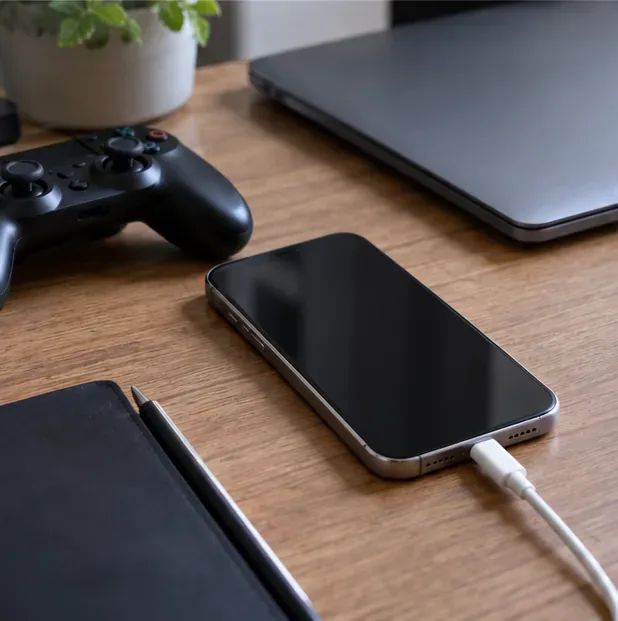
Gaming, extended camera use, high-quality video streaming, GPS navigation, and other processor-intensive work can add heat at the same time the battery is charging. Apple specifically lists graphics-intensive apps, camera use, streaming, and navigation in hot conditions as situations that can raise device temperature.
For the cleanest test, lock the screen and leave the phone idle for 10 to 15 minutes while charging. In the illustrative scenario, Maya closes navigation and stops using the phone while the battery charges. If the device is dramatically cooler when idle, the issue may be the combined load rather than the charger alone.
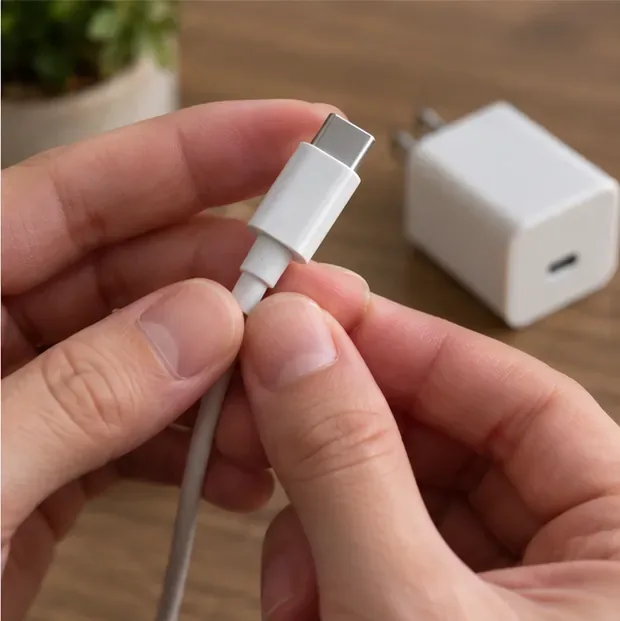
For iPhone 17 fast charging, Apple says a 40W or higher USB-C power adapter can provide the model’s fastest advertised wired result under its test conditions. A third-party adapter can also be appropriate if it is a comparable USB-C Power Delivery adapter. Higher wattage by itself does not force the phone to take unlimited power; the iPhone and adapter negotiate power through the charging system.
What matters is that the adapter and cable are compatible, undamaged, and used correctly. Apple says to stop using a cable that is frayed or otherwise damaged, and to stop using a damaged power adapter. Check the connector for bent parts, discoloration, broken insulation, or a loose fit. If you have a known-good USB-C cable and USB-PD adapter, use them for comparison.
Ambient temperature matters. Apple says iPhone is designed for use from 32°F to 95°F (0°C to 35°C) and recommends avoiding use or charging above 95°F (35°C). Direct sunlight, a parked car, or a hot room can push the phone closer to its thermal limit before charging even begins.
For Maya, moving the phone from a sunny windowsill to an open desk in an air-conditioned room changes only the environment. This is useful troubleshooting because it isolates heat from the room from heat created by the charging process.
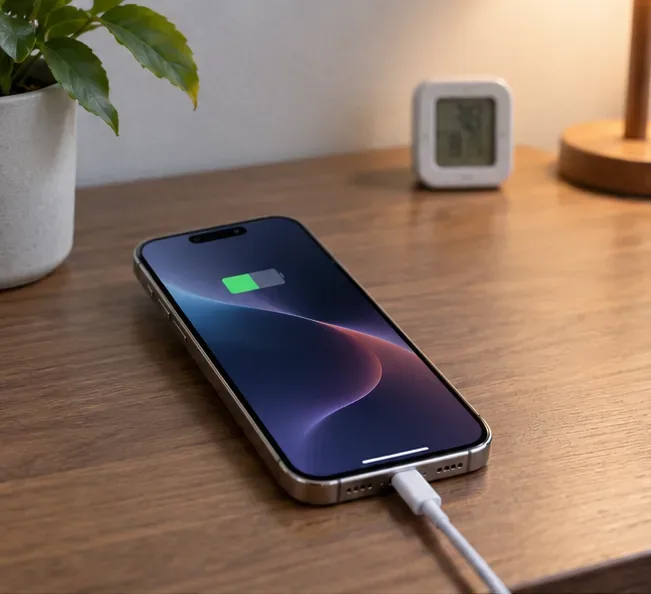
Wireless charging can make an iPhone feel warm, and Apple lists wireless charging as one of the situations where the device may become warmer. If your problem appears only on MagSafe or another wireless charger, run a controlled comparison with a known-good USB-C cable and USB-PD adapter.
This does not mean wired charging is always cooler in every situation. The goal is to change one variable at a time. If thermal warnings happen repeatedly on one charging method but not the other under the same room conditions, that observation is useful when deciding whether an accessory needs to be replaced or checked.
After the phone has cooled, reconnect a known-good charger in a moderate room, leave the screen off, and avoid demanding apps. Observe whether the phone remains merely warm or whether iOS again pauses charging because of temperature.
A repeatable test is more useful than touching the phone once and guessing. Note the battery percentage when you plug in, whether the case is on or off, the charging method, the room conditions, and whether a temperature message appears. You do not need a laboratory thermometer to do this; you are looking for a consistent pattern.
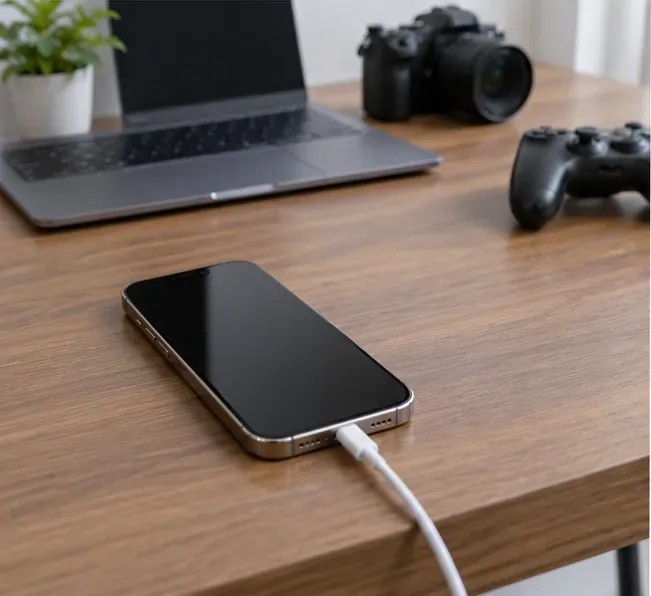
If the iPhone repeatedly shows temperature warnings in a normal indoor environment while idle, using known-good charging accessories, the problem deserves further diagnosis. Also stop using the phone if you suspect physical damage to the device or battery. Apple’s safety guidance says a damaged iPhone or battery can cause overheating or injury and that battery service should be handled by a trained technician.
When you contact Apple or an authorized service provider, describe the exact conditions that reproduce the issue: charger wattage and type, cable used, wired or wireless charging, case on or off, battery percentage, room conditions, and the exact warning message. That gives the technician more useful information than “it gets hot.”

On iPhone 15 and later, including iPhone 17, you can go to Settings > Battery > Charging and choose a Charge Limit from 80% to 100% in 5% increments. Apple says this can help reduce battery wear, especially for people who charge frequently or keep the phone connected for long periods. If the limit is set to 100%, Optimized Battery Charging can delay charging past 80% in some situations based on your routine. See Apple’s Charge Limit and Optimized Battery Charging documentation.
A lower Charge Limit is mainly a battery-longevity setting, not the primary fix for an iPhone that is hitting temperature warnings during the early part of a fast charge. If the phone overheats at 30% or 40%, focus first on ambient temperature, case, workload, charger condition, cable condition, and whether the issue is repeatable.
Returning to Maya’s hypothetical iPhone 17: she would unplug the phone, move it out of the sun, remove the thick case, close navigation, inspect the USB-C cable and adapter, and retry in a cooler room with the screen off. If the phone then stays warm but shows no thermal warning and continues charging normally, that points toward the original environment and workload as likely contributors. If “Charging On Hold” or the temperature warning keeps returning under the controlled setup, she would stop repeated testing and arrange service.
The key is to troubleshoot one variable at a time. Fast charging can create normal warmth, but iOS also has automatic thermal protections. Respect those warnings, keep the phone within Apple’s recommended temperature range, use compatible undamaged charging accessories, and escalate persistent overheating instead of trying to overpower the protection system.
iPhone 17 getting too hot while fast charging? Learn how to cool it safely, check your charger, reduce heat, and know when Apple service is appropriate.
Fix iPhone 17 camera lag when switching lenses with verified iOS, Macro Control, Camera Control, storage, heat, and hardware checks.
Apple lists no Intel Macs for macOS 27. Learn how to identify your Mac, check the latest compatible release, and prepare apps and backups before upgrading.
Fix iPhone 17 game stutter and frame drops by checking Low Power Mode, Game Mode, heat, updates, storage, restarts, and last-resort settings.
Fix eSIM Transfer Failed on iPhone 17 Pro Max by checking Quick Transfer requirements, Wi-Fi and Bluetooth, iOS updates, carrier support, and QR-code fallback options.
Fix an iPhone 17 “Storage Almost Full” warning after an iOS update by checking real usage, allowing indexing to finish, freeing safe space, and updating iOS.
Fix repeated Wi‑Fi 7 disconnects on iPhone 17 Pro with Apple-supported steps for iOS, 6 GHz mode, router settings, VPNs, Private Wi‑Fi Address, and network reset.
Move contacts, photos, messages, apps, and WhatsApp chats from Android to iPhone 17 using the official Move to iOS method, with setup requirements and recovery tips.
Fix an iPhone 17 microphone that stops working on calls with Apple-verified tests for blocked mics, audio routing, permissions, iOS, and service.
Fix Apple Intelligence on iPhone 17 with verified Apple steps for iOS updates, model downloads, storage, language and region settings, Screen Time, Siri, and restart checks.