How to Fix iPhone 17 Overheating During Fast Charging
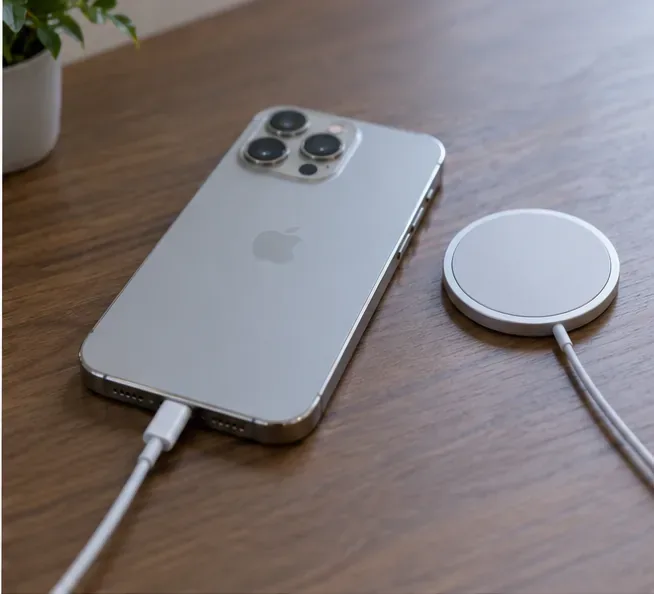
iPhone 17 getting too hot while fast charging? Learn how to cool it safely, check your charger, reduce heat, and know when Apple service is appropriate.
You have a new iPhone 17 on the desk, your old Android still contains years of photos and contacts, and the part you are most nervous about is WhatsApp. General phone data is replaceable or can often be copied again; a missing chat history is much harder to accept.
Illustrative scenario: imagine Maya is moving from a three-year-old Android phone to a new iPhone 17. She wants to keep her personal WhatsApp conversations, group chats, photos, videos, contacts, calendars, and normal phone data. Maya is fictional; this example is only a way to walk through the official process and is not a report of a real migration test.
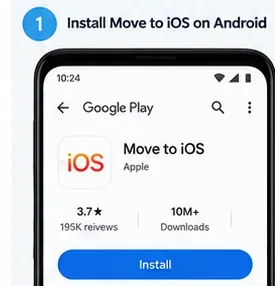
The safest route for Maya is to use Apple’s setup-time Android transfer together with WhatsApp’s officially documented Android-to-iPhone migration process. As of September 2026, Apple also supports an app-free transfer from certain compatible Android 17 devices, but WhatsApp’s own instructions for moving chat history from Android to iPhone still specifically require the Move to iOS app. If WhatsApp history is the priority, follow the WhatsApp-supported path rather than assuming the newer app-free Apple transfer will move chats in the same way.
Official references: Apple Support: Move from Android to iPhone or iPad and WhatsApp Help Center: How to move chats from an Android device to an iPhone.
WhatsApp’s current requirements are more specific than “put the phones next to each other.” Check these before you erase, activate, or trade in anything:
Apple also says you can connect Android and iPhone directly with a USB-C cable for a faster general Move to iOS transfer. If preserving WhatsApp is your main concern, however, continue to follow WhatsApp’s own on-screen migration requirements during the process rather than treating the cable as a substitute for the WhatsApp workflow.
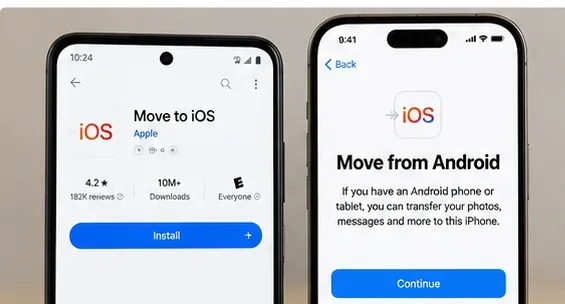
This is the decision that prevents the most painful restart. Apple says the Android transfer option appears during the iPhone setup assistant under Transfer Your Apps & Data. If the iPhone has already been fully set up, Apple says you must erase it and begin setup again to use Move to iOS, or move ordinary content manually.
For WhatsApp, the restriction is even more important. WhatsApp says the new iPhone must be factory new or factory reset, and if WhatsApp is already active on the new device, you cannot simply merge the old Android history into the new history. To recover the old history through the official Android-to-iPhone route, wipe the new iPhone and start the migration again.
In Maya’s example, that means she should resist the temptation to finish iPhone setup, install WhatsApp, and start chatting before the migration. She first reaches the Transfer Your Apps & Data screen and chooses From Android.
On the Android phone, open Move to iOS and follow the permissions and agreement screens. On the iPhone, continue from the Move from Android screen. Apple currently says the iPhone can display either a 10-digit or 6-digit code. Enter that code on Android.
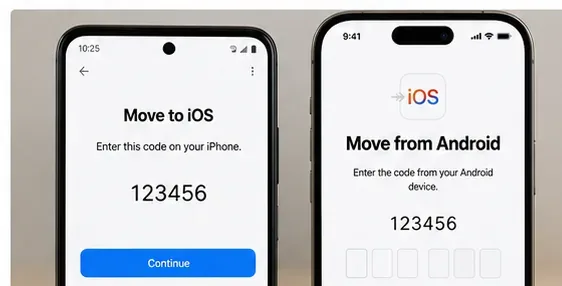
The iPhone creates a temporary Wi-Fi network for the transfer. When Android asks to connect, accept it and wait for the transfer-data screen. A weak-internet warning on Android does not necessarily mean the direct phone-to-phone connection has failed; Apple explicitly notes that this warning can be ignored during this step.
Apple’s current Move to iOS documentation lists WhatsApp messages and media among the content that can transfer, along with contacts, message history, SMS, camera photos and videos, photo albums, files and folders, web bookmarks, mail accounts, Voice Memos, call history, and calendars. Some free apps can also be matched with App Store versions when available.
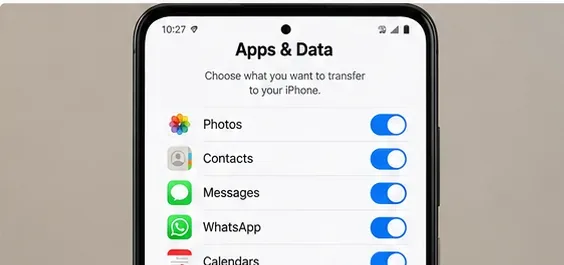
Do not assume every Android item is covered. Apple says music, books, and PDFs may need to be moved manually. App-specific data can also depend on whether the destination app and migration process support it.
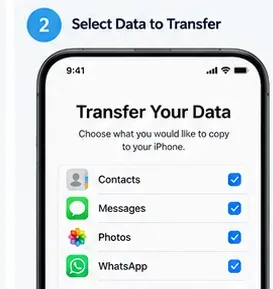
WhatsApp’s official sequence says to select WhatsApp on the Move to iOS transfer screen and tap Start on the Android phone. WhatsApp prepares the data for export, and you are signed out of WhatsApp on Android after preparation finishes. Then return to Move to iOS and continue the transfer.
This is a good point to stop multitasking. Apple warns that if you use another app or receive a phone call on the Android device before the Move to iOS transfer finishes, content might not transfer. Keep Move to iOS visible, keep both devices near each other, and leave them plugged in.
Apple specifically advises waiting until the loading bar on the iPhone finishes, even if Android appears to say the process is already complete. Transfer time depends on how much data you selected.
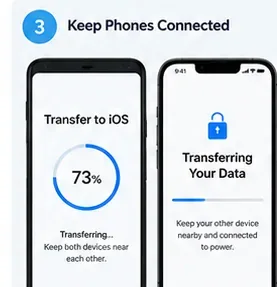
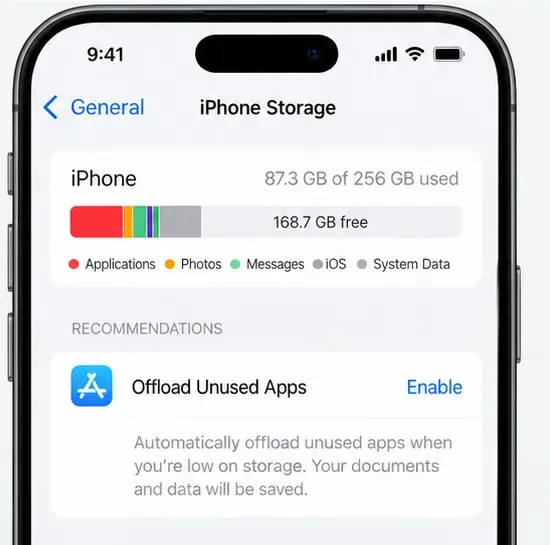
If the iPhone runs out of storage and only some content transfers, Apple recommends erasing the iPhone and repeating the migration after confirming that the selected Android content fits. For Maya, that means checking storage before the second attempt rather than repeatedly retrying the same oversized transfer.
After Move to iOS confirms that the transfer is complete, finish the iPhone setup process. Download the latest WhatsApp from the App Store. Do not use a different number just because the iPhone has a new SIM or eSIM: WhatsApp requires the same number that was used on the Android account for this migration.
If you truly need to change numbers, WhatsApp advises changing the number on the old device before moving to the new device. Changing the destination number independently is not the supported migration path.
Open WhatsApp on iPhone and sign in with the same phone number. WhatsApp’s current instructions say to tap Start when prompted and allow the import to finish. After activation is complete, the migrated chats should appear.
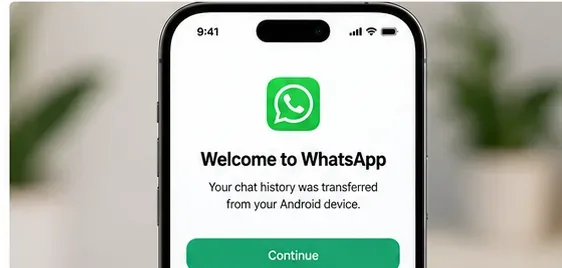
The safest definition of “done” is not “Move to iOS reached 100%.” Open WhatsApp and check several types of conversations: a recent one-to-one chat, an older group chat, a conversation containing photos or videos, and a chat with older history. Also verify contacts, camera photos, calendars, and any other data you selected.
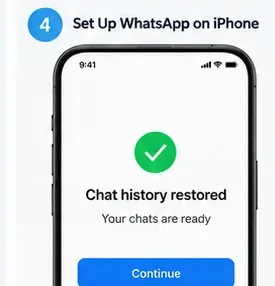
WhatsApp says the Android phone still retains its data unless you delete WhatsApp or wipe the device. That gives you a useful safety window: keep the old phone unchanged until you have checked the new iPhone. The migration itself also does not automatically create a WhatsApp iCloud backup; create a new iCloud backup after you confirm the migration if you want cloud protection on the iPhone going forward.
WhatsApp currently says Android-to-iPhone migration can move account information, profile photo, individual chats, group chats, community chats, Channel updates, chat history, media, and settings. However, some items remain outside the transfer.
| WhatsApp item | Transfer status |
|---|---|
| Individual and group chat history | Supported through the official Move to iOS process |
| Chat photos, videos, and other supported media | Supported |
| WhatsApp call history | Not transferred |
| Display name | Not transferred |
| Peer-to-peer payment messages | Not transferred |
| Media received over WhatsApp Channels | Not transferred |
| WhatsApp Business Android-to-iPhone chat migration | WhatsApp currently says this is not supported |
For ordinary content such as photos, documents, mail, contacts, and calendars, Apple provides manual transfer options. But manual copying does not replace the official WhatsApp chat migration. If preserving the old Android WhatsApp history is essential and the new iPhone or WhatsApp has already been set up, the official guidance is to erase the iPhone and repeat the setup-time migration.
There is also no supported way to merge WhatsApp history created on the new iPhone with the old Android history. This is why the order of operations matters so much: migrate first, start new WhatsApp conversations afterward.
Not for this guide’s main goal. Apple’s June 3, 2026 support documentation says that compatible Android 17 devices can use a newer Transfer without App flow in iOS/iPadOS 26.5 or later. Apple lists examples such as photos, contacts, calendars, call history, and messages for that newer path.
WhatsApp’s own Android-to-iPhone chat migration page, however, still names Move to iOS as a requirement. Until WhatsApp explicitly documents its chat history as supported through the app-free Apple route, use Move to iOS when keeping WhatsApp history is non-negotiable.
Keep Move to iOS open on Android, keep the phones close together, and do not switch to other apps. Apple also suggests restarting both devices, turning off Android mobile data, and disabling Android settings that aggressively switch Wi-Fi networks if connection problems continue.
Update WhatsApp on Android and Move to iOS, confirm the devices meet WhatsApp’s minimum requirements, and confirm the iPhone is still in the setup-time Android migration flow. Do not manually browse to a WhatsApp folder inside Move to iOS; WhatsApp says that method is not supported.
Confirm that you logged into WhatsApp on iPhone with the exact same number. If WhatsApp was already activated on that iPhone before the old history was imported, the official recovery path is to erase the iPhone and start over; old and new histories cannot be merged.
Check iPhone storage. Apple says partial transfers can happen when the destination fills up. If that happened, erase the iPhone, free enough destination space or reduce the selected data, and run the transfer again.
In the illustrative Maya scenario, the key is not a clever workaround; it is sequencing. She keeps the Android phone intact, performs the official Move to iOS transfer before activating WhatsApp on the iPhone, signs in with the same number, verifies the imported chats, and only then considers wiping the old phone. Following that order gives you the best chance of moving to an iPhone 17 without sacrificing the WhatsApp history that matters to you.
iPhone 17 getting too hot while fast charging? Learn how to cool it safely, check your charger, reduce heat, and know when Apple service is appropriate.
Fix iPhone 17 camera lag when switching lenses with verified iOS, Macro Control, Camera Control, storage, heat, and hardware checks.
Apple lists no Intel Macs for macOS 27. Learn how to identify your Mac, check the latest compatible release, and prepare apps and backups before upgrading.
Fix iPhone 17 game stutter and frame drops by checking Low Power Mode, Game Mode, heat, updates, storage, restarts, and last-resort settings.
Fix eSIM Transfer Failed on iPhone 17 Pro Max by checking Quick Transfer requirements, Wi-Fi and Bluetooth, iOS updates, carrier support, and QR-code fallback options.
Fix an iPhone 17 “Storage Almost Full” warning after an iOS update by checking real usage, allowing indexing to finish, freeing safe space, and updating iOS.
Fix repeated Wi‑Fi 7 disconnects on iPhone 17 Pro with Apple-supported steps for iOS, 6 GHz mode, router settings, VPNs, Private Wi‑Fi Address, and network reset.
Move contacts, photos, messages, apps, and WhatsApp chats from Android to iPhone 17 using the official Move to iOS method, with setup requirements and recovery tips.
Fix an iPhone 17 microphone that stops working on calls with Apple-verified tests for blocked mics, audio routing, permissions, iOS, and service.
Fix Apple Intelligence on iPhone 17 with verified Apple steps for iOS updates, model downloads, storage, language and region settings, Screen Time, Siri, and restart checks.