How to Fix iPhone 17 Overheating During Fast Charging
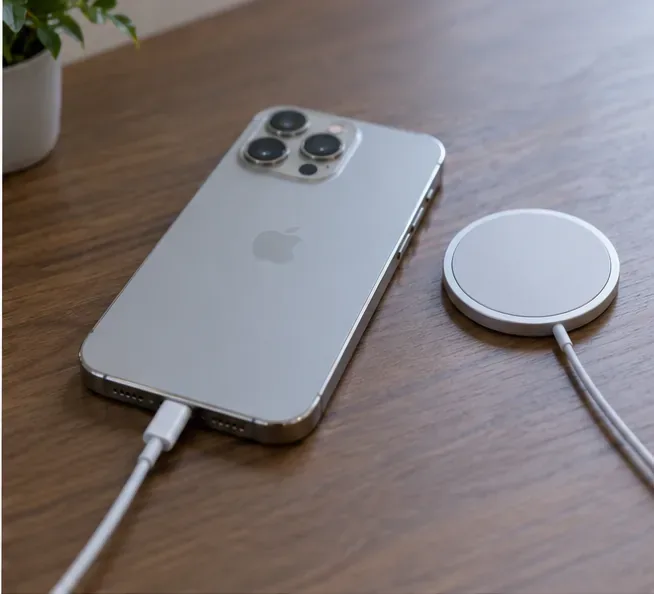
iPhone 17 getting too hot while fast charging? Learn how to cool it safely, check your charger, reduce heat, and know when Apple service is appropriate.
The most important fix is not to start disabling random features: if your iPhone 17 began draining noticeably faster immediately after an iOS update, give it a few days, keep it on Wi-Fi and power when convenient, and check Settings > Battery for an Ongoing iOS Update insight. Apple says update-related tasks can continue in the background after installation and temporarily affect battery life and thermal performance. If that insight disappears but battery drain stays high, use the Battery screen to identify the actual app or system activity responsible.
As of September 11, 2026, Apple lists iOS 26.6.2 as the latest public iOS release, dated September 8, 2026. Apple's release notes say iOS 26.6.2 fixes an issue that could prevent downloading a software update over cellular; Apple does not list a specific iPhone 17 battery-drain fix for that release. That distinction matters: unusually fast drain after updating does not automatically mean the new iOS version has a confirmed battery bug. See Apple's current security release list and iOS 26 update notes.

Apple's own battery troubleshooting guidance says that when battery life is lower than expected after an update, you should wait a few days and check again. The reason is straightforward: an iPhone can still be completing update-related work in the background even though the phone is already usable.
Open Settings > Battery. If you see an Ongoing iOS Update insight above Daily Usage, that is the clearest sign that post-update activity is still in progress. In this situation, avoid judging battery life from the first few hours after installation. Charge normally, use a stable Wi-Fi connection when possible, and reassess after the insight clears. Apple's current explanation is available in its battery-drain troubleshooting guide.
Example: suppose your iPhone 17 normally reaches dinner with plenty of charge left, but the morning after updating it is much lower by lunchtime. If Settings > Battery shows Ongoing iOS Update and no single app dominates usage, post-update processing is a more plausible first explanation than a failed battery. If the same pattern continues several days later, move to the next checks.

Go to Settings > Battery. On current iOS 26, Apple's documentation describes a Daily Usage view that compares today's consumption with the previous seven days. Tap View All Battery Usage for more detail. Apple says the app and system activity list can show causes such as Background Activity, notifications, or low cellular coverage.
| What you see | What it can mean | Best next move |
|---|---|---|
| Ongoing iOS Update | Update-related background work is still finishing | Wait a few days and recheck |
| One app has unusually high Background Activity | The app is doing substantial work while not on screen | Update the app and review its background permissions |
| No Mobile Coverage or Low Signal | The phone is spending more energy maintaining or searching for a connection | Use stronger Wi-Fi/cellular coverage and consider 5G Auto |
| High screen-on time or brightness suggestion | The display is a major contributor | Reduce brightness or enable Auto-Brightness |
| Battery Health shows Service | Battery condition may be limiting useful runtime | Follow Apple's service guidance |
Apple's current Battery screen instructions are documented at Check battery usage on your iPhone.
If Battery usage points to a third-party app, first check for an app update. App Store apps update automatically by default, but you can manually verify by opening the App Store, tapping your account picture, choosing App Updates, and installing available updates. This is especially relevant after a major iOS update because an app update may contain compatibility fixes from its developer.
Do not assume an app is defective just because its percentage is high. A navigation app used for a two-hour drive should naturally consume more battery than an app you opened for a minute. The useful question is whether its activity matches what you actually did.

For apps that show excessive background activity you do not need, go to Settings > General > Background App Refresh. Apple explains that Background App Refresh lets suspended apps check for updates and new content. You can change it globally or manage relevant apps, but a targeted change is usually more sensible than turning everything off. Apple's documentation for the feature is in its app-switching and Background App Refresh guide.

Location-heavy apps can also work in the background. If an app does not genuinely need continuous location, review Settings > Privacy & Security > Location Services, select that app, and choose an appropriate permission such as While Using the App. Do not disable Location Services globally just to chase battery life; navigation, Find My, weather, safety, and other features may depend on it. Apple documents the individual permission choices in its Location Services guide.
On iPhone 17, iPhone 17 Pro, and iPhone 17 Pro Max, Apple says Adaptive Power is on by default. You can verify it at Settings > Battery > Power Mode. Adaptive Power can make performance adjustments, slightly reduce screen brightness, limit background activity, and automatically turn on Low Power Mode at 20% when appropriate.
One important condition: Apple says Adaptive Power needs at least seven days to learn your charging habits before it engages. If the phone is brand-new or was recently reset, do not assume the feature is malfunctioning simply because you do not notice it immediately. Apple's details are in Use Adaptive Power to extend iPhone battery life.
If you need extra runtime today, use Settings > Battery > Power Mode > Low Power Mode. Low Power Mode deliberately reduces or pauses energy-intensive behavior such as Background App Refresh, Mail fetch, some visual effects, and other functions. It is a practical temporary measure, not proof that the update itself is faulty.

If your Battery screen shows long screen-active time, display changes can matter. Apple specifically recommends letting Auto-Brightness manage the display or dimming the screen to improve battery life. To check Auto-Brightness, use Settings > Accessibility > Display & Text Size > Auto-Brightness. You can also reduce brightness from Control Center or Settings > Display & Brightness.
Apple lists Always-On Display as enabled by default on iPhone 17, iPhone 17 Pro, and iPhone 17 Pro Max. If you do not need it and are trying to maximize runtime, you can turn it off under Settings > Display & Brightness > Always On Display. This is optional: do it because you want longer runtime, not because the presence of Always-On Display proves something went wrong after the update. See Apple's display brightness guidance.
A weak signal can look like mysterious battery drain because the phone uses more energy maintaining or searching for connectivity. Apple's Battery view can explicitly report No Mobile Coverage and Low Signal. When possible, connect to reliable Wi-Fi and use the phone where cellular reception is stronger.
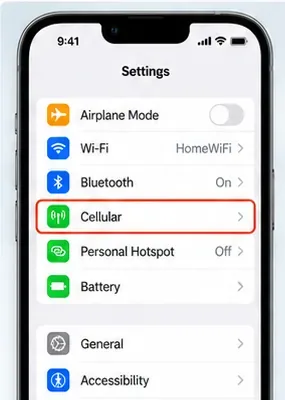
For iPhone 17, check Settings > Cellular > Cellular Data Options > Voice & Data. Apple's 5G Auto mode uses Smart Data so the iPhone can switch to LTE when 5G does not provide a noticeable benefit, which Apple says can save battery life. By contrast, forcing 5G On all the time may reduce battery life. Apple's current explanation is in Use 5G with your iPhone.

Open Settings > General > Software Update. As of September 11, 2026, Apple lists iOS 26.6.2 as the latest public iOS version. If your iPhone 17 is still on an earlier 26.x build, install the currently offered public update after making sure you have a recent backup and enough charge.
Do not install an update solely because a forum post says it “fixes battery drain.” Apple's iOS 26.6.2 notes specifically describe a fix for downloading software updates over cellular; they do not claim a dedicated battery-drain fix. Apple also notes more generally that software updates can affect performance or battery life while changes settle in.

A normal restart is a reasonable low-risk troubleshooting step if the phone continues behaving abnormally. On an iPhone 17, press and hold either volume button plus the side button until the power-off slider appears, drag the slider, wait about 30 seconds, then hold the side button to turn the iPhone back on. Apple's current restart instructions are available at Restart your iPhone.
You do not need to force-restart a responsive phone as routine battery maintenance. A force restart is primarily for a device that is frozen or not responding.

For iPhone 17, go to Settings > Battery > Battery Health. Apple says iPhone 15 and later can show battery health, maximum capacity, cycle count, manufacture date, first-use date, and whether replacement is recommended. If you see Service next to Battery Health, Apple advises considering battery replacement to restore full performance and capacity.
Battery maximum capacity should not be interpreted as a single pass/fail number without context. Apple says iPhone 15 and later batteries are designed to retain 80% of their original capacity at 1,000 complete charge cycles under ideal conditions, but actual capacity depends on use and charging patterns. Read Apple's battery and performance guidance for iPhone 11 and later before drawing conclusions from one percentage.
Contact Apple Support or an authorized service provider if the battery continues draining unusually fast after several days, the Ongoing iOS Update insight has cleared, no app or network condition explains the usage, or Battery Health reports Service. Also seek help if the iPhone becomes persistently hot during light use, shuts down unexpectedly, will not charge normally, or shows other hardware symptoms.
The key is to separate temporary post-update activity from persistent abnormal drain. On an iPhone 17 that was just updated, Apple's own first-line guidance supports patience and diagnosis before destructive troubleshooting. Once the Battery screen tells you where the energy is going, you can make a focused change instead of sacrificing features you actually use.
iPhone 17 getting too hot while fast charging? Learn how to cool it safely, check your charger, reduce heat, and know when Apple service is appropriate.
Fix iPhone 17 camera lag when switching lenses with verified iOS, Macro Control, Camera Control, storage, heat, and hardware checks.
Apple lists no Intel Macs for macOS 27. Learn how to identify your Mac, check the latest compatible release, and prepare apps and backups before upgrading.
Fix iPhone 17 game stutter and frame drops by checking Low Power Mode, Game Mode, heat, updates, storage, restarts, and last-resort settings.
Fix eSIM Transfer Failed on iPhone 17 Pro Max by checking Quick Transfer requirements, Wi-Fi and Bluetooth, iOS updates, carrier support, and QR-code fallback options.
Fix an iPhone 17 “Storage Almost Full” warning after an iOS update by checking real usage, allowing indexing to finish, freeing safe space, and updating iOS.
Fix repeated Wi‑Fi 7 disconnects on iPhone 17 Pro with Apple-supported steps for iOS, 6 GHz mode, router settings, VPNs, Private Wi‑Fi Address, and network reset.
Move contacts, photos, messages, apps, and WhatsApp chats from Android to iPhone 17 using the official Move to iOS method, with setup requirements and recovery tips.
Fix an iPhone 17 microphone that stops working on calls with Apple-verified tests for blocked mics, audio routing, permissions, iOS, and service.
Fix Apple Intelligence on iPhone 17 with verified Apple steps for iOS updates, model downloads, storage, language and region settings, Screen Time, Siri, and restart checks.