If an Audacity input disappears after you unplug a USB audio interface, reconnect the interface and rescan Audacity’s audio devices. Then select the interface again as the recording device and confirm that your operating system sees it. These five steps are for anyone using a USB interface or microphone with Audacity; they usually restore the input when the computer still recognizes the hardware.
Prerequisites
| Item | What you need |
|---|---|
| Hardware | Your USB interface, its USB cable, and microphone or other source connected to the correct input. Use a direct computer USB port for troubleshooting. |
| Software | Audacity open on the computer where you normally record. The menu wording below follows the current Audio Setup interface in Audacity’s official manual; Audacity 3 may show the older Transport menu path. |
| Time | About 5–15 minutes if the computer detects the interface; allow longer if you need a driver or operating-system fix. |
| Difficulty | Easy to moderate. The basic rescan and device selection are straightforward; driver and system-audio settings vary by operating system and interface. |
How to restore a missing Audacity input
Step 1: Reconnect and power the interface
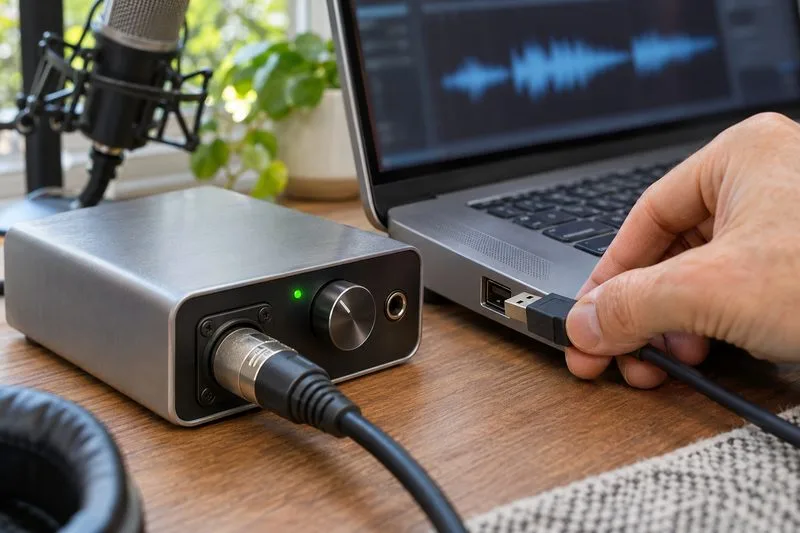
Stop playback or recording. Reconnect the interface firmly to the computer, turn it on if it has a power switch, and wait for its status lights to settle. For troubleshooting, connect it directly to a USB port rather than through a hub. If the interface has a separate power supply, confirm that it is connected. Keep the microphone cable in the interface’s input socket.
Step 2: Rescan audio devices in Audacity
In the current Audacity interface, open Audio Setup in the top toolbar and choose Rescan audio devices near the bottom of the menu. In Audacity 3, use Transport > Rescan Audio Devices. Rescanning refreshes the device lists after a cable is connected or disconnected; you usually do not need to restart Audacity first. The command may be unavailable while Audacity is playing, recording, or paused, so stop the transport before opening the device controls.
Step 3: Select the interface as the recording device
Open Audio Setup and choose the interface under Recording device. It may appear under its brand or model, or under a generic name such as “USB Audio Codec.” Do not confuse it with the playback device: that controls where Audacity plays sound, while the recording device is the input Audacity listens to. If you have more than one input, check the interface’s documentation or control panel to identify the port connected to your microphone.
If the device list is difficult to find, widen Audacity’s window or hover over a truncated device name. In Audacity 3, the device choices may appear in the Device Toolbar or in Audio Setup preferences. Audacity’s microphone setup guide documents selecting a microphone or interface under Recording device.
Step 4: Check the operating system and audio host
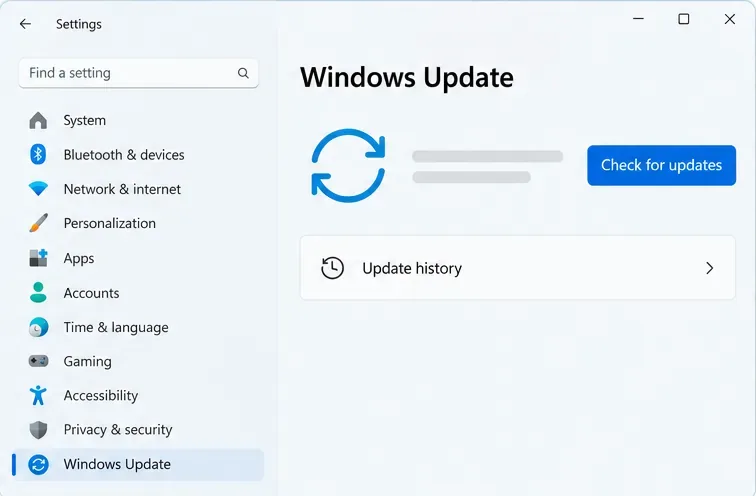
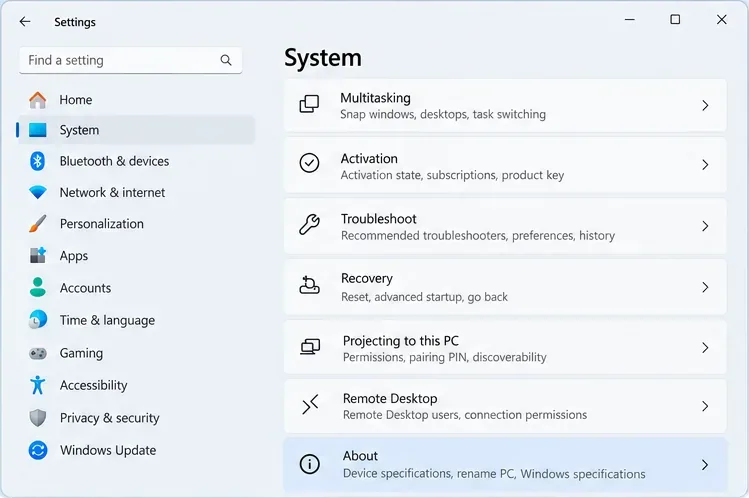
If a rescan does not list the interface, verify that the operating system detects it. On Windows, open the Sound settings and inspect the Recording devices. If the interface is hidden or disabled, enable it; the Audacity manual explains how to show disabled and disconnected inputs in the classic Recording panel. On macOS, check the interface in Audio MIDI Setup and make sure Audacity has permission to access audio input under Privacy & Security. On Linux, check the system’s sound settings or audio mixer and confirm that the interface and its desired input are available.
Return to Audacity after changing system settings and rescan again. On Windows, if the input is present but Audacity cannot open it, try another available Audio Host. Audacity’s manual describes MME as a compatible option and lists DirectSound and WASAPI as other Windows hosts; availability and behavior depend on your system. Select the actual interface by name rather than a default device if the explicit interface is listed. For larger interfaces, install the current operating-system driver or firmware provided by the manufacturer if the computer does not recognize the device.
Step 5: Match channels and confirm the input meter
Select a recording channel count supported by the interface. A single microphone generally uses one mono channel; a two-input stereo source may require two channels. If Audacity displays an error when you press Record, check that the project sample rate and channel count are supported by both the interface and its driver. The Audacity sound-device error guide notes that requesting more channels than a device supports can prevent recording from starting.
Open Audacity’s recording meter or microphone-level control and speak into the microphone or make a brief test signal. The meter should move. If the device is selected but the meter stays still, raise the interface’s input gain, check that the microphone is connected to the intended port, and verify that the correct input is enabled in the interface’s own mixer or control app. Only make a real recording after confirming the meter and choosing the intended input.
Troubleshooting
The interface is missing from both Audacity and system settings
Try a different USB port and cable, connect without a hub, and check the interface’s power. Then restart the computer if the operating system still does not enumerate it. If it remains absent, consult the interface manufacturer’s support page for a compatible driver or firmware and installation instructions. A rescan cannot list hardware the operating system does not detect.
The interface appears, but Audacity records silence
Confirm that the intended interface is selected as Recording device, the microphone is connected to the correct input, and its gain is up. On macOS, check Audacity’s microphone permission; on Windows, make sure the input is enabled and that microphone access is allowed in privacy settings. On Linux, check the selected input port and input level in the system mixer.
Audacity reports “Error opening recording device”
Stop other applications that may be using the interface, then check the Audio Host, project sample rate, and recording-channel count. Choose a rate and number of channels supported by the interface. If the host or settings still fail, restart Audacity after selecting the interface in the operating system, then rescan. The official recording troubleshooting FAQ also covers unavailable and newly connected devices.
Frequently asked questions
Do I need to restart Audacity after reconnecting my interface?
Usually not. First use Rescan audio devices, then select the interface again. Restart Audacity if rescanning does not refresh the list or if you changed system audio settings and the device remains unavailable.
Why does Audacity still show the interface after I unplug it?
Audacity’s device list can be stale until it rescans. Stop playback or recording, choose Rescan audio devices, and then select an input that is currently connected.
Does “USB Audio Codec” mean the interface is the wrong device?
Not necessarily. Some interfaces appear under a generic USB audio name. Check the computer’s sound settings and the interface’s input meter to confirm that it is the connected device and the correct input is active.
Sources: Audacity: Connect your microphone; Audacity Manual: Device Toolbar; Audacity Manual: Windows Sound controls; Audacity Manual: Error opening sound device; Audacity Manual: Recording troubleshooting.