Home
» iPhone
»
Siri AI in October 2026: Check These Settings Before Changing Your iPhone Language
Siri AI in October 2026: Check These Settings Before Changing Your iPhone Language
Last checked: September 28, 2026. Apple’s current support pages say Siri AI is available in English to start. They do not announce an October date for adding other Siri AI languages. That distinction matters: Apple Intelligence supports a broader list of languages, but changing your iPhone language to one on that list does not make Siri AI available in that language.
Consider Maya, a hypothetical iPhone 16 owner in Vietnam who wants to use Siri AI in Vietnamese. Her phone model may meet Apple’s hardware requirement, and Vietnamese appears on Apple’s Apple Intelligence language list. But Siri AI itself is currently listed as English-only. Before she changes her settings in October, Maya should confirm the current announcement, check the separate language and account-region requirements, and decide whether the rest of her iPhone should switch languages too. The same checks apply if you want to try English or another language.
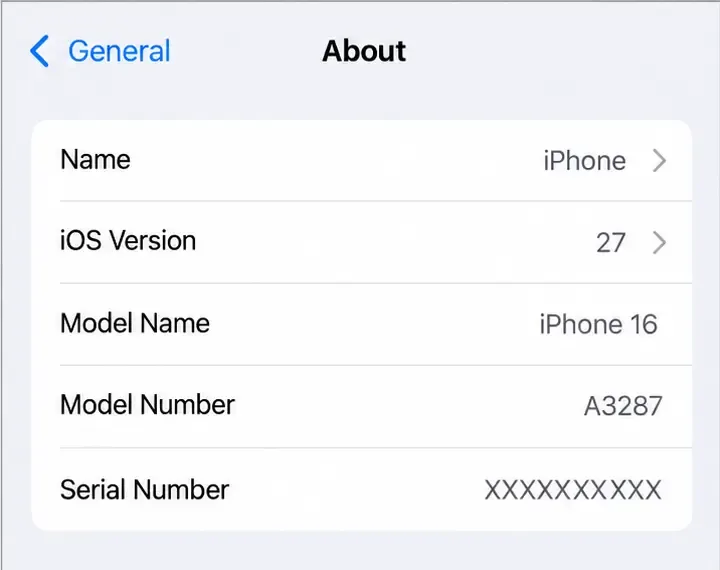
The About screen is where Maya can check the iOS version and model name before looking for Siri AI.
First, verify what Apple has actually announced
As of September 28, 2026, Apple’s Siri AI availability page says the feature is currently available in English. Apple says device language and Siri language must be set to the same supported language, and the Apple Account must be in an eligible region. Its Apple Intelligence requirements page lists English, Danish, Dutch, French, German, Italian, Norwegian, Portuguese, Spanish, Swedish, Turkish, Vietnamese, Simplified Chinese, Traditional Chinese, Japanese, and Korean for Apple Intelligence features. Some features still vary by language and region.
Those are two different claims. A language being supported for Apple Intelligence does not prove it is supported for Siri AI. For example, Vietnamese is in the broader Apple Intelligence list, while the Siri AI page still says English. Treat an October language expansion as unconfirmed unless Apple updates its Siri AI page or announces it in Apple Newsroom. A beta label also means features and availability can change; it is not a promise that every listed Apple Intelligence feature works in every language.
Check these four things before changing language settings
1. Confirm the iPhone model and iOS version
Open Settings > General > About and note both the model name and iOS version. Apple’s current Siri AI requirements call for iOS 27 or later and an Apple Intelligence-capable device. The supported iPhone families include iPhone 15 Pro and iPhone 15 Pro Max, iPhone 16 models and later supported models, and iPhone Air. An iPhone 15 or 15 Plus should not be assumed to qualify just because it can install the same iOS version; check Apple’s current model list.
If the iPhone is eligible but still runs an older system, update through Settings > General > Software Update before troubleshooting language. Keep the phone connected to power and Wi-Fi during a major update. If the model is not supported, switching languages will not add the required hardware capability. Maya checks her model first; this prevents her from changing several settings for a feature her phone cannot use.
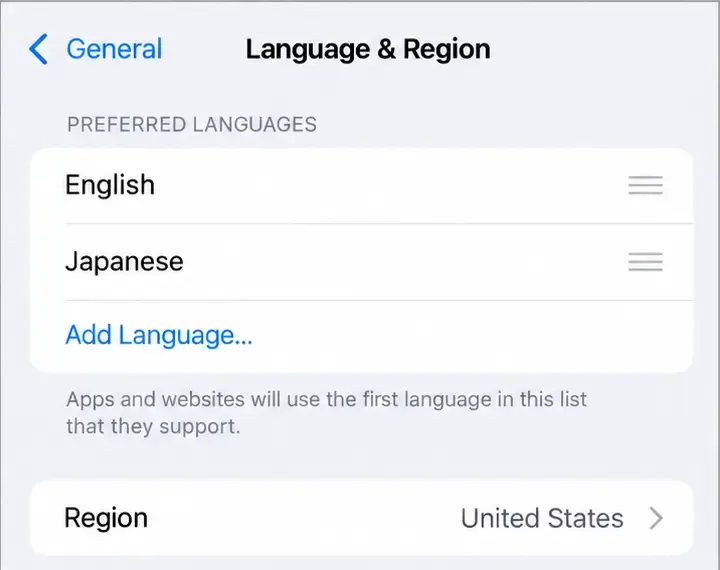
Language & Region controls the interface language and regional formats; the Region row is not the same as an Apple Account country or region.
2. Check account region separately from the iPhone’s Region setting
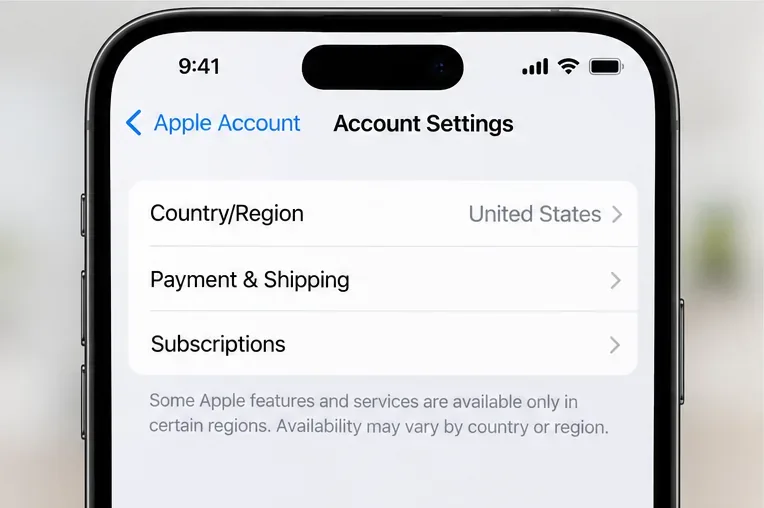
Apple’s Siri AI requirement refers to the region of your Apple Account. That is separate from Settings > General > Language & Region > Region, which controls things such as calendar format, temperature units, measurement system, first day of the week, date format, and number format. Changing that device setting is not a reliable way to change your Apple Account region or bypass Siri AI availability rules.
Apple currently says Siri AI is not available for iPhone in the European Union, and that it will not work when the Apple Account region is mainland China. Eligibility can depend on platform and region, so use Apple’s latest availability page rather than inferring access from your physical location or a region menu. Do not change an Apple Account country or region solely to test a language rollout: account-region changes can affect Apple services and require their own eligibility and billing details. If Siri AI is already enabled, Apple says it continues to work when you travel to other regions, but that does not guarantee first-time activation everywhere.
3. Compare Siri language with iPhone language
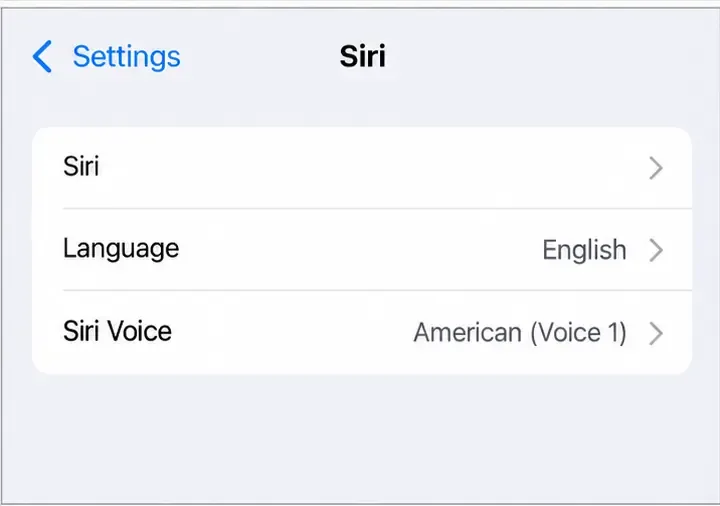
Check Siri’s language at Settings > Siri > Language. The system language is managed under Settings > General > Language & Region. Menu wording can vary slightly by iOS version; Apple’s Siri settings guide covers the current controls.
For Siri AI, Apple requires the two language settings to match and to use a currently supported language. Right now that means English for Siri AI. If Maya changes only Siri’s language to Vietnamese while keeping iPhone system language in English, she will create a mismatch rather than unlock Vietnamese Siri AI. If she changes both to Vietnamese, she may meet a language pairing condition for other Apple Intelligence capabilities, but Siri AI remains listed as English-only until Apple confirms otherwise.
The Siri Language control is separate from the iPhone’s system-language selector, so check both before switching.
4. Plan for downloads, a wait, and a second check
Apple notes that changing Siri’s language can make Apple Intelligence unavailable until the new Siri language finishes downloading and matches the iPhone language. Allow time for the download before deciding that a feature is broken. Keep enough free storage, connect to Wi-Fi, and leave the iPhone plugged in if a language or intelligence model is downloading. Apple lists storage requirements for Apple Intelligence, and the amount varies by device; check its current requirements page rather than relying on an old estimate.
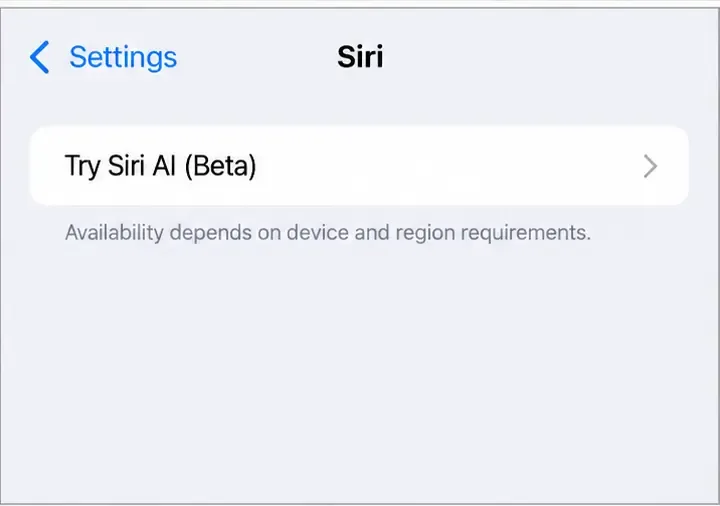
After the two language settings match, open Settings > Siri and look for Try Siri AI (Beta). If you select it, Apple’s setup may include a waitlist; Apple says the wait can vary and the Siri AI download begins automatically when the wait is complete. So a missing option, pending waitlist, or unfinished download can have different causes. Check the exact eligibility criteria and any on-screen status before repeating a language change.
The Try Siri AI option is a useful final check, but its presence or absence should be read alongside Apple’s model, language, and region requirements.
What switching the iPhone language changes
Changing the iPhone’s primary language affects the system interface and can influence which language apps and websites use when they support more than one. Changing Region separately can change date and number formats, measurements, temperature units, and calendar preferences. Siri’s language also affects Siri requests and, according to Apple, Maps, turn-by-turn directions, and Listen to Page in Safari. Before confirming a switch, make sure you can navigate Settings and essential apps in the new language, and record your original choices so you can restore them.
If your goal is simply to type or message in another language, changing the whole iPhone interface may be unnecessary. You can add another keyboard while keeping the system language in place. That can let you write in another language without changing the Siri language requirement. Keyboard availability is not the same thing as Siri AI language availability.
A practical decision for Maya
Maya’s checklist ends with a clear choice. She confirms that her hypothetical iPhone 16 runs iOS 27 or later, checks that her Apple Account region is eligible, and sees that Siri AI currently requires English. If she wants to use Siri AI now, she keeps or sets both Siri and iPhone language to English, then checks Siri settings for the beta option and follows the displayed setup or waitlist status. If she wants the phone interface in Vietnamese more than she wants English Siri AI, she can change the system language, but she should understand that this does not establish Vietnamese Siri AI support. She can recheck Apple’s official page later for an actual language announcement before switching.
For any iPhone, use this short pre-switch checklist:
Confirm the exact model and iOS version against Apple’s current Siri AI requirements.
Check the Apple Account region; do not treat the device’s Region setting as a substitute.
Verify the Siri language and iPhone language separately, then match them if you meet the current supported-language requirement.
Allow for a language download, model download, and possible waitlist; verify the status after setup.
Consider interface, date, number, keyboard, Maps, and accessibility changes before making the new language primary.
Revisit Apple’s official support pages in October instead of relying on a rumored rollout date or on the broader Apple Intelligence language list.
The useful result is not merely seeing a new language in Settings. It is knowing whether your exact iPhone, iOS release, account region, and matching language pair qualify—and whether you are comfortable with the wider interface changes. That evidence lets you make the switch deliberately, or wait for Apple to confirm a language you actually want to use.