To preserve photo capture dates when moving photos between computers, keep the original image files intact and verify their embedded metadata after the transfer. This guide is for anyone moving a photo collection between Windows PCs or exporting from Photos on a Mac; it helps prevent a file’s new copy date from being mistaken for the day the picture was taken.
Prerequisites
- Equipment: Both computers, plus an external drive with enough free space or a direct file-transfer connection.
- Software: File Explorer on Windows, or Photos and Finder on Mac. Optional: ExifTool for inspecting metadata on multiple files.
- Estimated time: About 15–60 minutes for a small collection; longer for large libraries or slow drives.
- Difficulty: Easy for folder-based photo collections; intermediate for a managed Photos library.
Two dates can appear on a photo. Date taken is usually stored inside the image as metadata, such as EXIF. Date modified belongs to the file system and may change during copying. A different modified date does not necessarily mean the capture date was lost.
Step 1: Choose the original photo files
Locate the source files and identify the folders that contain the full-resolution originals. Avoid transferring only screenshots, previews, edited exports, or files downloaded from a messaging app; those versions may have metadata removed or altered. Keep the folder structure if it helps preserve your organization.
Step 2: Export originals from a photo library
If your photos are managed by Photos on Mac, select the pictures and choose File > Export > Export Unmodified Original. This exports the original file format. If you rely on assigned IPTC information or keywords, select the option to export IPTC information as XMP sidecar files as well. Apple documents this workflow in its Photos export instructions. Copy the exported folder and any sidecar files together.
Step 3: Copy the complete folder
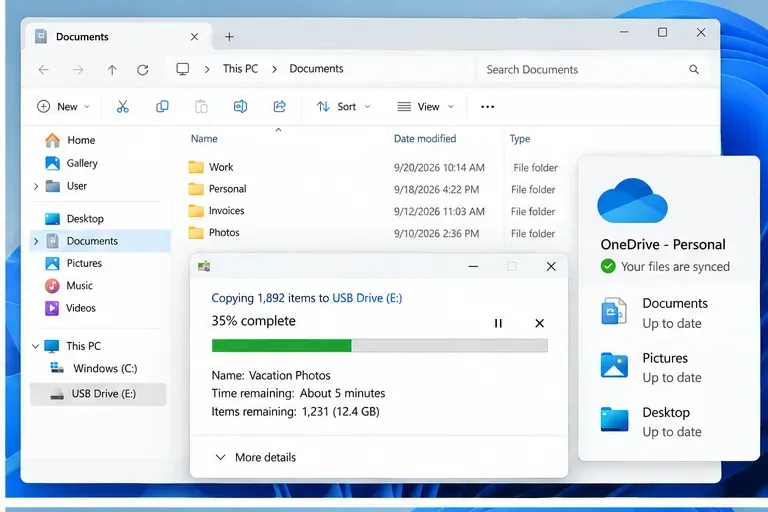
Copy the files to an external drive or transfer them directly to the destination computer. Use copy and paste, not a photo-sharing or editing workflow that might convert images. Leave the source untouched until you have checked the destination. For Mac Photos libraries, use Photos’ export process instead of trying to extract individual images from inside the library package.
Step 4: Keep file pairs and filenames together
Preserve XMP sidecars, Live Photo video companions, and related folders alongside their image files. Do not rename files or move sidecars into a separate folder until after verification. If the destination asks how to handle duplicate names, compare the files first; overwriting may replace a version with different metadata.
Step 5: Verify capture dates on the destination computer
Open a few transferred photos in an app that shows image information. In Photos on Mac, select an item and press Command-I to view details such as the capture date and camera information. On Windows, Microsoft Photos can search by the date a photo was taken; for direct inspection of metadata, ExifTool can read the DateTimeOriginal field. Compare a sample from the beginning, middle, and end of the collection with the source.
Example: A picture taken on May 14 may show a modified date of today after copying. If its capture-date field still shows May 14 in the destination photo app, the important embedded date remains. The filesystem date and capture date serve different purposes.
Step 6: Confirm the transfer before deleting anything
Check that the destination contains the expected number of files and open several images. Confirm that representative capture dates and any XMP sidecars are present. Keep the original files until this review is complete and you have another backup if the collection matters to you.
Troubleshooting
- The destination shows the copy date: Check the photo’s information panel for “Date taken” or EXIF capture time rather than relying on the folder’s modified-date column. If the embedded field is missing in both source and destination, the transfer cannot restore it; check an original camera card or backup.
- Some images have no capture date: Screenshots, scans, edited exports, and images received through apps may never have contained a camera capture timestamp. Compare against the original device or library and avoid assigning an estimated date as if it were verified.
- Photos appear out of order: Change the destination app’s sort field to capture date, if available. Time-zone settings can also affect how a timestamp is displayed; compare the same image in both apps and do not change the metadata just to make file-modified dates match.
FAQ
Does copying a photo change its capture date?
A normal file copy generally changes filesystem timestamps such as modified time, but it does not inherently rewrite the image’s embedded capture metadata. Avoid conversion or editing steps during transfer and verify the result.
Should I sort photos by Date Taken or Date Modified?
Use Date Taken for a photographic timeline when the field is available and accurate. Date Modified describes a file-system change and may reflect copying, editing, or downloading rather than when the camera captured the image.
Can I preserve dates when exporting photos from Mac Photos?
Yes. Apple provides an “Export Unmodified Original” option for exporting original files. If you also need assigned IPTC information or keywords, export the IPTC data as XMP sidecar files and keep those files with the photos.
Sources: Apple Photos: Export photos and videos on Mac; Apple Photos: See photo and video information; Microsoft Photos: Search photos; ExifTool documentation.