Home
» Android
»
Android Calendar Wrong After a Time-Zone Change? Check These Settings Before Resetting
Android Calendar Wrong After a Time-Zone Change? Check These Settings Before Resetting
Don’t factory-reset your Android phone or clear Calendar storage yet. First find out whether the wrong time is on the phone’s clock, in Google Calendar’s display time zone, on one event, or only in the app because it has not synced. Those problems look similar, but they call for different fixes. Check the phone’s date and time, compare Calendar with the same account on the web, and inspect the affected event before removing any app data.
The steps below use Google Calendar as the example. Menu names and paths can vary by Android version and phone maker; if you do not see the exact labels, use Settings search or your manufacturer’s support instructions. Google’s guidance was checked September 28, 2026.
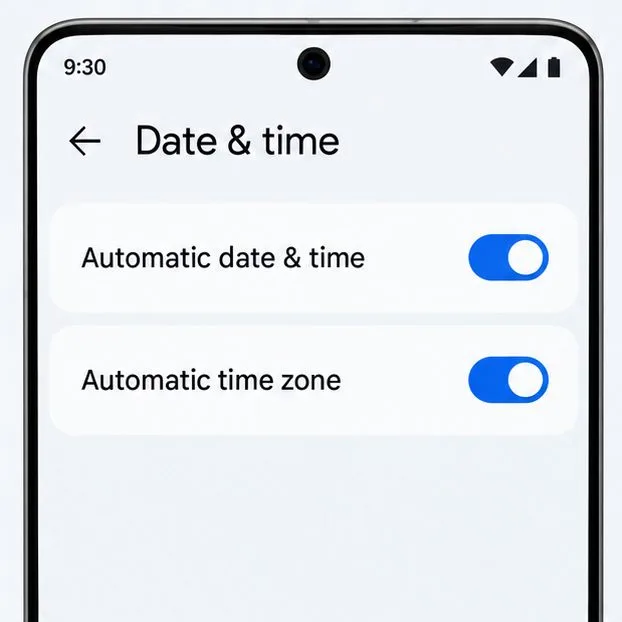
The illustrated Date & time screen shows the automatic clock and time-zone controls to check first.
First, decide what is actually wrong
Look at the phone’s clock and compare the same event in Google Calendar on the phone and at Google Calendar on the web, signed in to the same Google Account. If the phone clock is wrong too, start with Android’s time settings. If the clock is correct but every Calendar event is shifted, check Calendar’s time-zone preference. If only one meeting is off, inspect that event’s time zone and source before changing the whole calendar. If the web version is right but the app is stale or missing events, investigate sync.
A calendar time zone is the regional rule set used to translate an event’s time into a local clock time. UTC, or Coordinated Universal Time, is the common reference clock that Google Calendar says it uses to help handle time-zone changes. A meeting scheduled for 9:00 a.m. in one region can therefore appear at a different local hour elsewhere while still representing the same meeting. Daylight saving time (DST) changes the offset in some regions on different dates, so the difference is not always a fixed number of hours.
What you see
First check
The phone clock and all appointments are shifted
Android date, time, and time zone
The clock is right, but Calendar’s whole schedule is offset
Calendar’s “Use device time zone” setting
One meeting is wrong, while nearby events look right
That event’s details, date, and time zone
The website is right, but the app is stale or missing events
Account, calendar visibility, and sync
1. Is the phone’s own time and time zone correct?
Open Android Settings and search for Date & time. On many devices the route is Settings > System > Date & time, but manufacturers can place it elsewhere. Check that automatic date and time are enabled if you want the network to set the clock, and check whether automatic time zone is enabled if the phone should follow your current region. Some phones also offer a location-based time-zone option. Google notes that availability and wording vary by device.
If you recently crossed a time-zone border, briefly compare the displayed zone with your actual location. A manually selected zone can remain fixed after travel. If you intentionally keep your phone on a home-zone clock, do not switch it just to match the place you are visiting; instead confirm whether Calendar is set to follow the device. For the official Android steps, see Google’s Android date, time, and time-zone instructions.
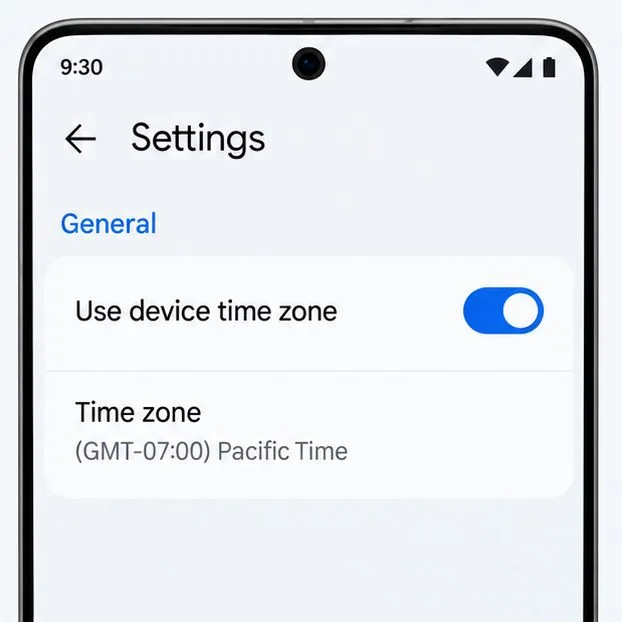
The Calendar settings illustration highlights the device-following switch and the separate calendar time-zone row.
2. Does Google Calendar use the phone’s time zone?
In Google Calendar for Android, open Menu > Settings > General and review Use device time zone. When it is on, Calendar uses the device’s time zone; when it is off, you can choose a time zone for Calendar separately. That separate setting can explain why the phone clock looks right while the schedule remains shifted. Check the selected time zone before changing it, especially if you intentionally keep a home time zone while traveling.
Google documents this control in its Google Calendar Android settings help and its guide to Calendar time zones. These controls affect how Calendar displays the schedule; they do not prove that a particular invitation was created with the intended time. If switching the preference corrects every event, leave the event details alone and verify a couple of upcoming appointments.
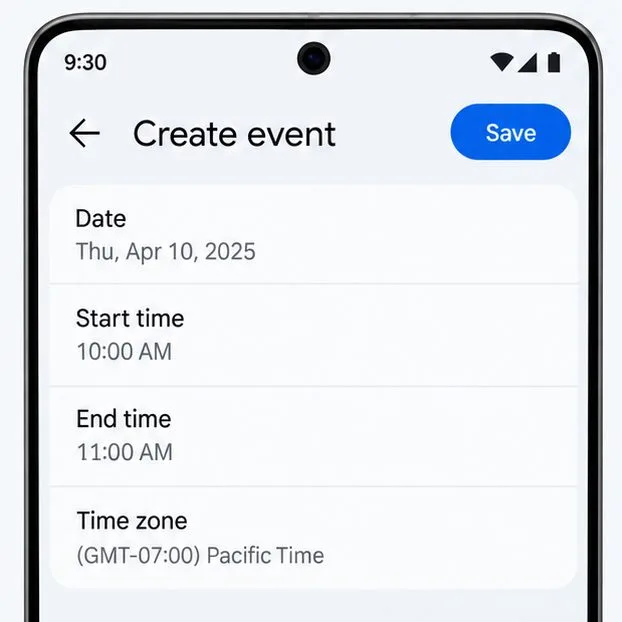
The event editor illustration shows the date and time fields to inspect before editing a meeting.
3. Is the problem limited to one meeting?
Open the event and note its date, start time, end time, calendar, and any time-zone information shown. Check the invitation or organizer’s original notice, too. Do not immediately drag the event to another hour: if the displayed conversion is the issue, editing the time can move the actual meeting and send an incorrect update to guests.
For a concrete example, a meeting scheduled at 9:00 a.m. Pacific Time on a summer date may display as noon Eastern Time. That three-hour difference is expected for those regions while both are on daylight time. On dates near a daylight-saving transition, the difference can temporarily be different because the regions do not necessarily change clocks on the same date. Compare the event on the web with the same account and confirm the organizer’s intended local time before changing anything. Google also warns that some past or future events can be displayed incorrectly after time-zone rules change; an old event created before a regional rule change may need closer review.
4. Is Calendar showing the right account and calendar?
Check that you are looking at the Google Account that received the invitation, then open the app’s side menu and confirm that the relevant calendar is visible. A personal calendar, work calendar, and a calendar supplied by another account can overlap or be switched off independently. A meeting missing from one view is not necessarily deleted. Google’s sync instructions also say to check the calendar associated with an event and note that events added to a non-Google calendar may not appear on calendar.google.com.
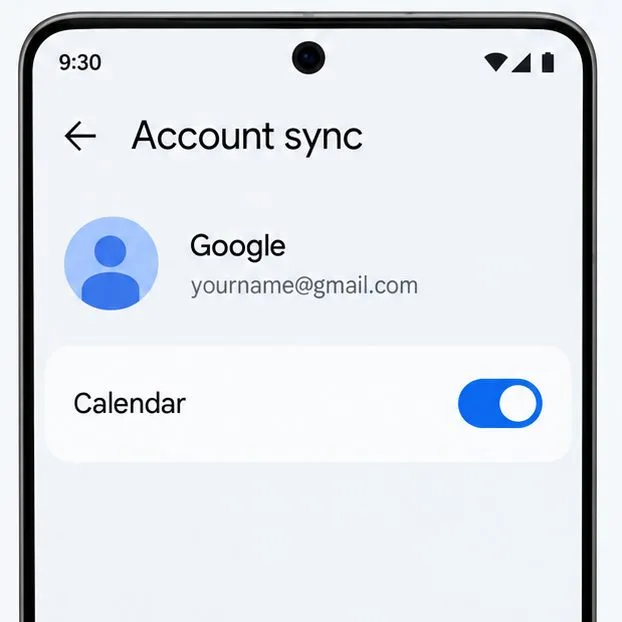
The Account sync illustration shows the Calendar switch for a Google account; account and menu labels may differ by Android version.
5. Could the app simply be behind?
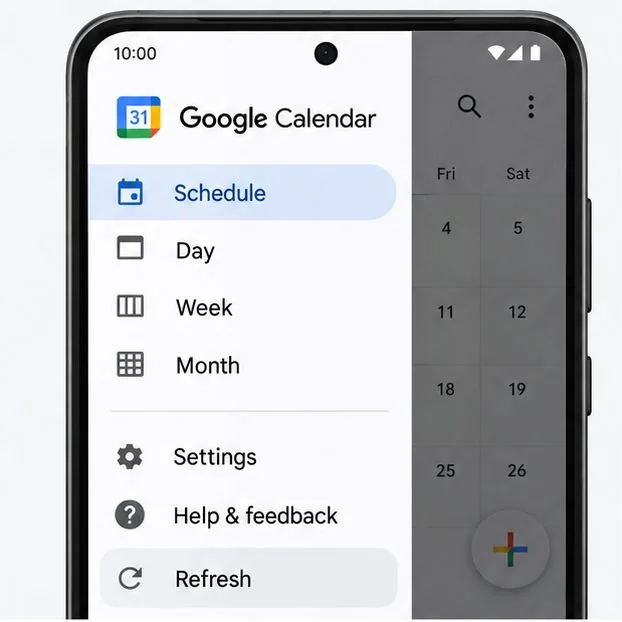
If the website shows the correct event but the phone app does not, verify that Wi-Fi or mobile data is working, check the account’s Calendar sync setting, and then refresh the app. Google’s current Android help describes the account path as Settings > Passwords, passkeys & accounts > Google Account > Account sync, though some phones use different labels. In the Calendar app, its documented manual refresh is Menu > Refresh. A calendar’s own Sync option may be available in that calendar’s settings; Google says it appears for calendars you create, not the primary calendar.
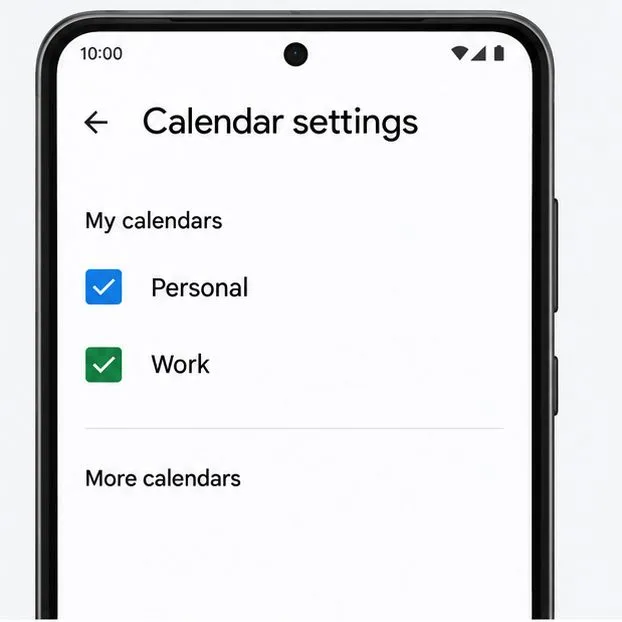
The Calendar menu illustration points to Refresh, the quick sync check to try before clearing app data.The calendar-list illustration shows two calendars checked, a reminder to confirm the affected calendar is visible.
After enabling sync, give the phone a little time to retrieve events. Also check available device storage: Google notes that Calendar can stop syncing when the phone runs out of space. Follow Google’s Calendar sync troubleshooting steps if the web and app still disagree.
6. Have you updated the app and restarted the phone?
Update Google Calendar from the app store available on your phone, then restart the device and compare the same event again. Android update routes vary by manufacturer, so use your phone’s Settings search for software updates if needed. This is a reasonable check when the issue began after a system update or the app has not refreshed, but it will not correct a deliberately selected fixed time zone or a meeting whose source time is wrong.
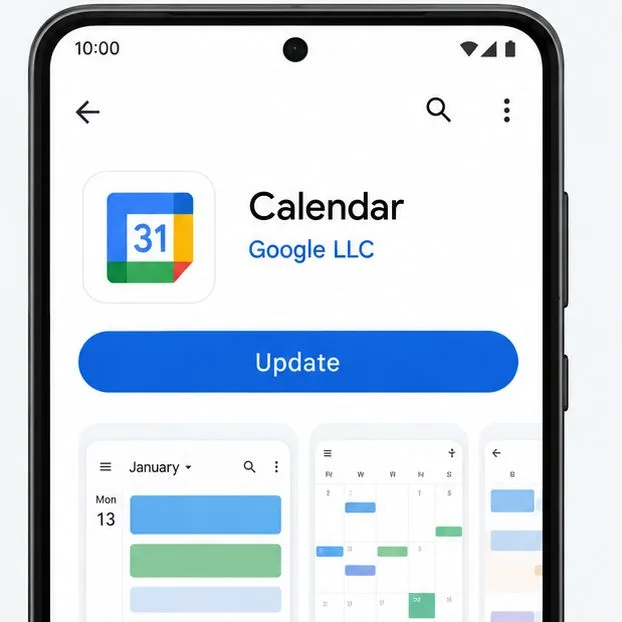
The app-store illustration shows the Calendar listing with an Update button; update availability depends on the device and account.
7. When is clearing cache or storage reasonable?
Consider clearing the app cache only after the checks above. Cache means temporary app files; Android says clearing it deletes temporary data and an app may load more slowly the next time. The exact storage menus differ by phone. Do not treat Clear storage as the same action: Android describes it as permanently deleting app data. Google’s Calendar troubleshooting page specifically warns that clearing Calendar data can lose unsynced event information and advises trying it only if other steps fail. Before doing that, open calendar.google.com and verify that important events are present in the correct account; record any local-only items you cannot find there.
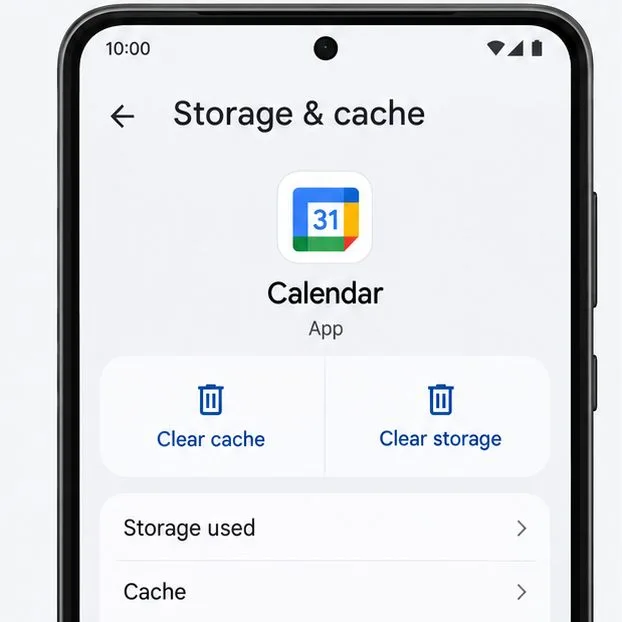
The Storage & cache illustration separates Clear cache from Clear storage; the latter can remove unsynced app data.
Usually, no—not for a Calendar time-zone mismatch by itself. A factory reset erases phone data and removes apps and their data; Android recommends backing up before doing one. It is disproportionate when the clock is correct and only Calendar’s display setting or a single event needs attention. Consider a reset only after device-maker or Google support recommends it for a broader phone problem, and only after confirming backups and account access. Android’s factory-reset preparation guide explains the consequences.
Practical order: confirm the phone clock and zone, check Calendar’s device-time-zone choice, inspect the affected event, confirm the correct account and calendar, refresh sync, update and restart, and only then consider cache or app-data steps. If several devices and the web all show the same incorrect event time, ask the organizer to verify the original invitation before changing your phone.